
Getting started
Nok Snap is the Nok app for the warehouse floor. It runs on iPad and iPhone, and it’s how workers receive returned packages, grade units and print labels. For a quick overview first, watch the video. These guides have the step-by-step detail.
The people, products and warehouses in these screenshots are made up. They show an iPad held upright, which is how Nok Snap is designed to be used. On an iPhone the same screens are narrower, and some buttons show only an icon.
The tabs
| Tab | What it’s for |
|---|---|
| Receive | Open returned packages and record what’s inside |
| Grade | Inspect a unit and give it a grade |
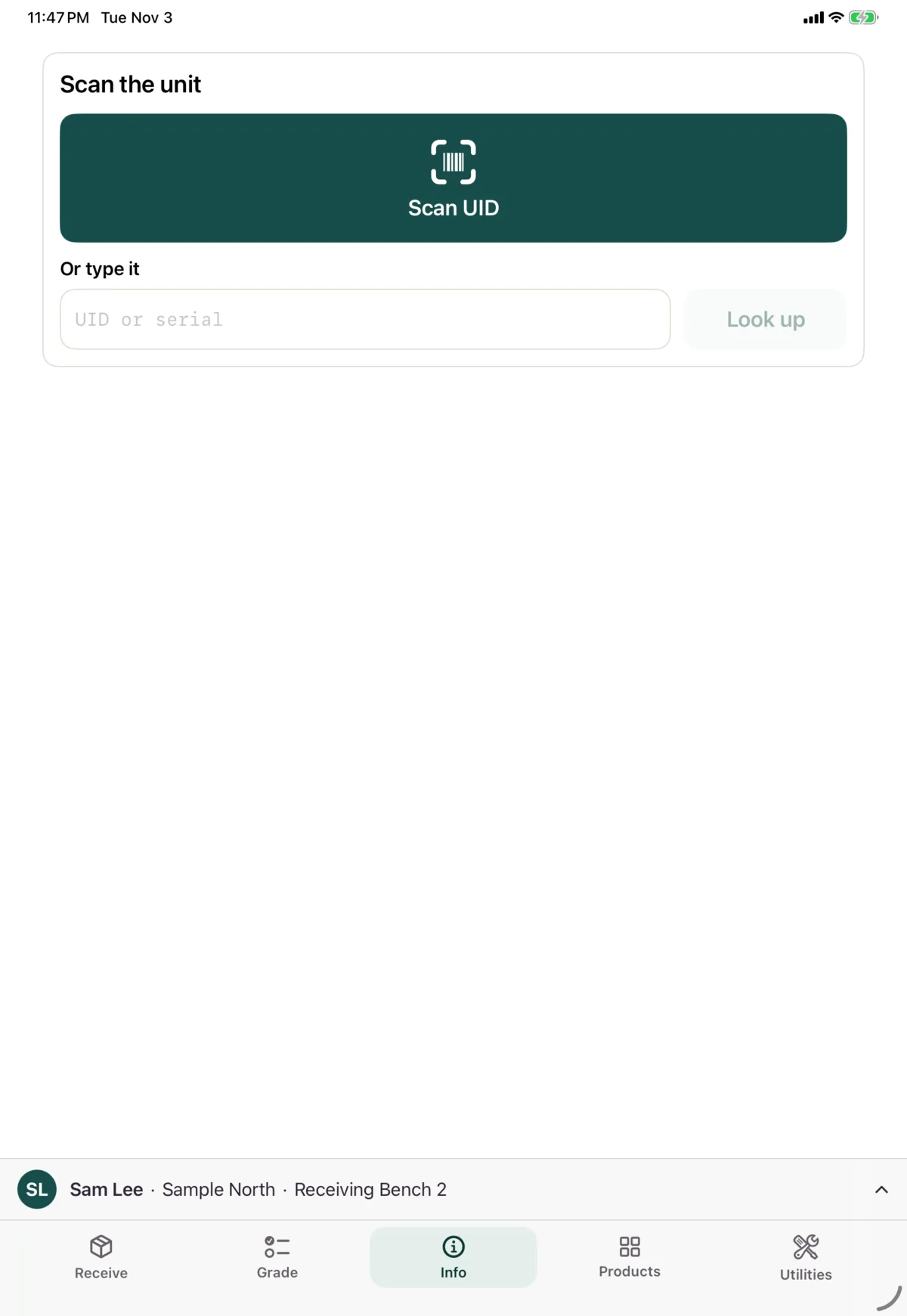
| Info | Scan a unit to see everything about it and print its labels |
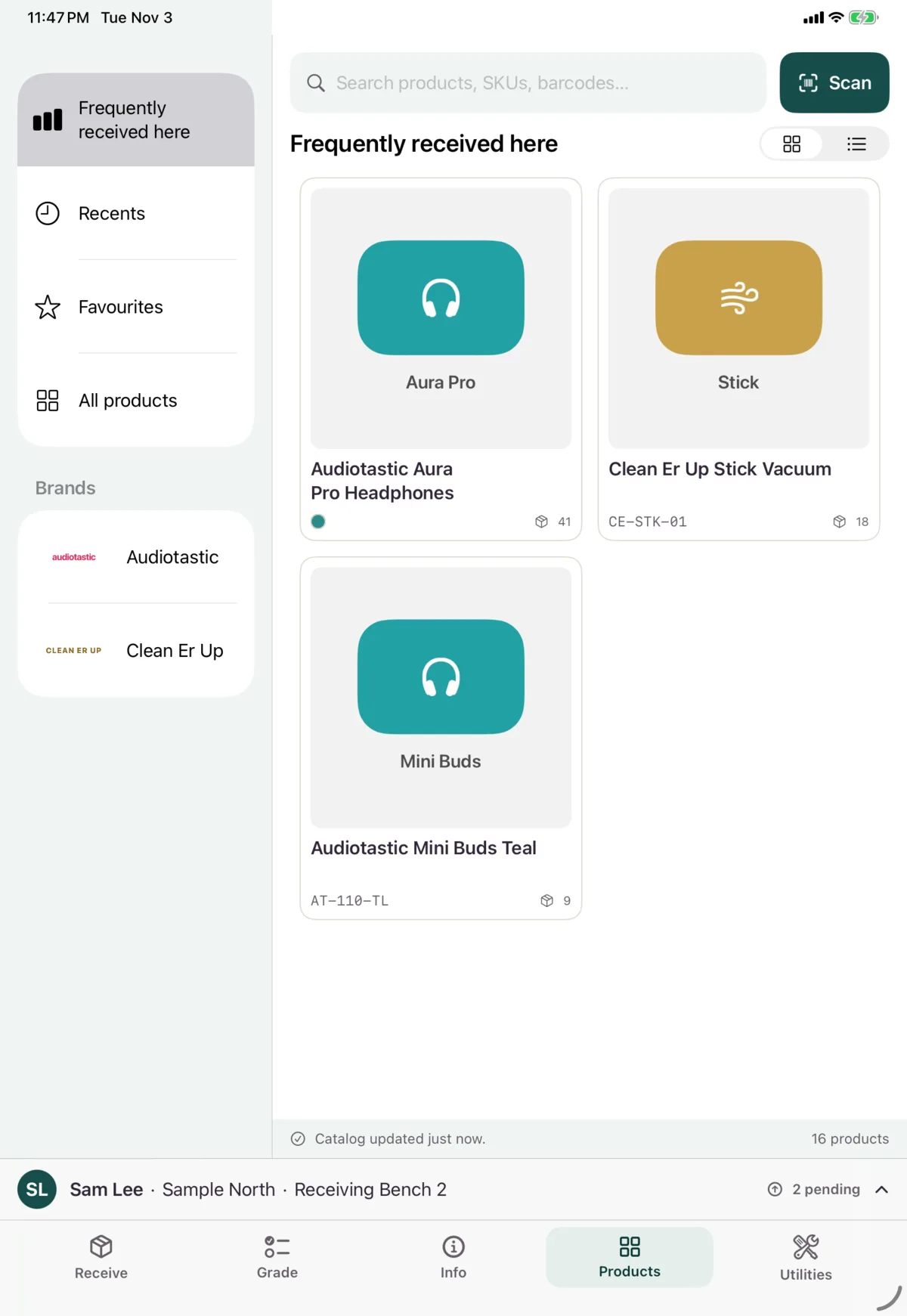
| Products | Find any product by brand, name, SKU or barcode |
| Utilities | Look things up, print labels, and manage sessions, the printer and the device |
The app opens on Info each time you sign in.
What’s on every screen
The bar above the tabs shows who’s signed in, the warehouse and the device. Tap it to Lock the device or sign out.
It also shows work still on its way to Nok:
- N pending means Nok Snap is still sending that work. You don’t need to do anything.
- N need attention means Nok refused something, and it’s waiting for you. See Working offline.
The session bar at the top of Receive and Grade shows your session, with Pause and End.
The tab bar and the bar above it hide while the on-screen keyboard is open.
Words you’ll see
| Word | What it means |
|---|---|
| Package | The box that arrived, with its shipping label |
| RMA | The return’s number |
| Pre-advice | Advance notice of a return, sent before the package arrives |
| Blind receipt | A package received with no matching return |
| Item | One thing expected or found in a package |
| Unit | One physical product, with its own identity |
| UID | A unique ID on a label that Nok Snap prints, for units with no serial number |
| Initial evaluation | The first call on a unit’s condition when it’s received. It isn’t the grade |
| SOP | The standard operating procedure for grading a product |
Scanners
Every code can be scanned with the device’s camera, scanned with a Bluetooth or USB barcode scanner, or typed. No camera runs until you tap a button. See Scanning and photos.
Next: Set up a device