
Printer setup
Nok Snap prints to a wireless label printer, such as a Rollo, over AirPrint. Each device keeps one printer. The printer needs to be on the same Wi-Fi as the device.
Choose a printer
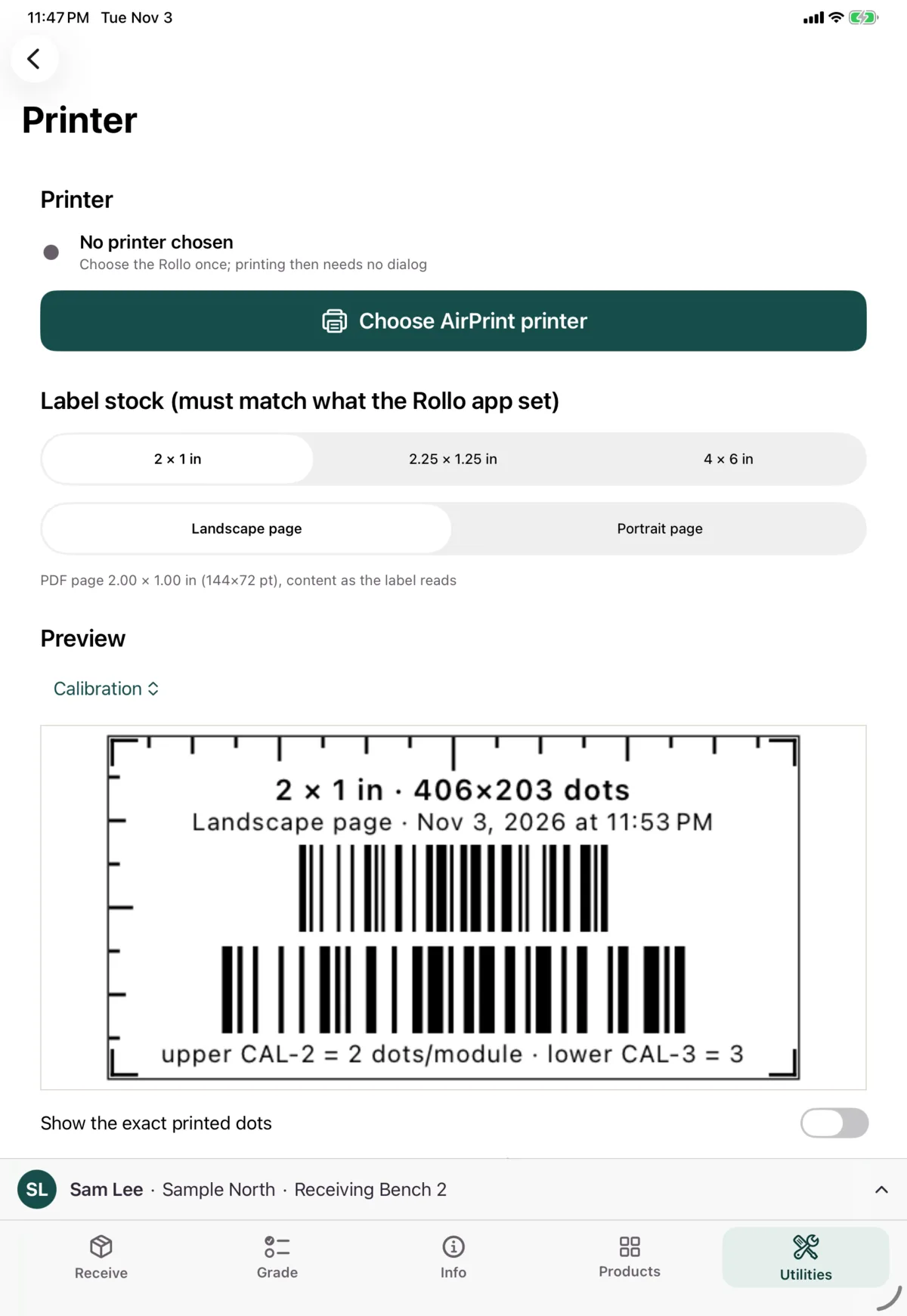
On any screen with a printer row, tap Choose printer or Change, or Choose AirPrint printer on the printing screens, then pick it from the list. After that, printing doesn’t ask again.
The printer’s status appears wherever you print. Check it’s on and on this Wi-Fi if it says it isn’t reachable.
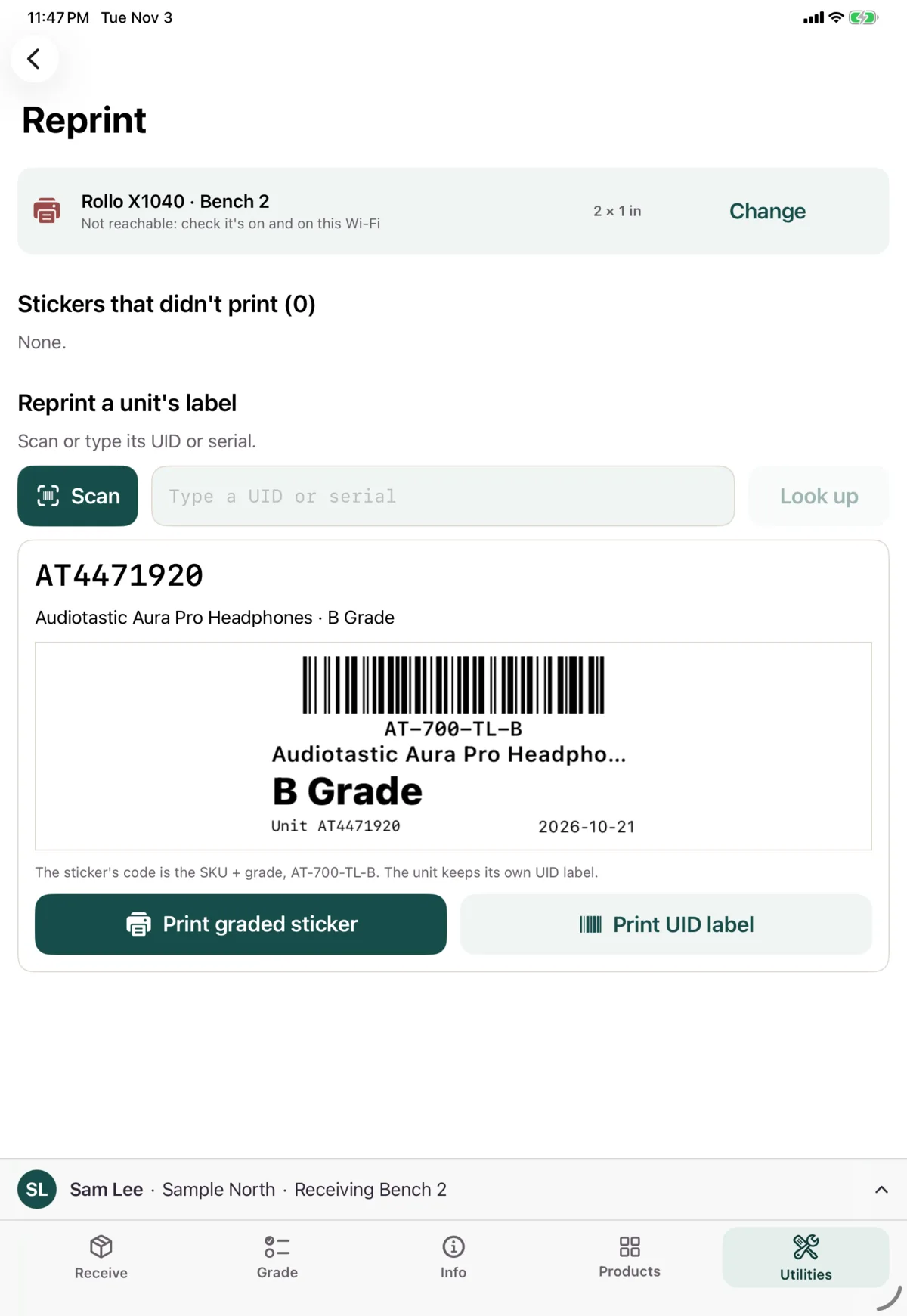
Set the label size
The printer screen is Utilities → Printer.
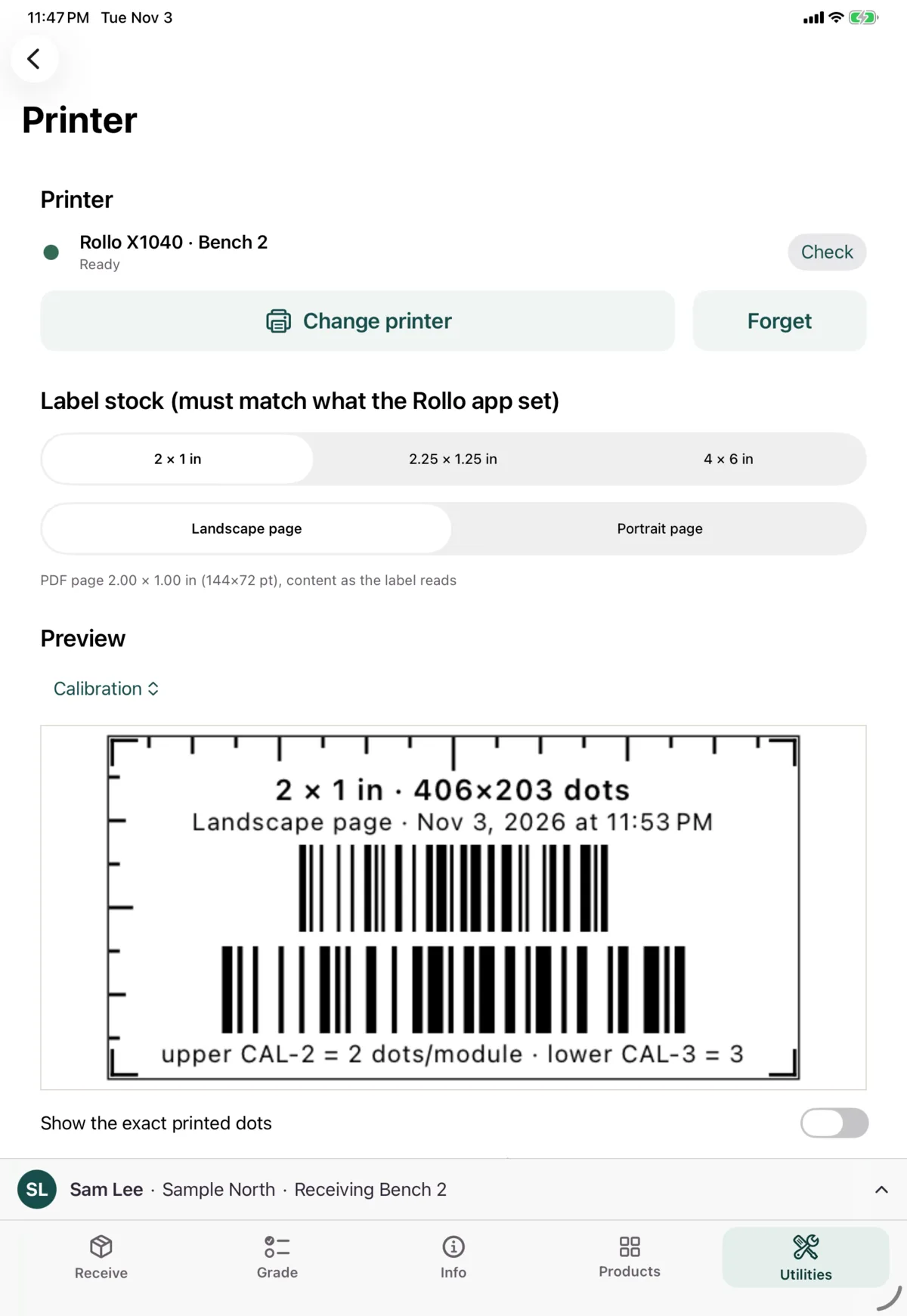
Under Label stock:
- Choose the label size: 2 × 1 in, 2.25 × 1.25 in or 4 × 6 in.
- Choose the page orientation. If jobs get stuck at “Preparing”, try the other one.
These must match what’s set in the printer’s own app, and they apply to everything you print from this device.
Test the printer
- Check asks the printer if it’s reachable
- Print calibration label prints a test label
- Forget removes the printer from this device, without asking first
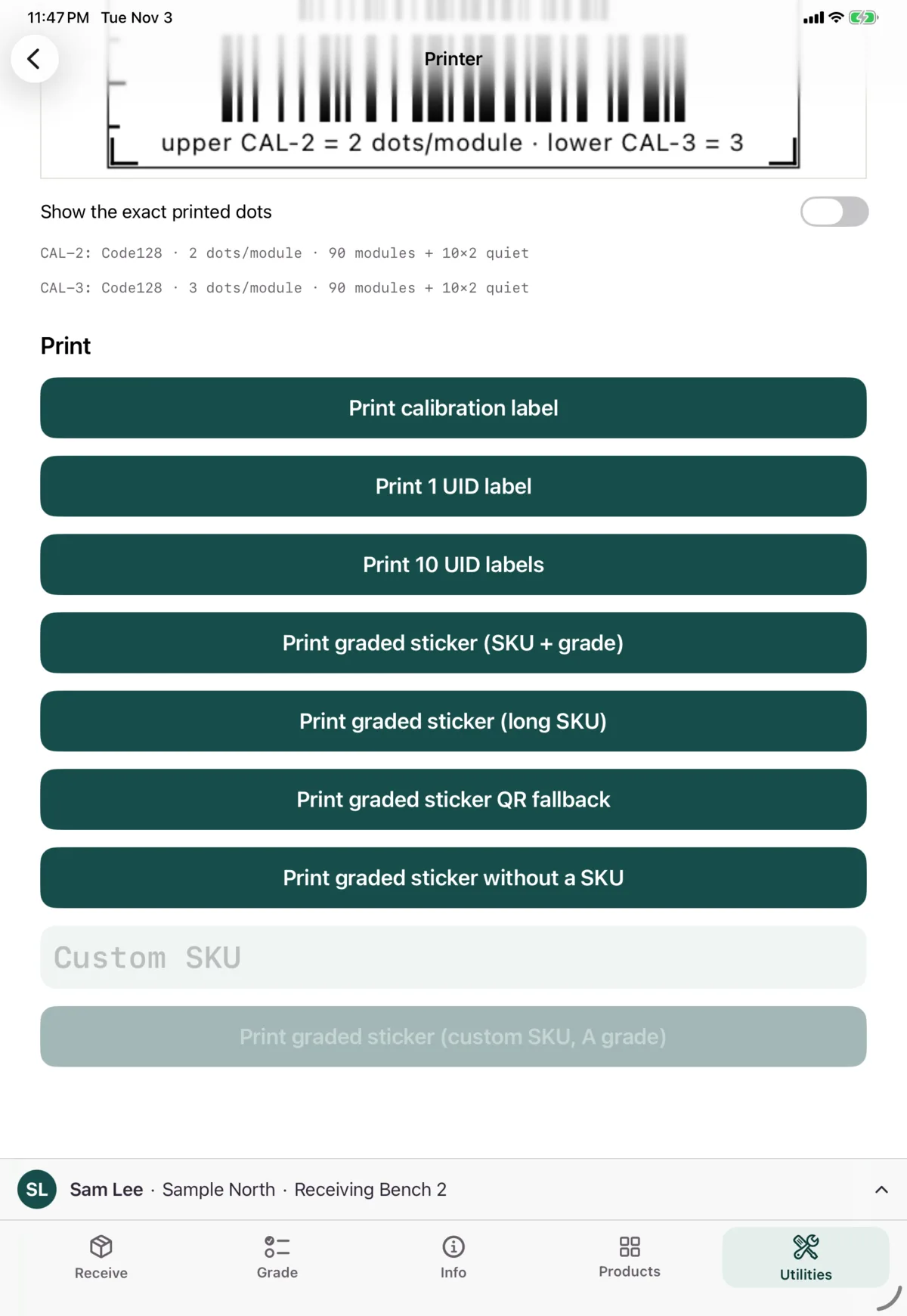
The other print buttons and the preview are test tools, which you don’t need day to day. Their labels use sample data.
If a print fails
Failed jobs say why. Most ask you to check the printer and try again. The printer didn’t confirm the job (it may still print: check before reprinting) means you should look at the printer first, so you don’t print it twice.
Next: Settings and Diagnostics