
Scanning and photos
No camera runs until you tap a button. In these screenshots the camera view is a placeholder, and on a device you’ll see the live camera.
Scanning with the camera
Tap a Scan button and hold the code in view. It’s used as soon as it’s read.
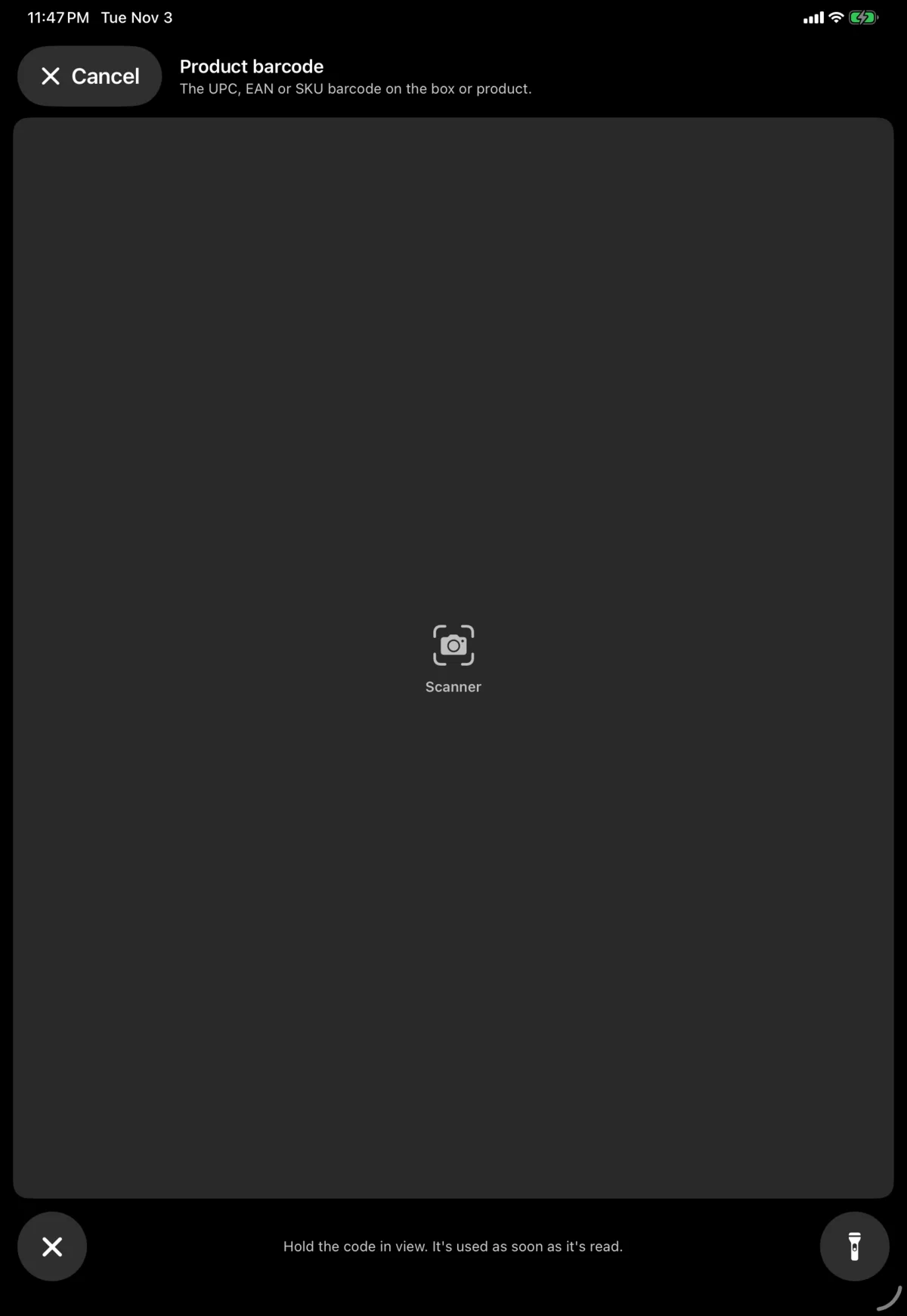
- If more than one code is in view, each is outlined and labelled. Tap the one you want
- The torch button turns on the light, on devices that have one
- Tap Cancel or the ✕ to close it, or swipe down
- Hints such as “Move closer” can be turned off in Settings
Using a barcode scanner
A Bluetooth or USB barcode scanner works on the scan screens without tapping anything, as long as no text field is selected. If a field is selected, the scan types into it.
Typing a code
Every scan has a field to type the code instead. If the camera isn’t available, the Scan button is hidden and you type.
Taking a photo
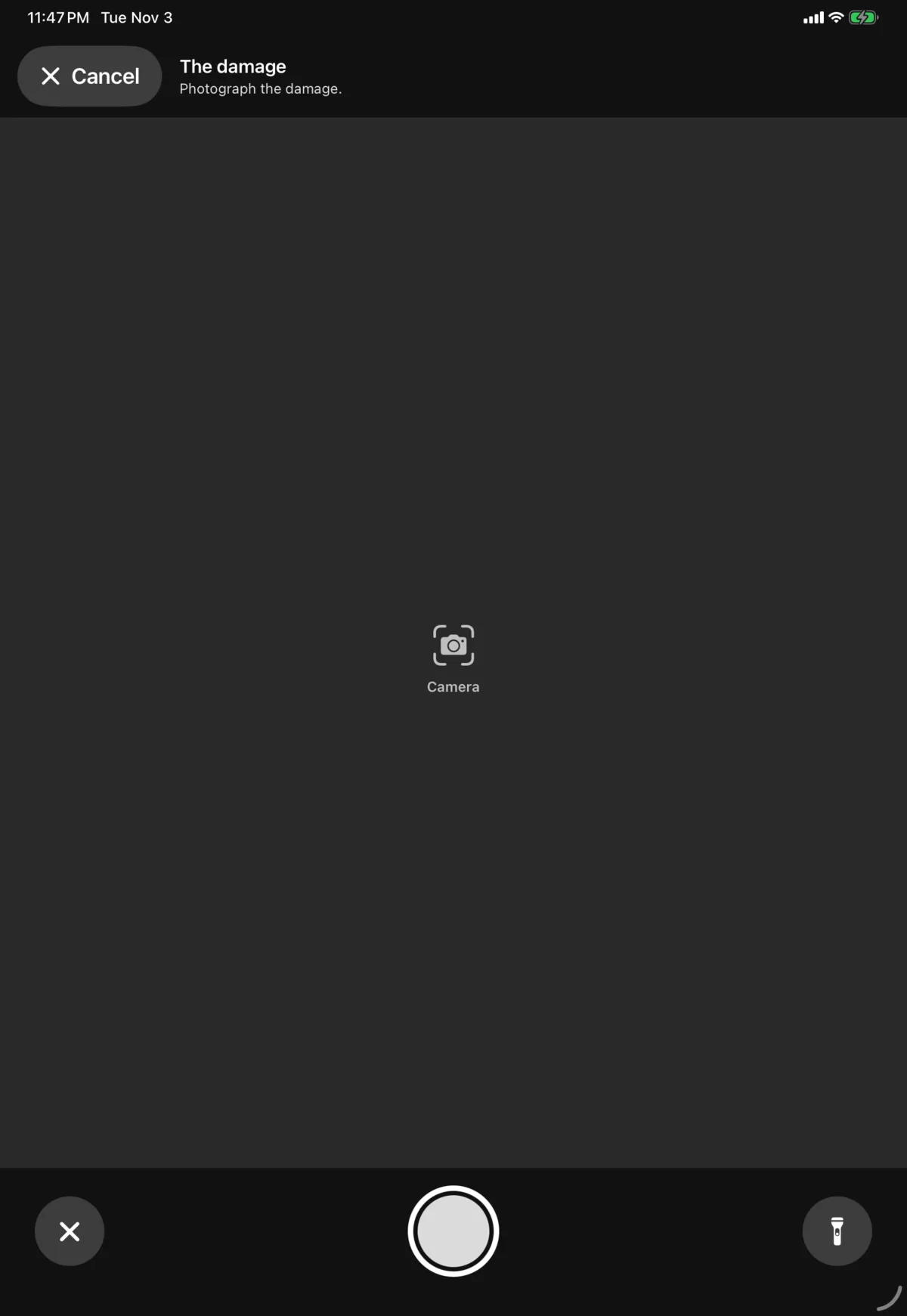
Tap a photo slot or Take photo, then use the shutter. Afterwards, check it’s readable and tap Use photo, or Retake.
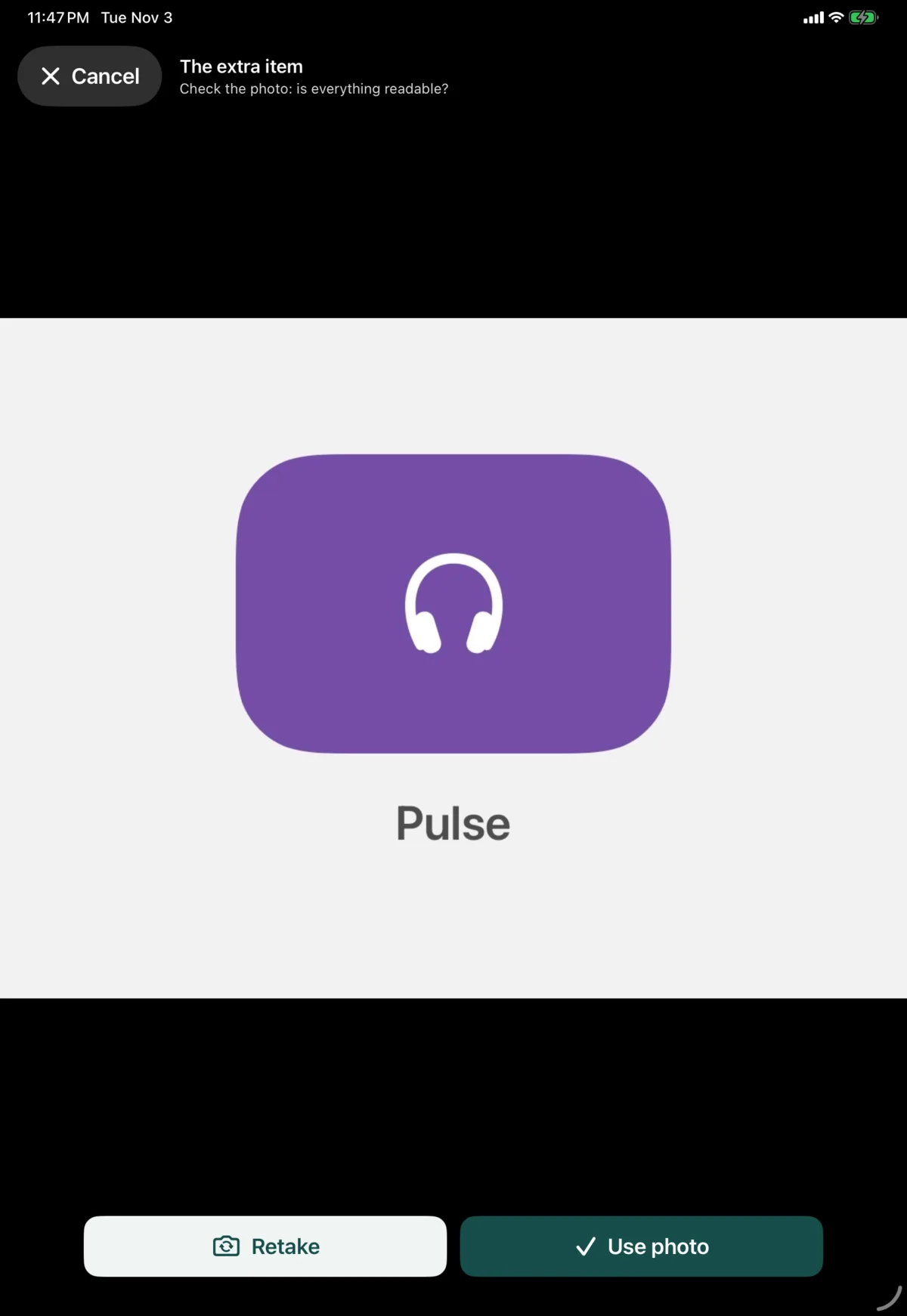
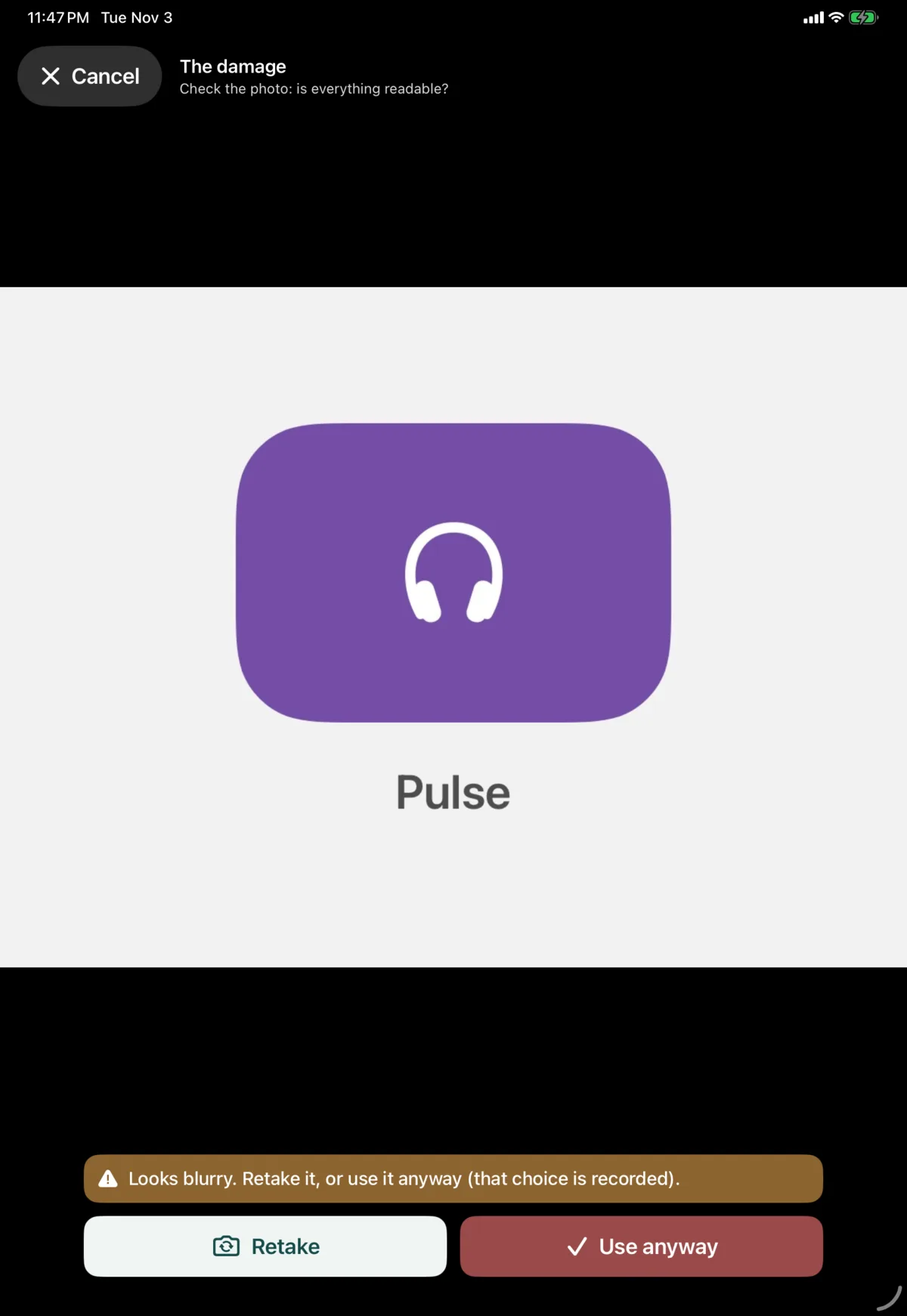
If a photo looks blurry or too dark, Nok Snap warns you. Retake it, or tap Use anyway. That choice is recorded.
To replace a photo you’ve taken, tap it and choose Retake. To remove it, choose Remove.
The flash is off by default. You can change it in Settings.
If camera access is off, turn it on in iOS Settings under Nok Snap. You can also choose a photo from the library.
Photos are saved on the device and upload in the background, so they’re safe if the Wi-Fi drops.