
Extras, missing items and issues
An item that isn’t on the RMA
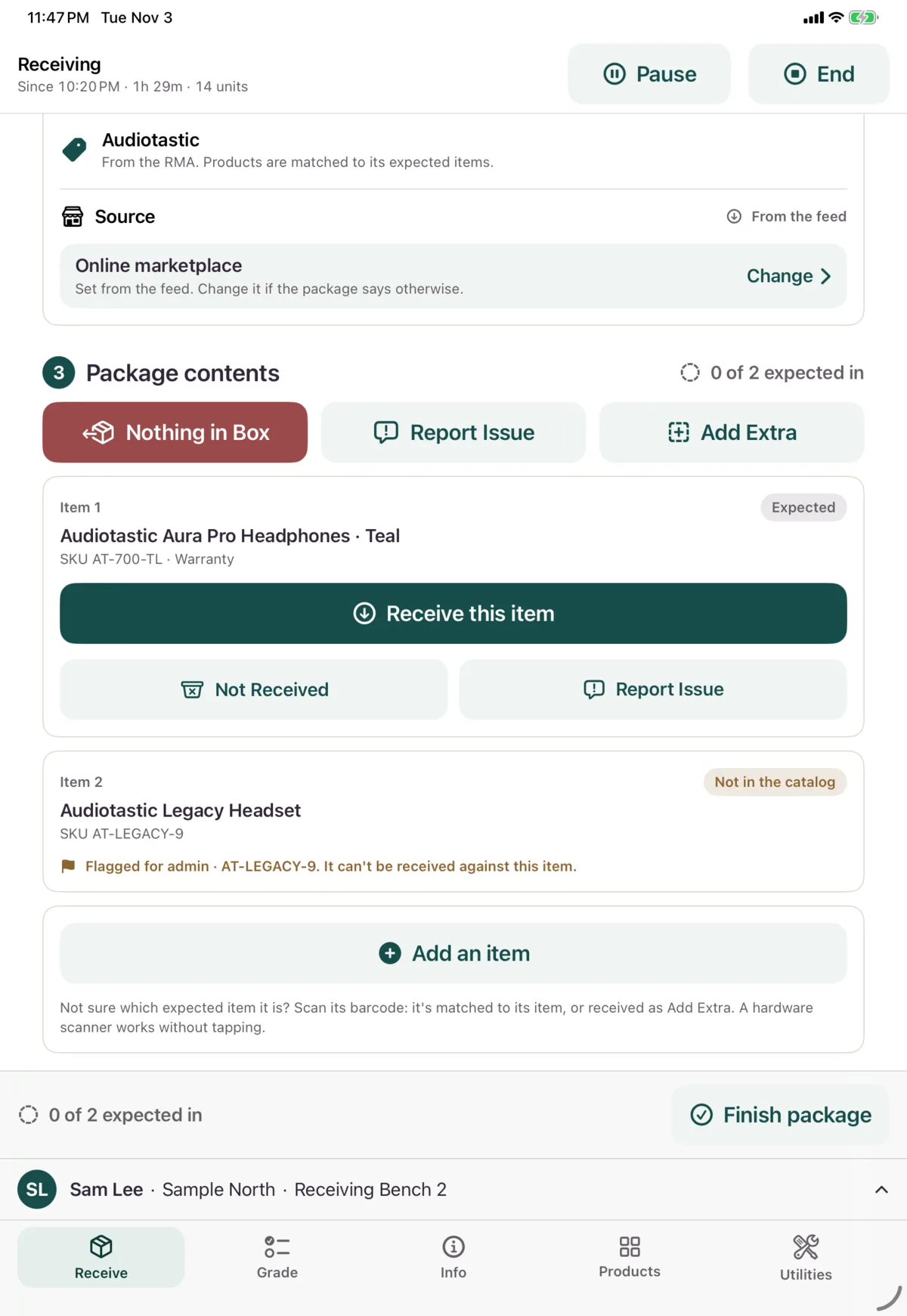
Tap Add Extra, or just scan the product. If it isn’t on this return, or its line is full, Nok Snap says so and asks you to confirm.
Then receive it like any other item. An extra item needs a photo.
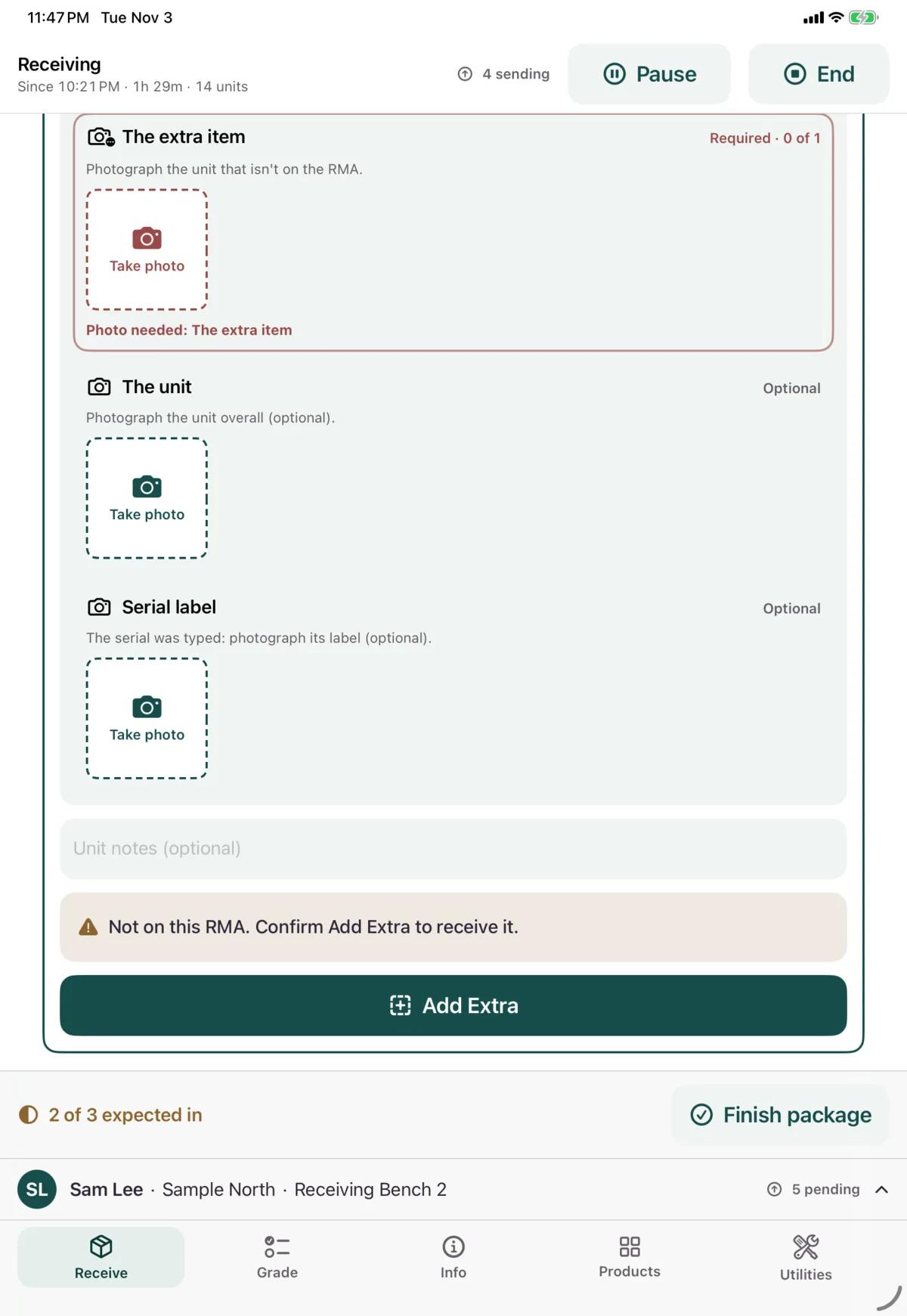
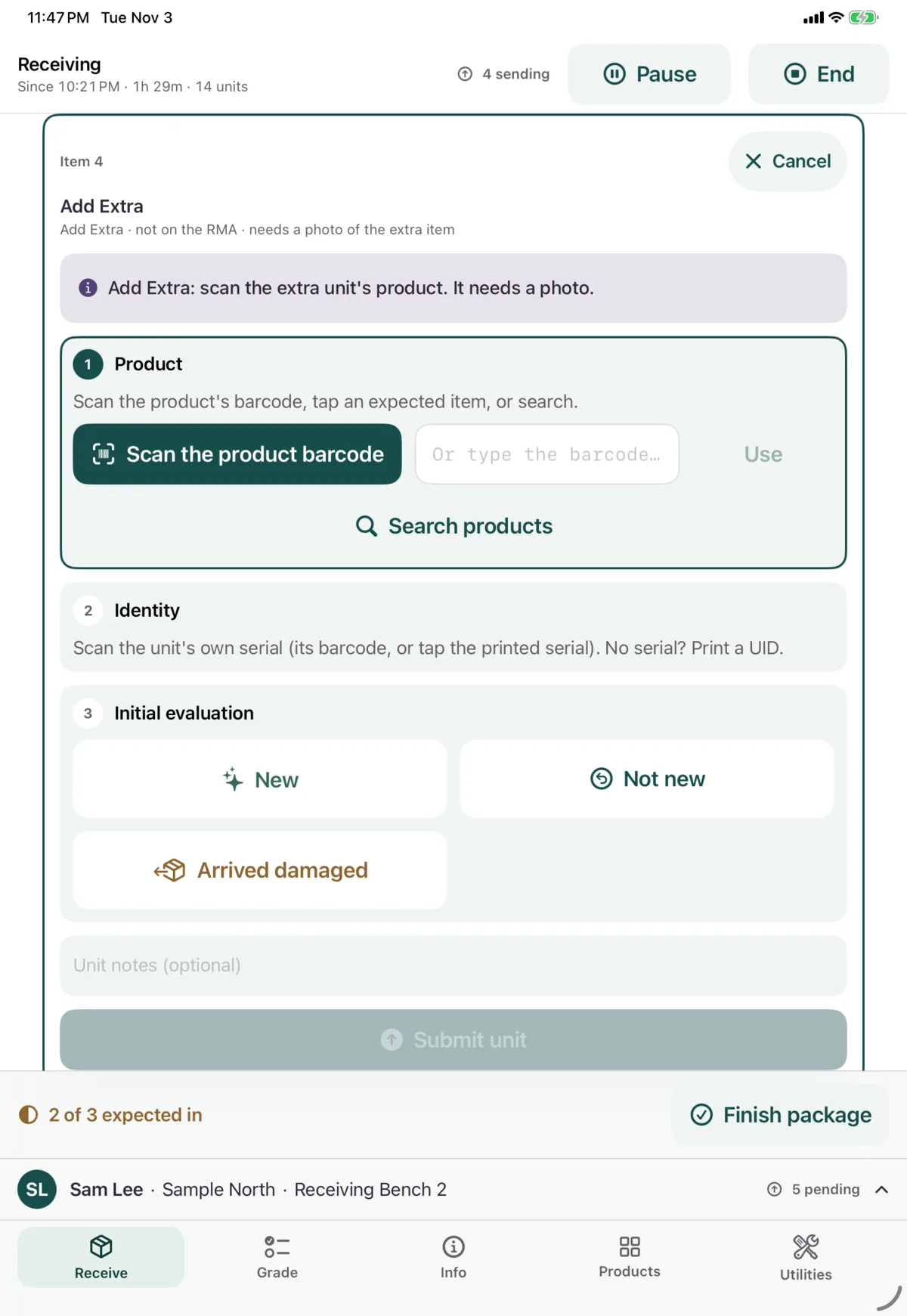
Add Extra is for matched returns. On a blind receipt, every unit is just its own item.
An expected item that isn’t there
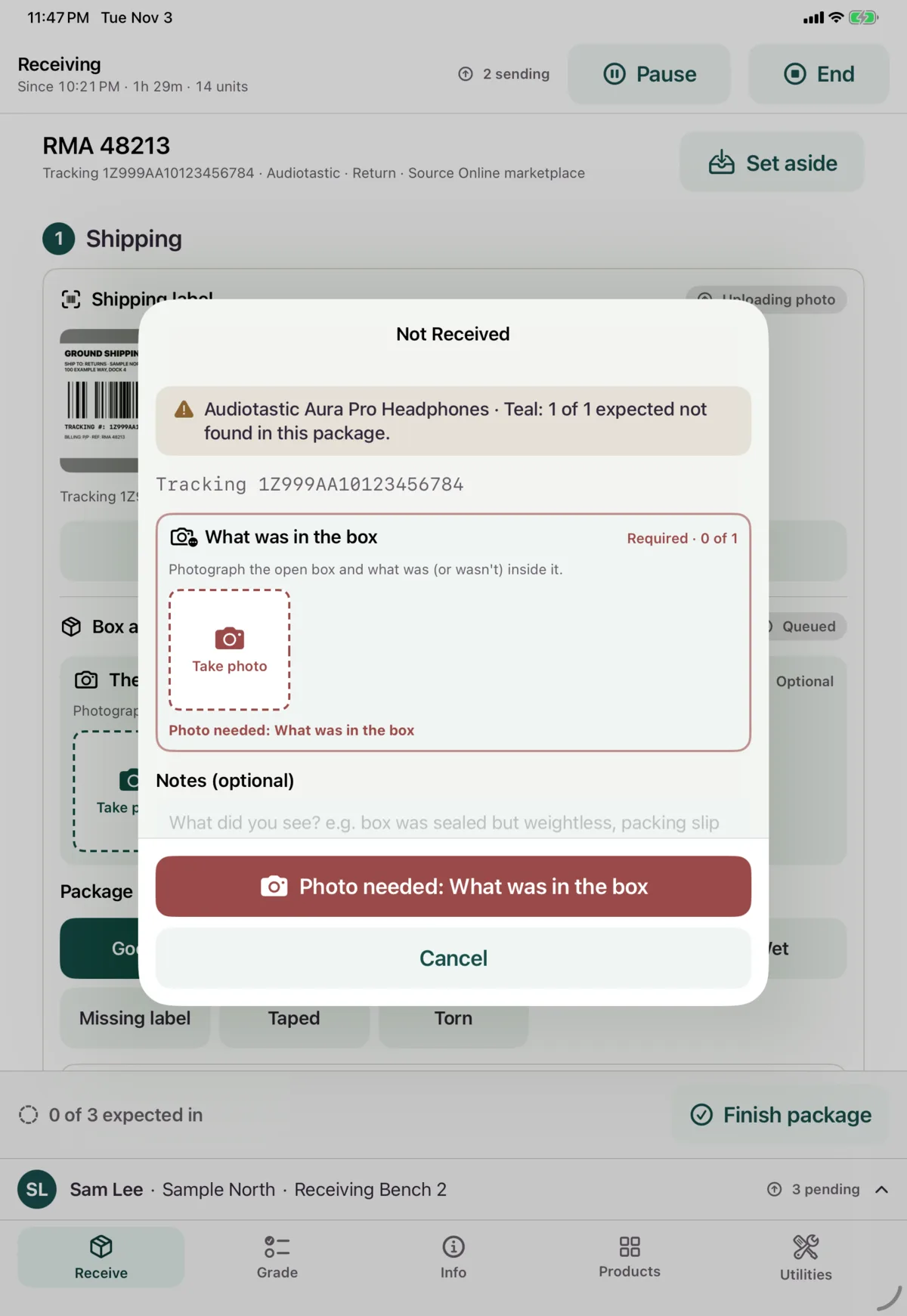
Tap Not Received on the item, take a photo of what was in the box, and tap Confirm not received. If several units of that line are missing, the button shows how many.
The item then shows Not Received.
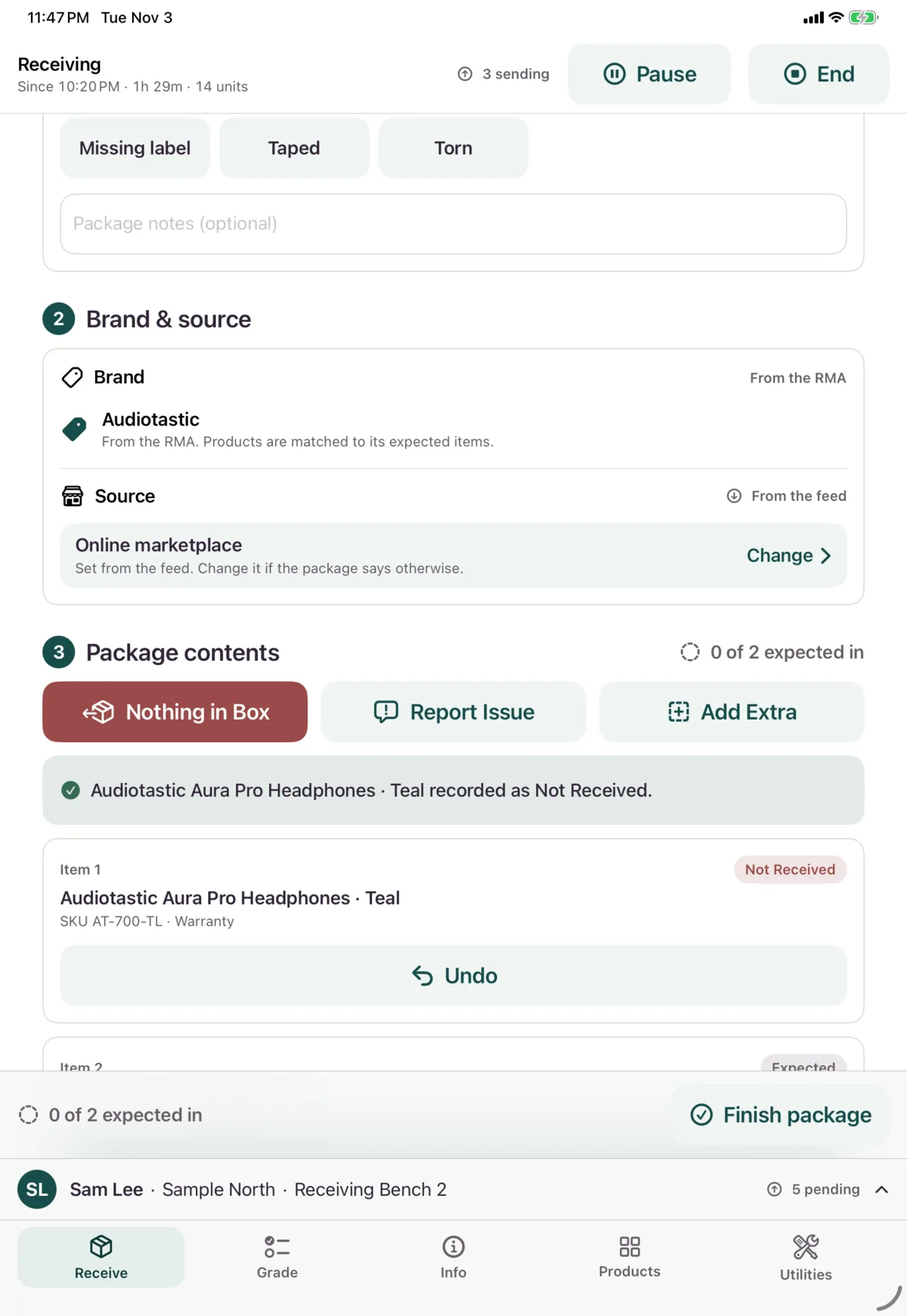
Marked one by mistake? Tap Undo on the item and it’s expected again. This works while the package is open. If you’ve finished the package, Undo the package instead.
An expected item that isn’t in the catalog
The item says Not in the catalog and is flagged for an admin. You can’t receive against it. When you finish the package, use Finish Short.
Report an issue
Tap Report Issue for the whole package, on an expected item, or on a received unit. It records the problem, and doesn’t close the package.
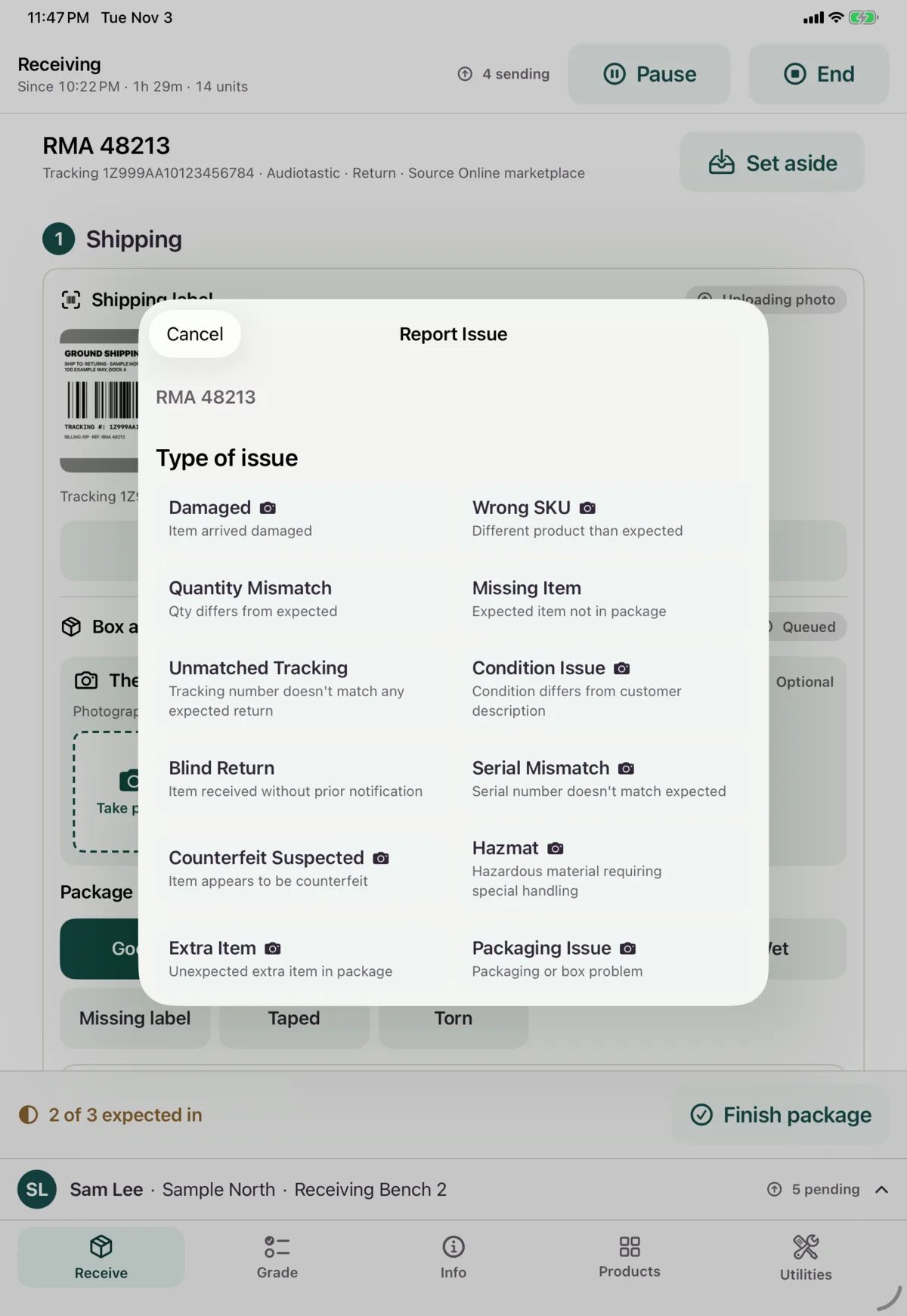
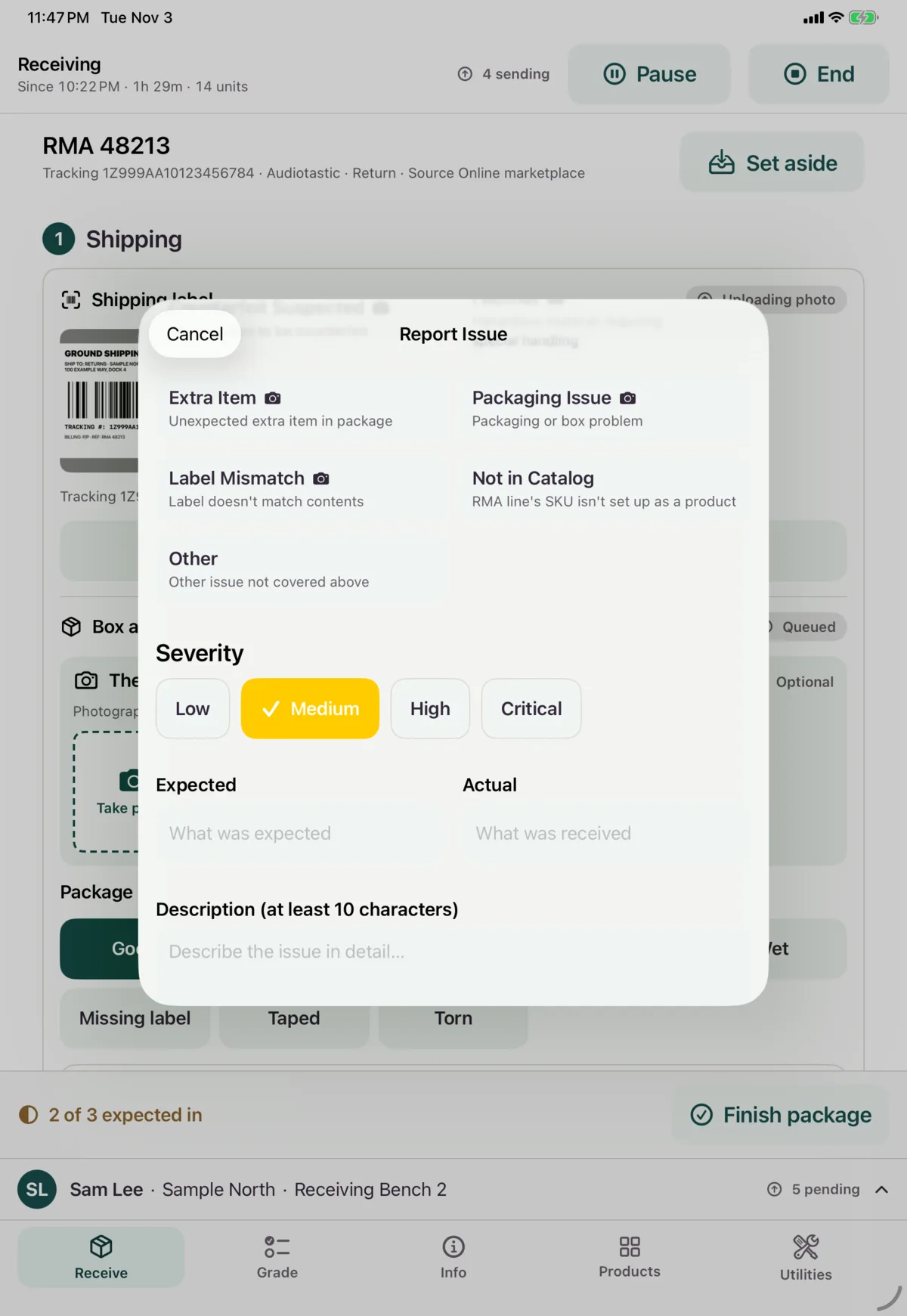
- Choose the Type of issue.
- Choose the Severity: Low, Medium, High or Critical.
- Fill in expected and actual, if it asks.
- Write a Description of at least 10 characters.
- Add a photo, if it asks.
- Tap Record issue.
| Type | Use it when | Photo |
|---|---|---|
| Damaged | The item arrived damaged | Required |
| Wrong SKU | It’s a different product than expected | Required |
| Quantity Mismatch | The quantity differs from expected | Optional |
| Missing Item | An expected item isn’t in the package | Optional |
| Unmatched Tracking | The tracking number doesn’t match any expected return | Optional |
| Condition Issue | The condition differs from the customer’s description | Required |
| Blind Return | The item came without prior notification | Optional |
| Serial Mismatch | The serial number doesn’t match what’s expected | Required |
| Counterfeit Suspected | The item appears to be counterfeit | Required |
| Hazmat | It’s hazardous material that needs special handling | Required |
| Extra Item | There’s an unexpected extra item in the package | Required |
| Packaging Issue | There’s a packaging or box problem | Required |
| Label Mismatch | The label doesn’t match the contents | Required |
| Not in Catalog | The RMA line’s SKU isn’t set up as a product | Optional |
| Other | Anything else | Optional |
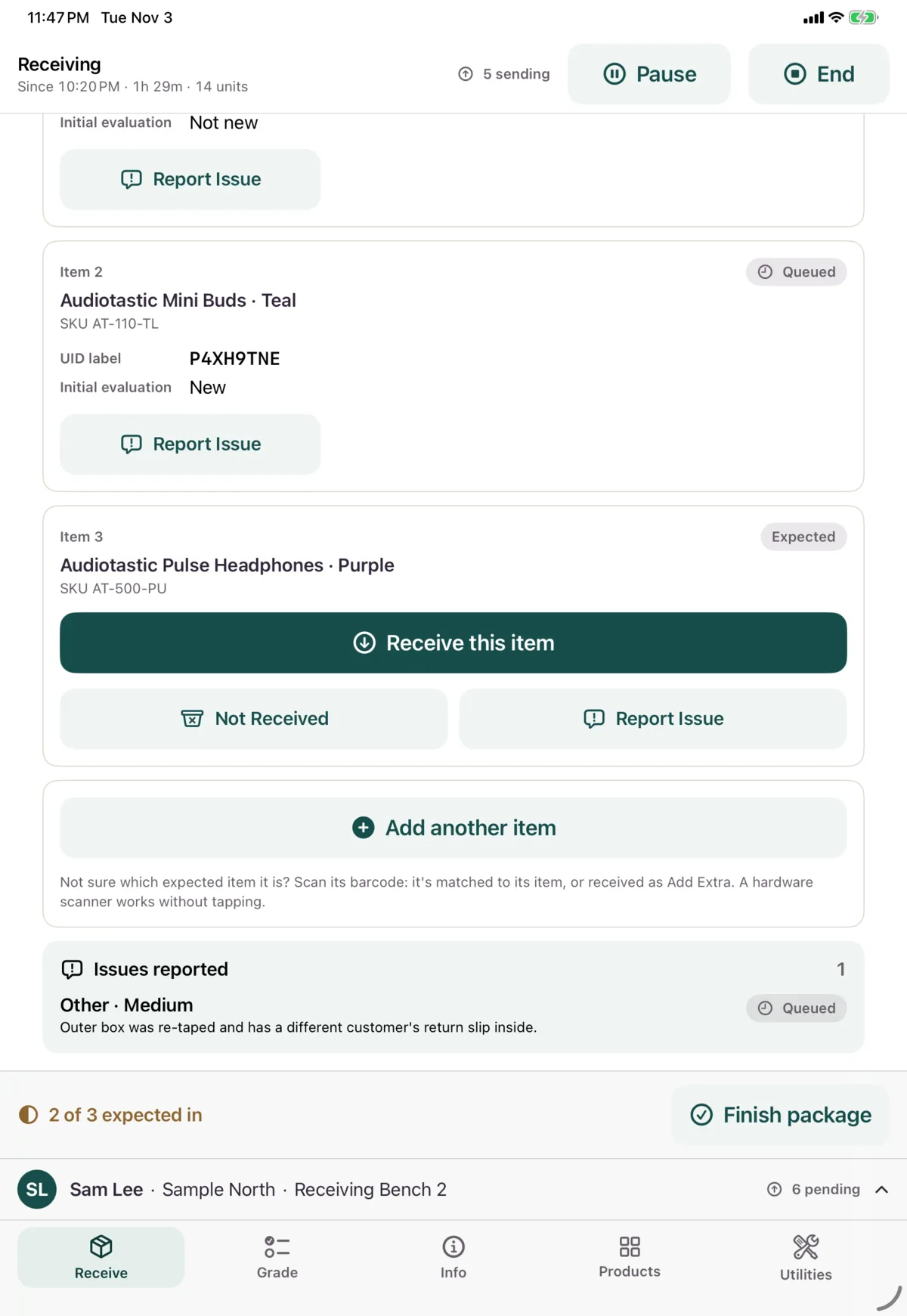
Reported issues are listed in the package’s contents.
Fixing mistakes
Once a unit has sent, you can fix its UID or serial, if you’re the one who received it. Open the package from Today’s packages and tap Fix UID or serial on the unit, then scan or type the right one. This needs a connection, and Nok keeps a record of the change.
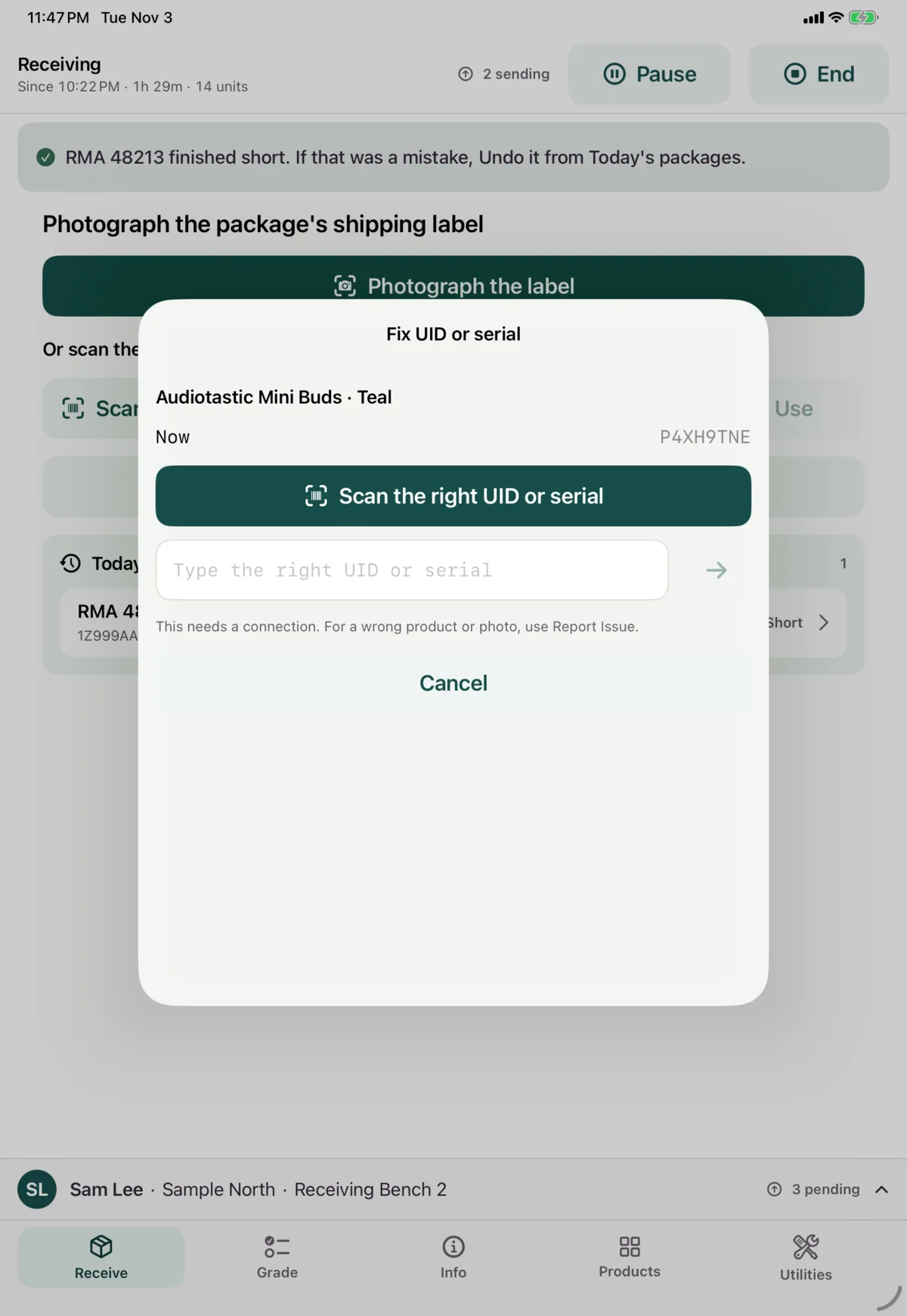
For anything else, use Report Issue on the unit and describe the problem, for example as a Wrong SKU.
| Mistake | How to fix it |
|---|---|
| Wrong product or identity, before submitting | Tap its clear button and redo it, or Cancel the item |
| Wrong UID or serial, after submitting | Fix UID or serial on the unit |
| Wrong product, after submitting | Report Issue on the unit |
| A bad photo, before submitting | Tap it and choose Retake |
| A bad photo, after submitting | Report Issue on the unit |
| Wrong package condition | Change it and tap Save changes |
| Wrong label photo | Retake |
| Wrong source | Change it |
| Finished short or empty by mistake | Undo |
Next: Finish a package