
The package screen
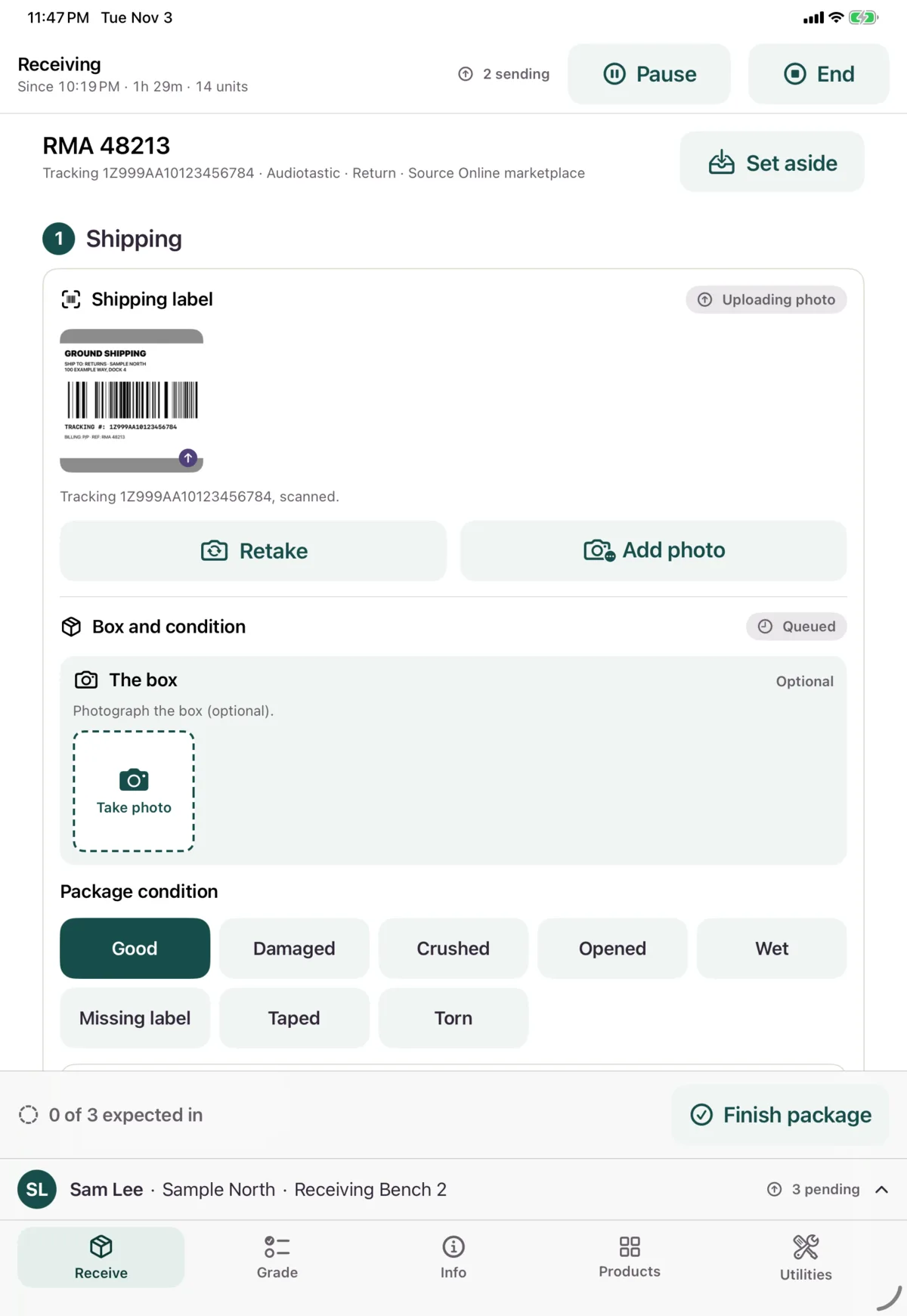
Once a package is open, its screen has numbered sections. Finish package stays at the bottom, showing how much is in, such as “2 of 3 expected in”.
1. Shipping
Shipping label
The photos you’ve taken of the label, and what was read from them. Retake replaces them, and Add photo adds another, up to 5.
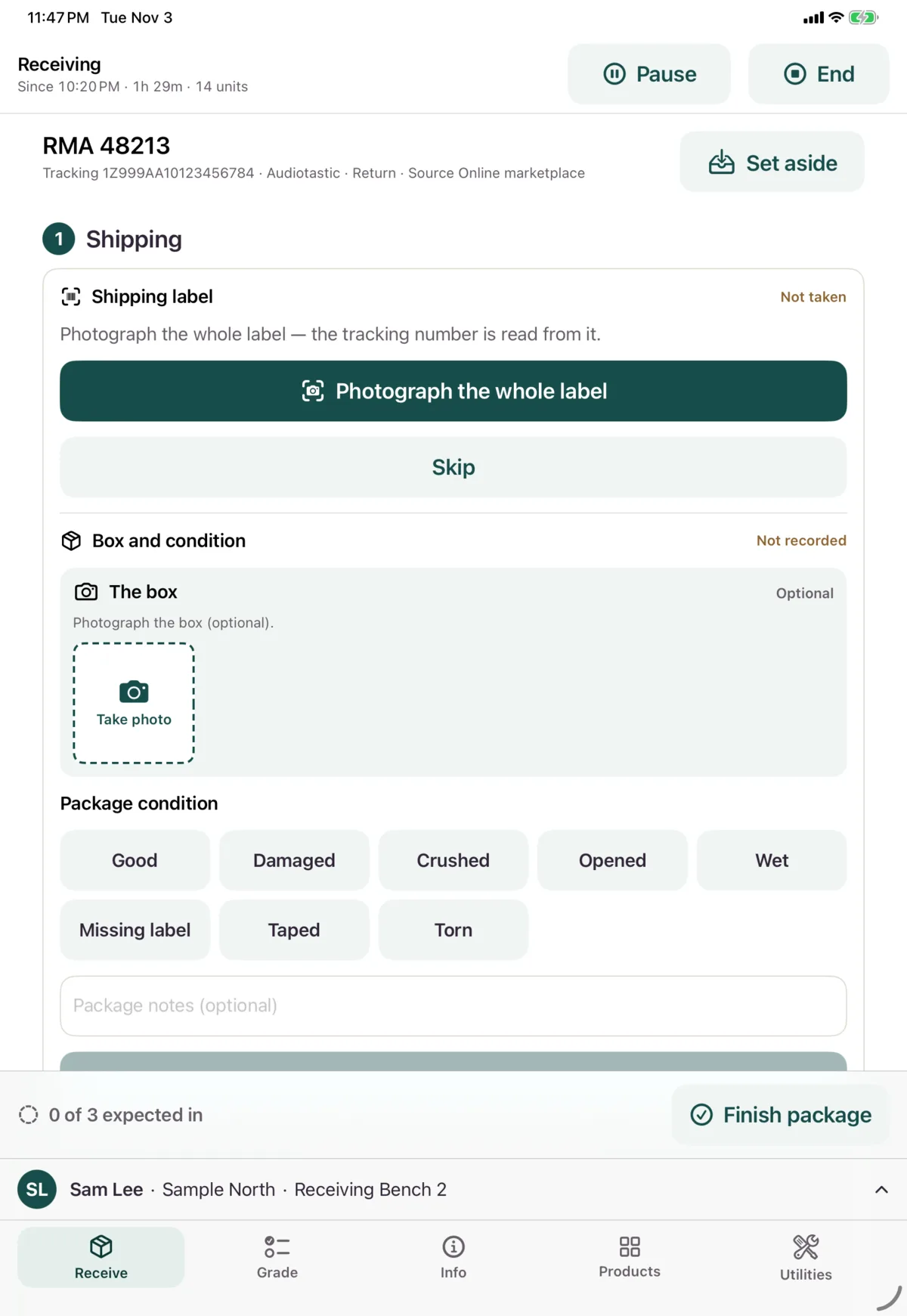
If you found the package by scanning or typing, you’ll be asked to Photograph the whole label. You can Skip it if the tracking number is known.
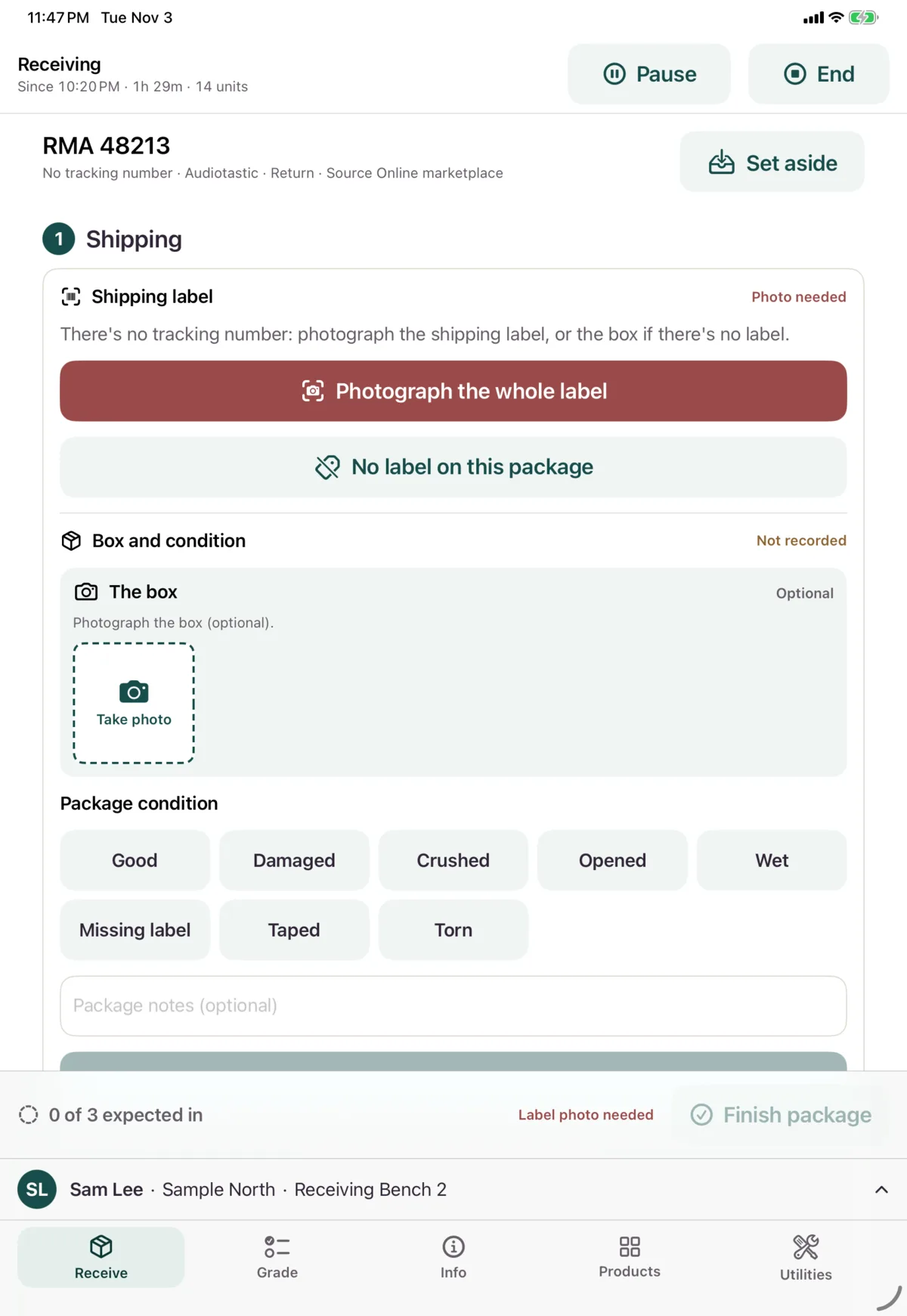
With no tracking number, the package can’t be finished until you’ve taken the label photo. If the box really has no label, tap No label on this package. That’s recorded, and Photograph it changes your mind.
Box and condition
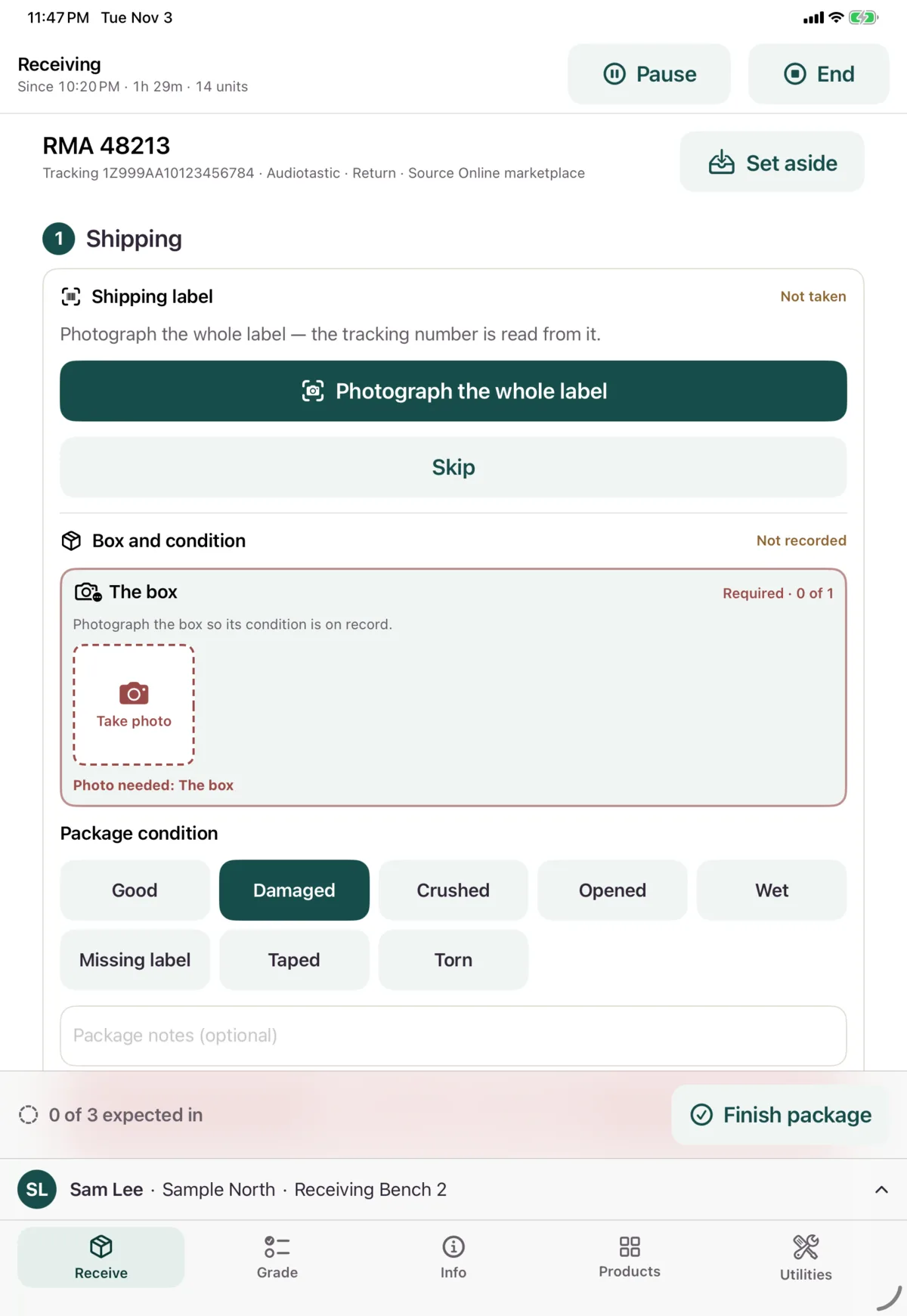
Choose the package’s condition: Good, Damaged, Crushed, Opened, Wet, Missing label, Taped or Torn. You can add notes. Then tap Save package condition.
A photo of the box is optional if it’s Good. For any other condition, the photo is required.
To correct it later, change it and tap Save changes.
2. Brand & source
Brand
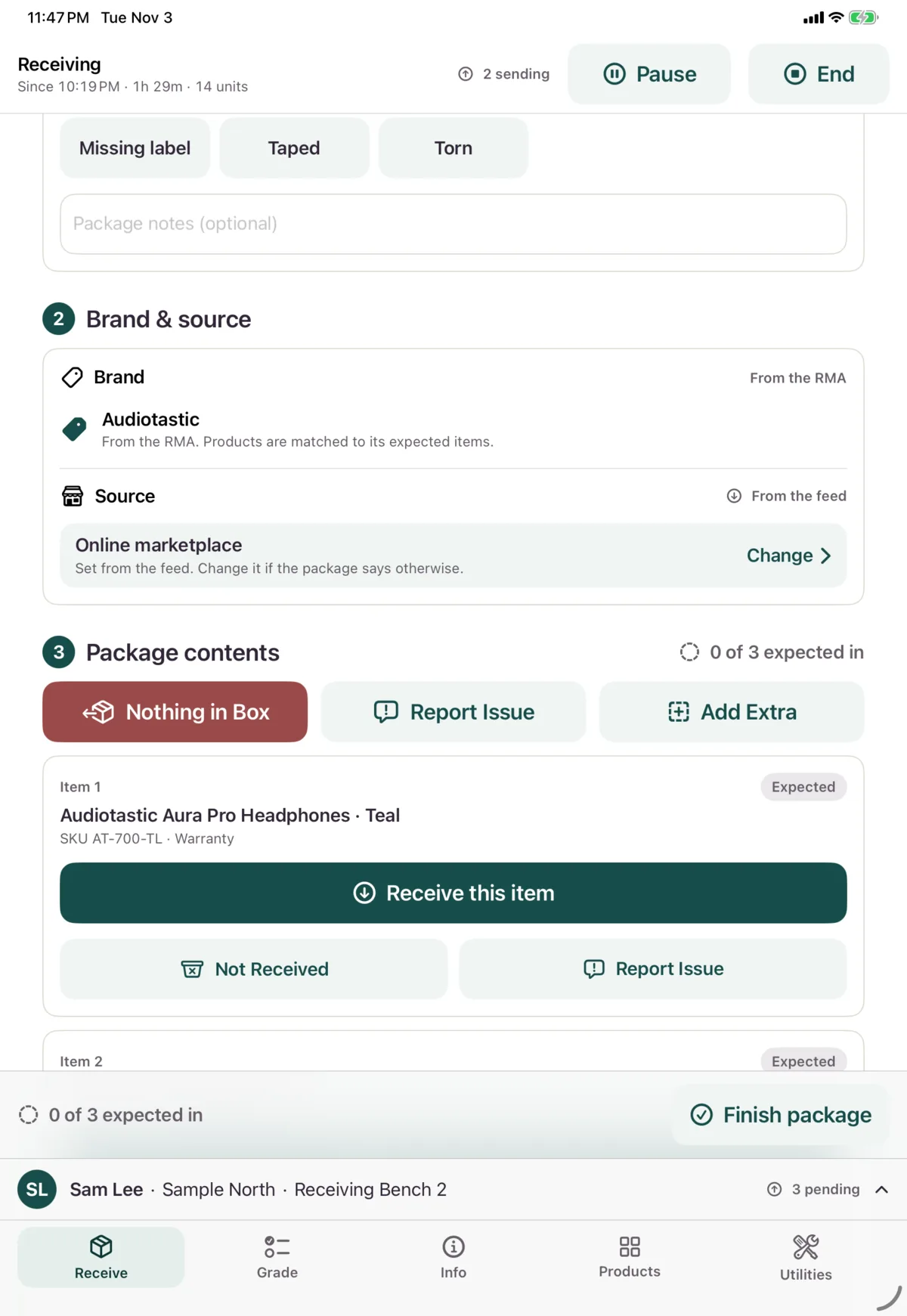
A matched return already has its brand, from the RMA.
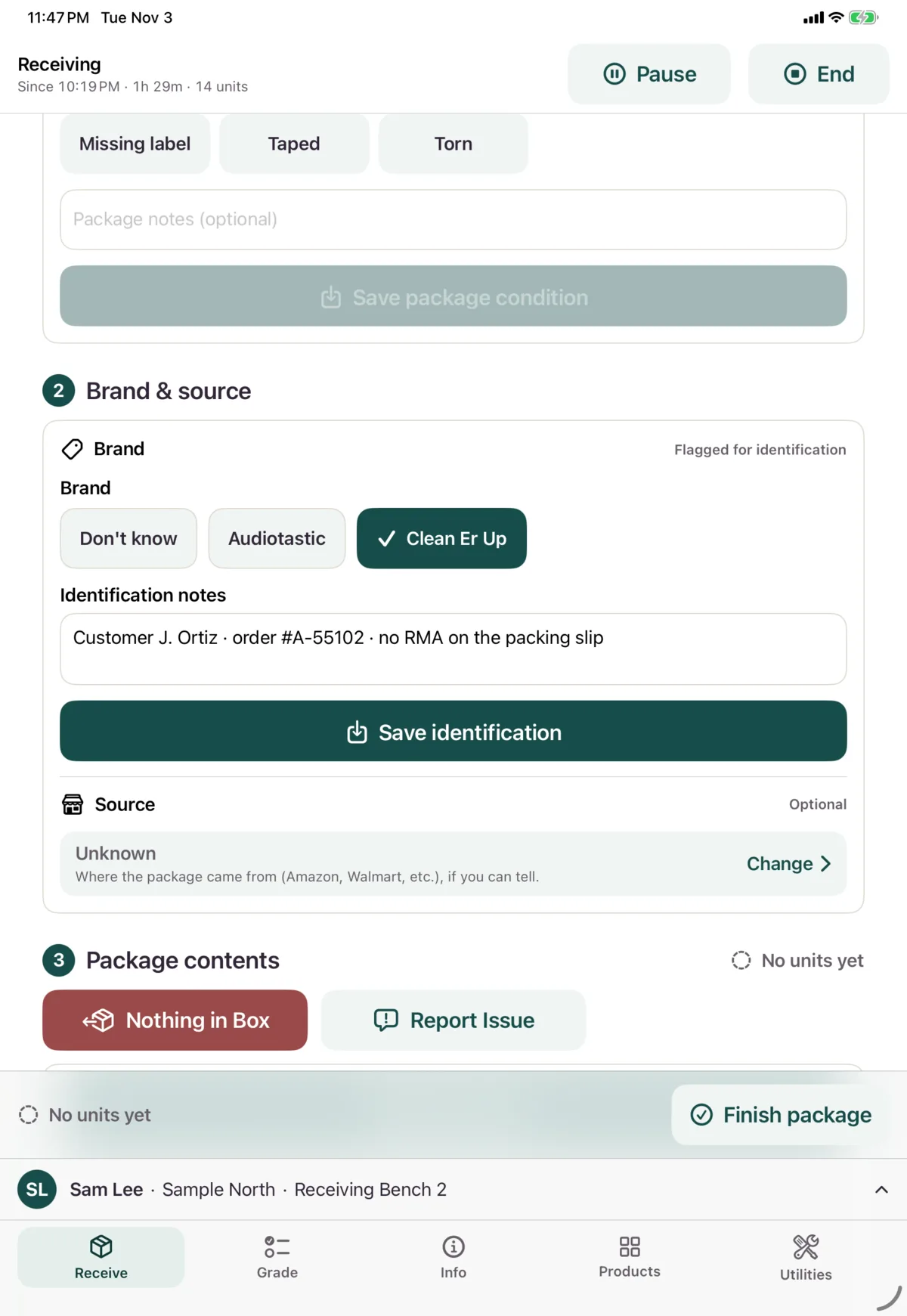
On a blind receipt, choose the brand once the box is open, or Don’t know. Add anything that helps identify it under Identification notes, such as a customer name, order number or RMA number. Then tap Save identification.
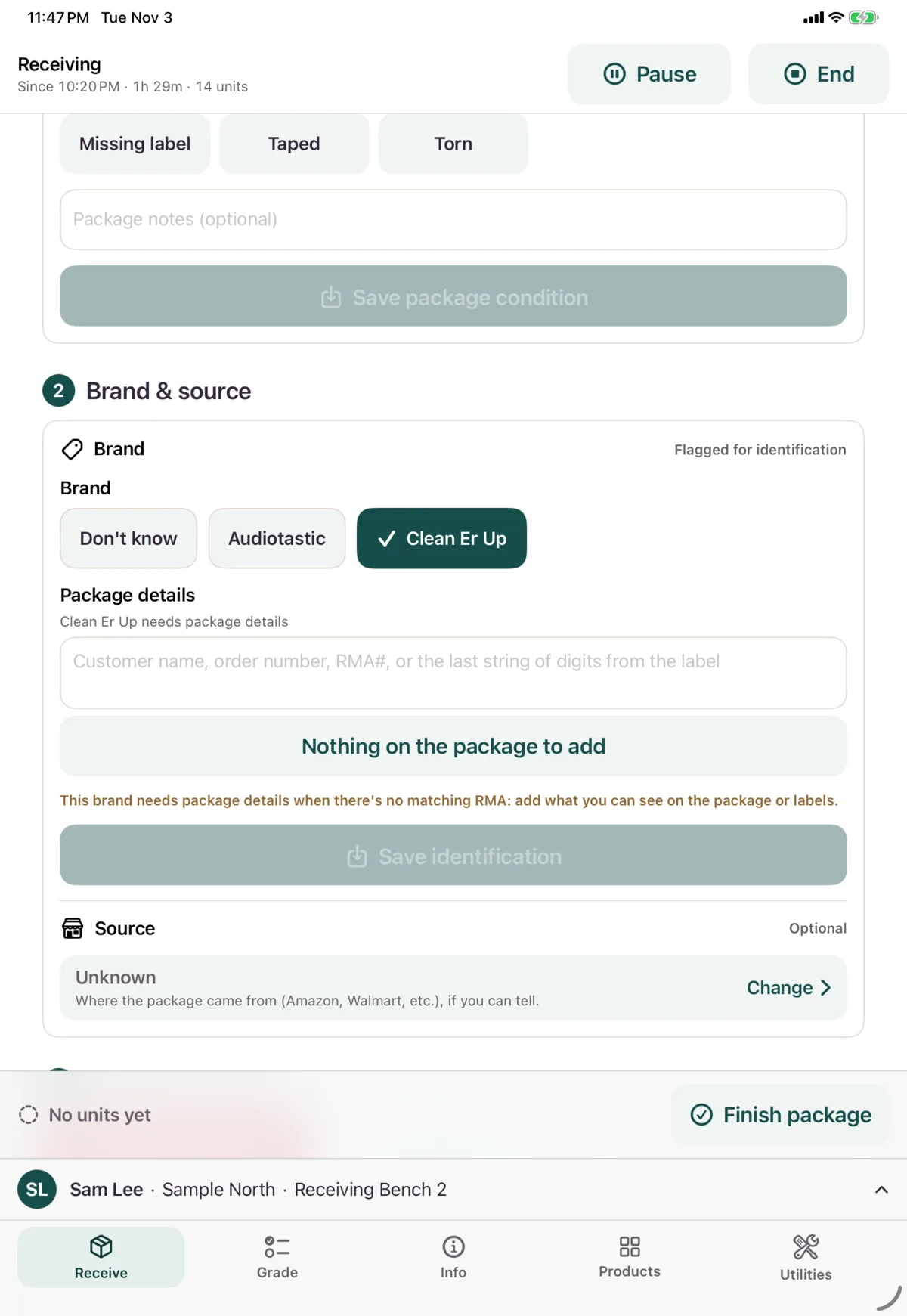
Some brands ask for package details when there’s no matching RMA. If so, add what you can see on the package or labels, or tap Nothing on the package to add.
Source
Where the package came from, if you can tell. It’s optional. A return may already show a source From the feed, sent to Nok with the return.
To change it, tap the row and choose from the list.
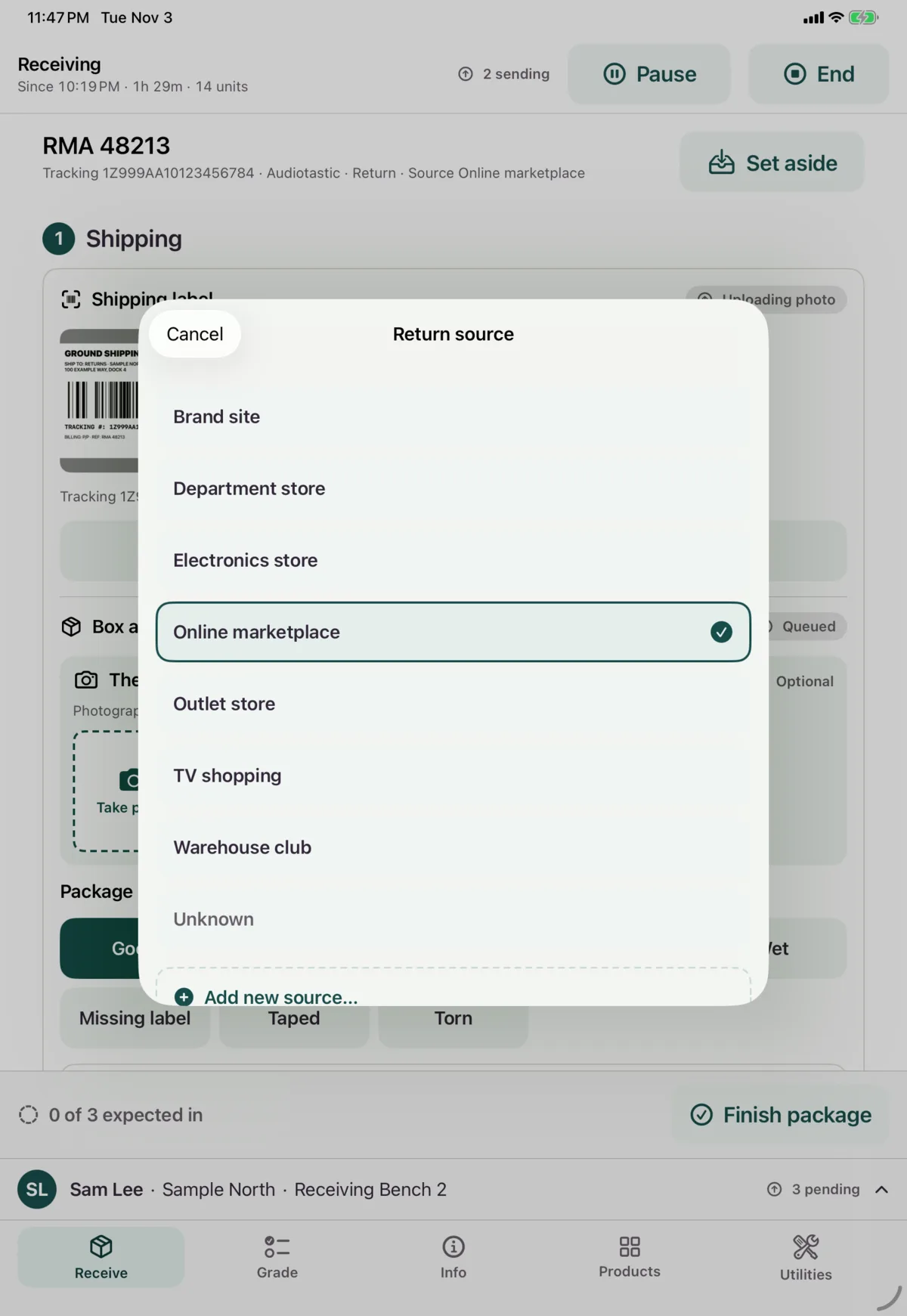
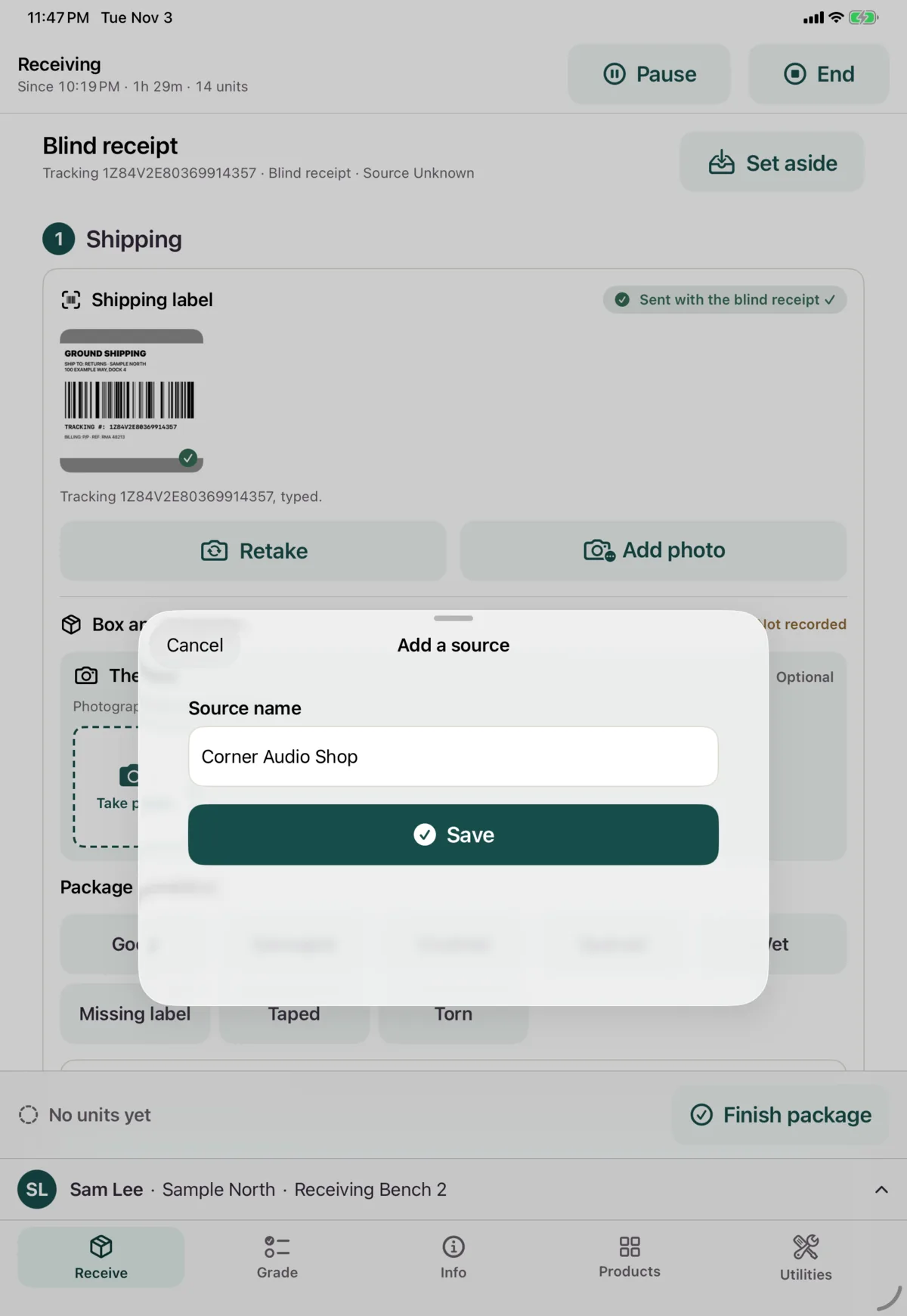
If it’s not listed, choose Add new source…, type the name and tap Save. If Nok already knows it under another name, it uses that one. A new one is marked new until an admin reviews it. Adding a source needs a connection.
3. Package contents
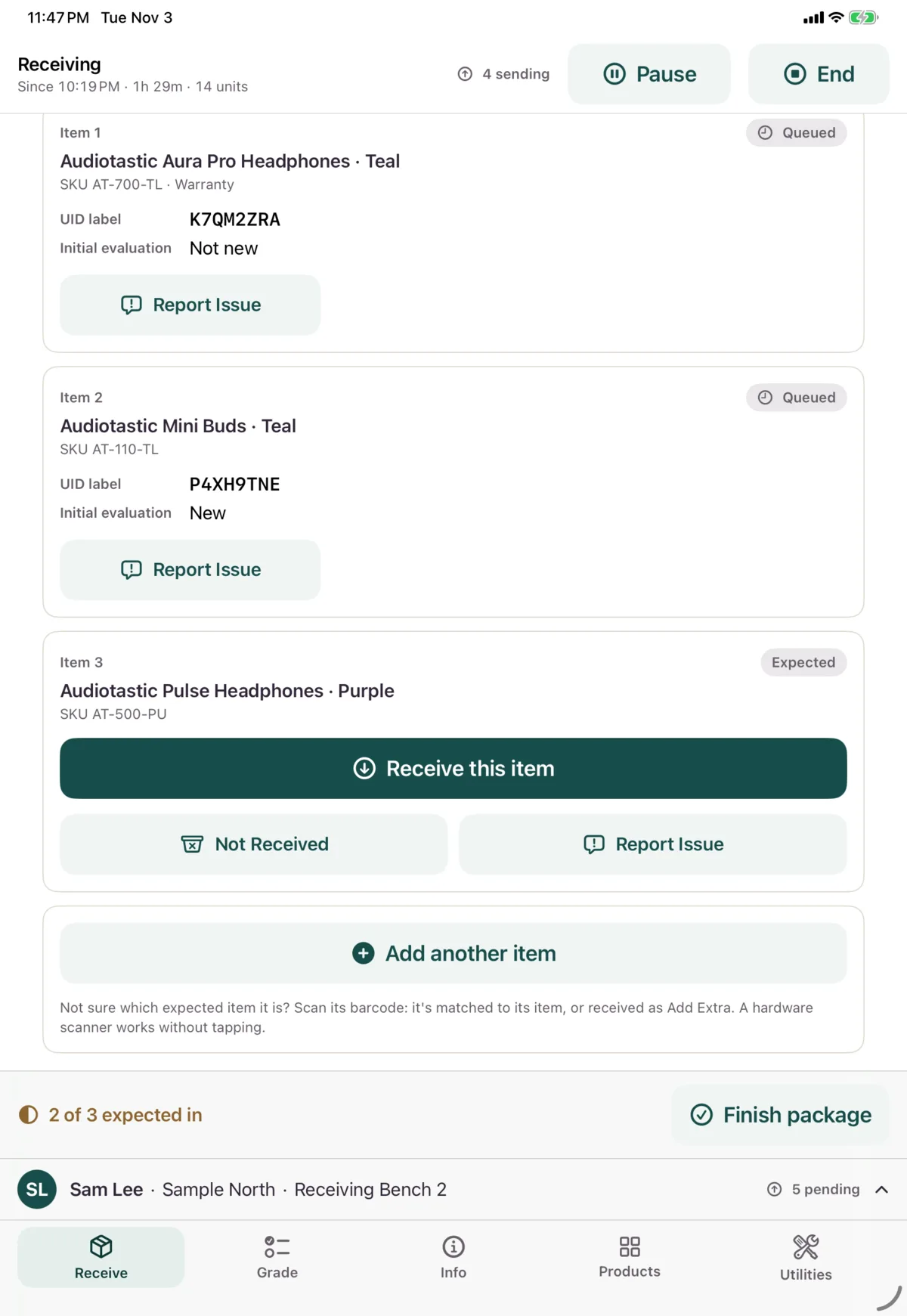
This section lists what’s expected, and is where you receive each item. See Receive an item.
How your work is saved
Everything you do on this screen is saved on the device and sent to Nok in order, so you can keep working. Each card shows how it’s going:
| You’ll see | What it means |
|---|---|
| Queued | Waiting for the network, or for something ahead of it |
| Uploading photo | Waiting for its photo to upload |
| Sending | On its way |
| Received, Saved, Recorded, Closed or Undone, with a tick | Done |
| Needs attention | Nok refused it, with the reason and Retry |
| Photo needed | Nok wants another photo. Tap it, take the photo, and it sends again |
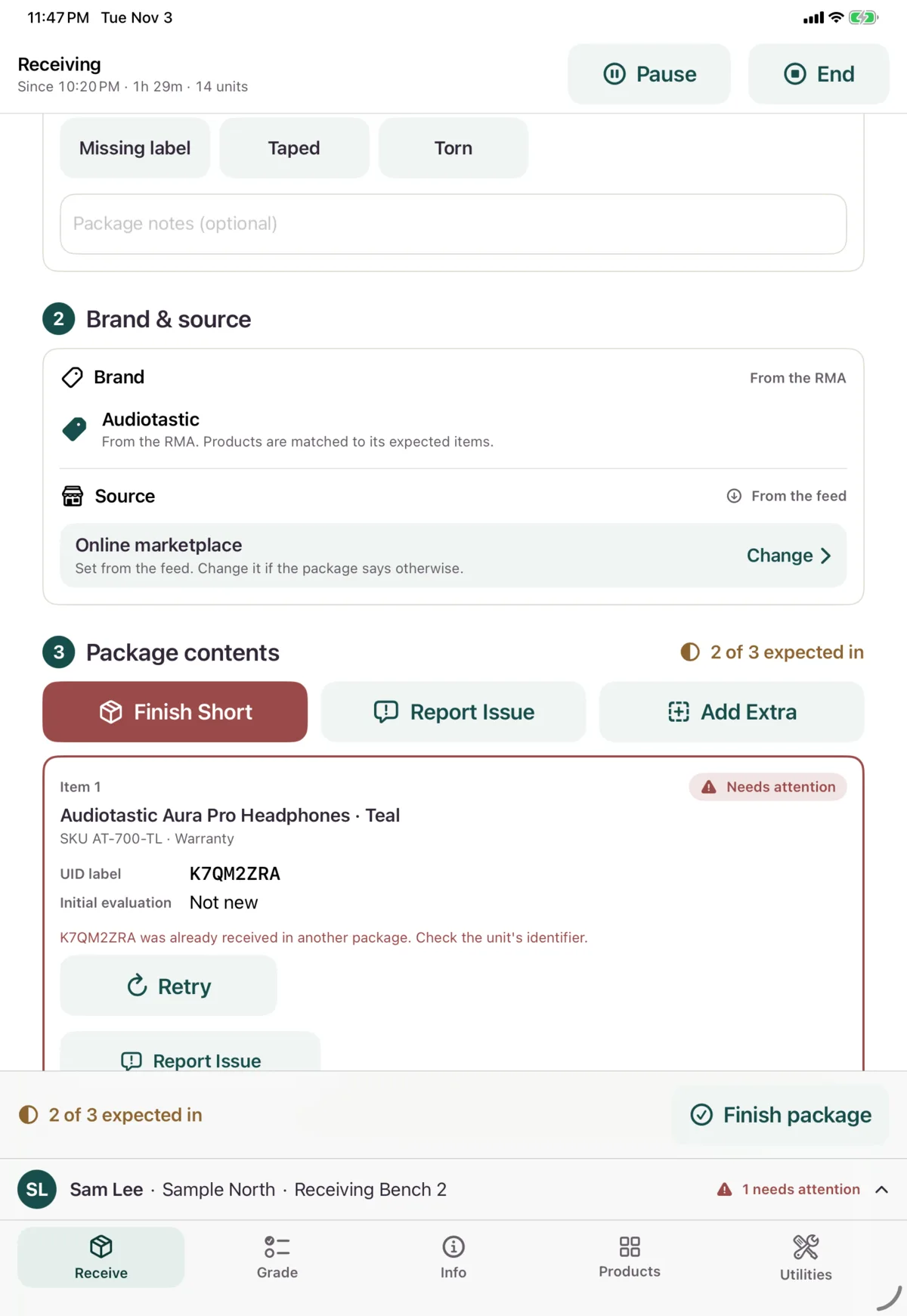
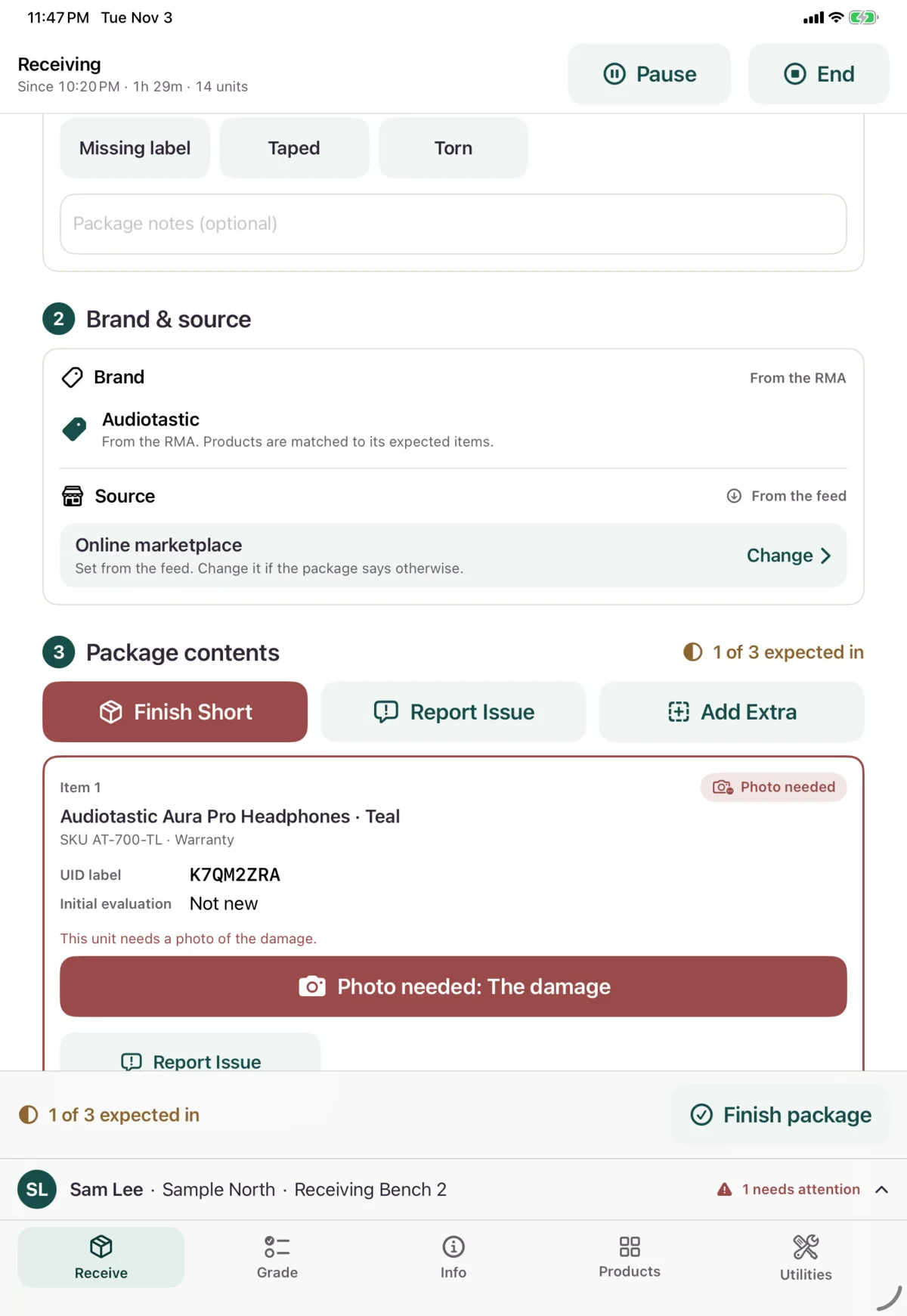
If a card says it’s waiting on an item that needs attention, fix that item first.
Next: Receive an item