
Print labels
All of these are in Utilities. Printing needs the printer on the same Wi-Fi, but it doesn’t need a connection to Nok. To choose a printer, see Printer setup.
Print UID labels
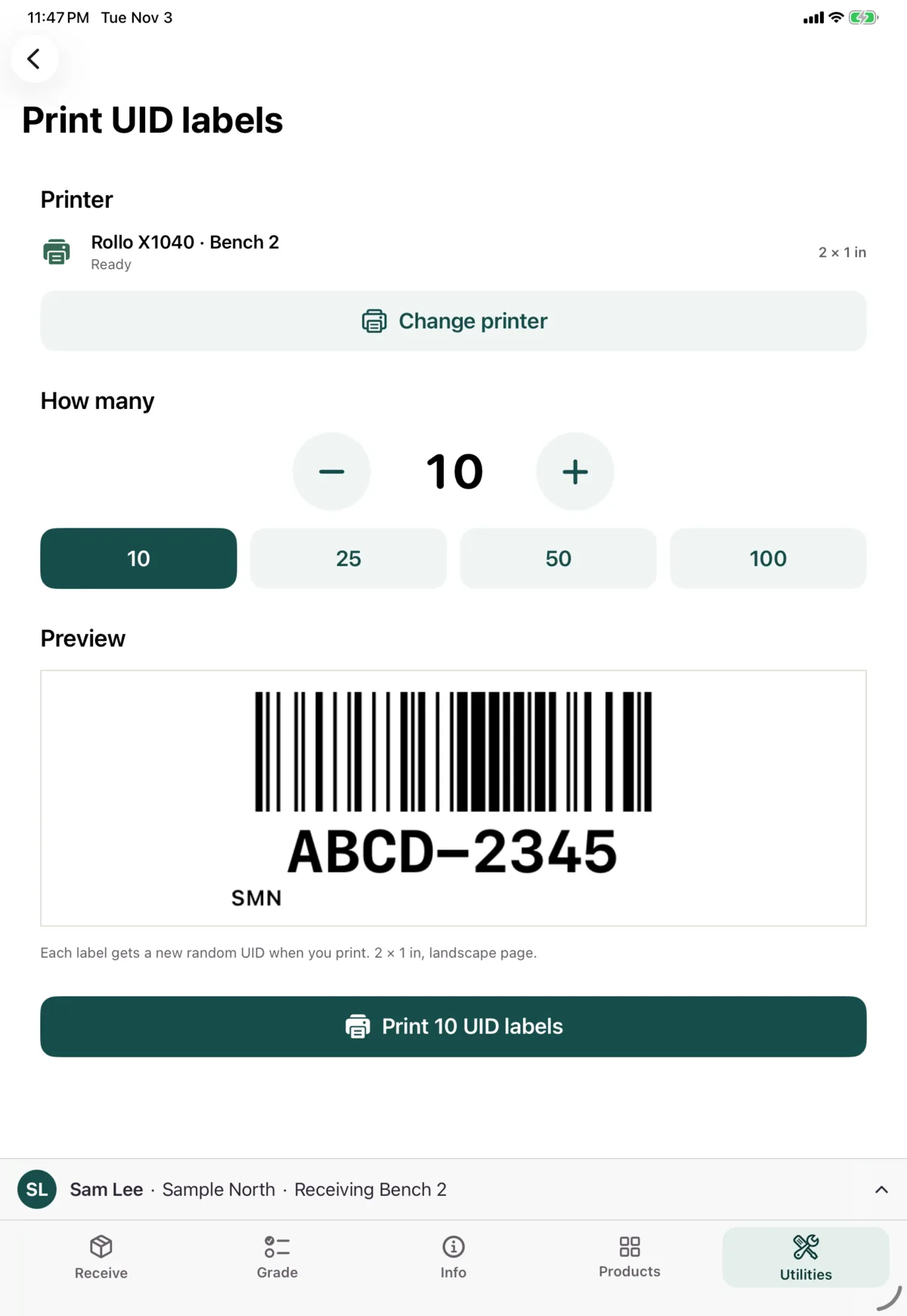
Print a batch of new UID labels, to have ready for units without a serial. Each one gets a new random UID.
- Check the printer.
- Choose How many: use the buttons, or tap 10, 25, 50 or 100.
- Tap Print N UID labels.
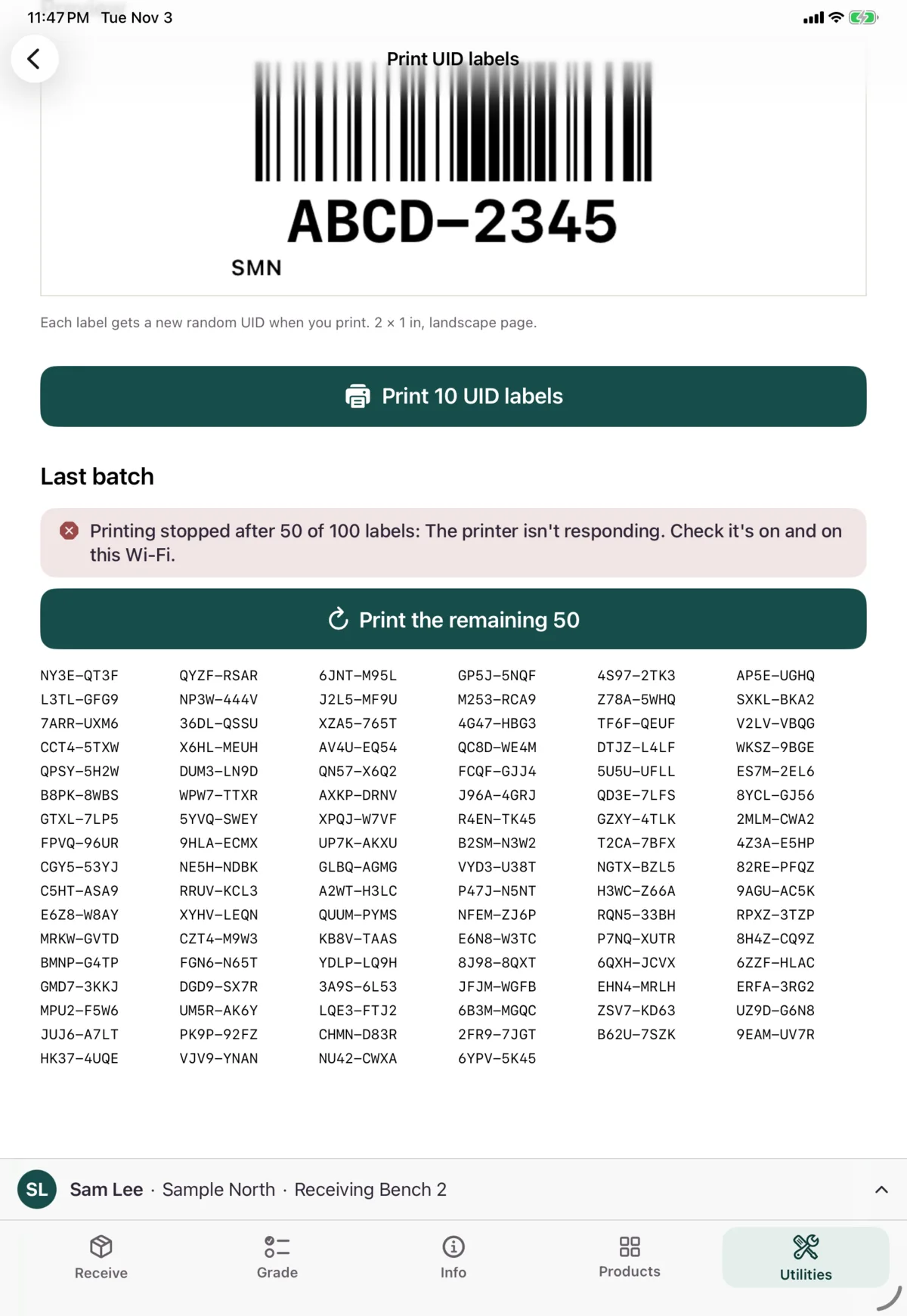
Afterwards, Last batch lists every UID printed.
If printing stops part-way, for example when labels run out, it says how many printed. Tap Print the remaining N to carry on with the same labels.
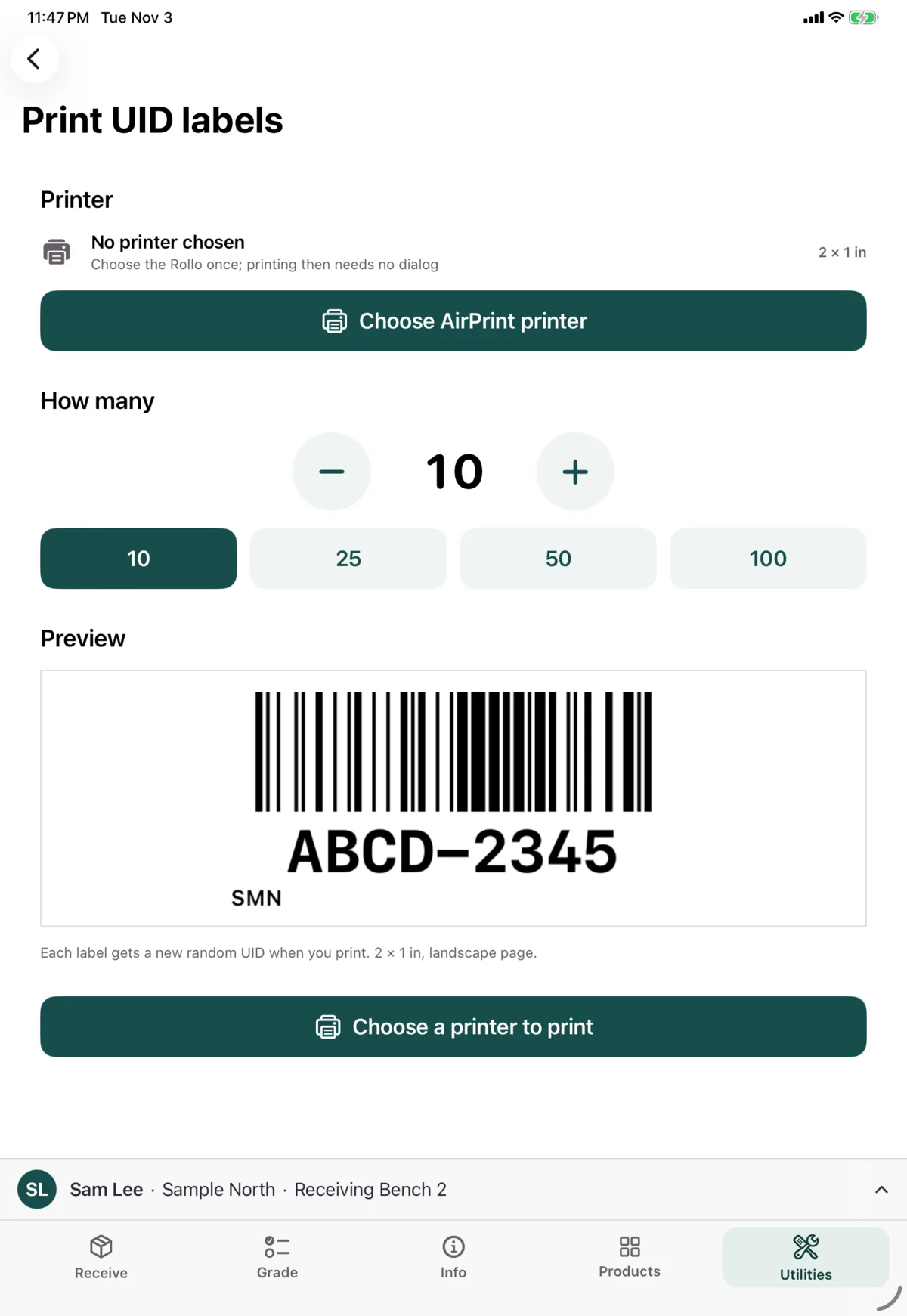
With no printer chosen, tap Choose AirPrint printer first.
Reprint
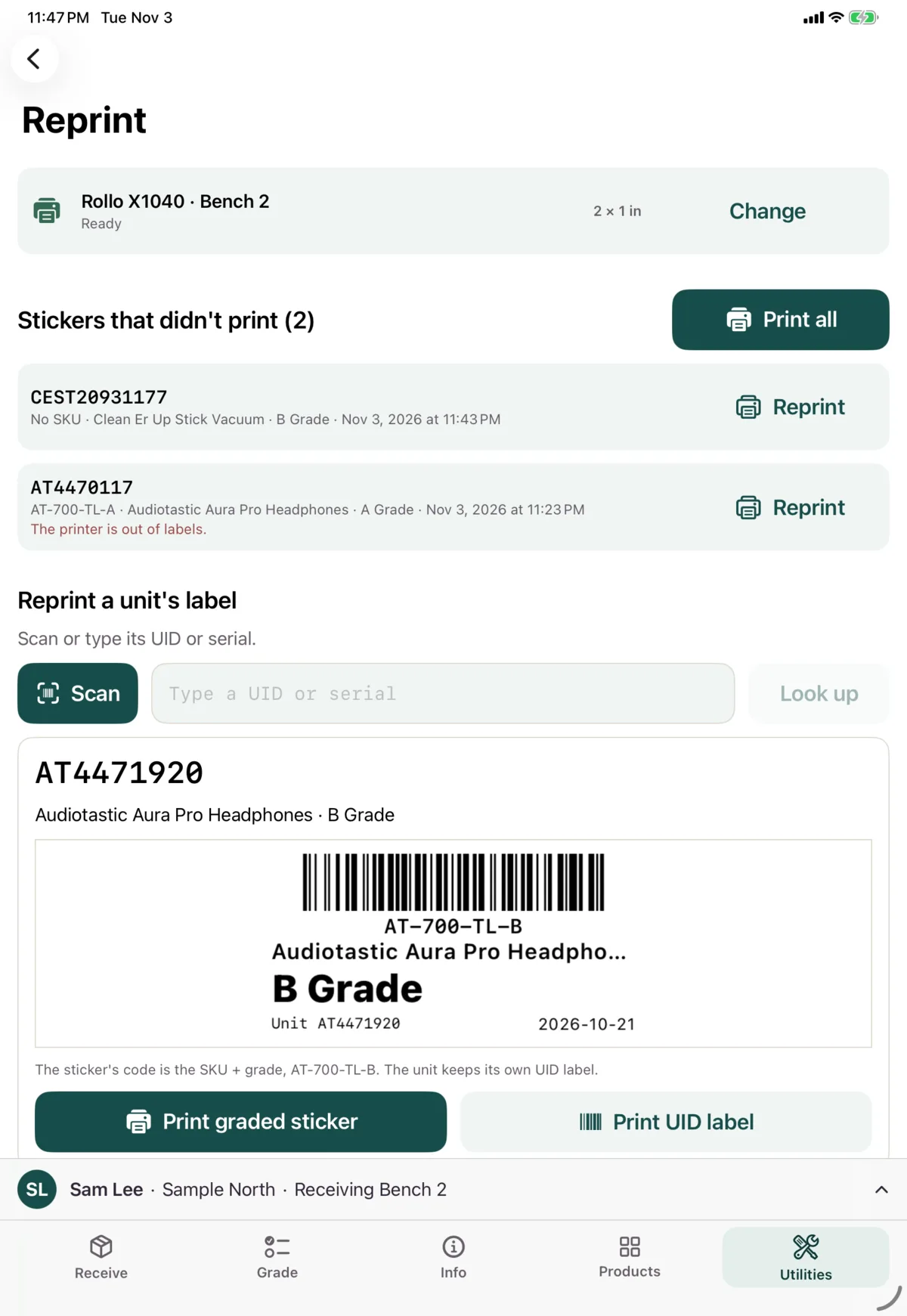
Stickers that didn’t print
Stickers from grading that didn’t print are listed here, with what went wrong. Tap Reprint, or Print all. A sticker leaves the list once it prints.
A unit’s label
Scan or type the unit’s UID or serial, then choose:
- Print graded sticker, if it has been graded
- Print UID label
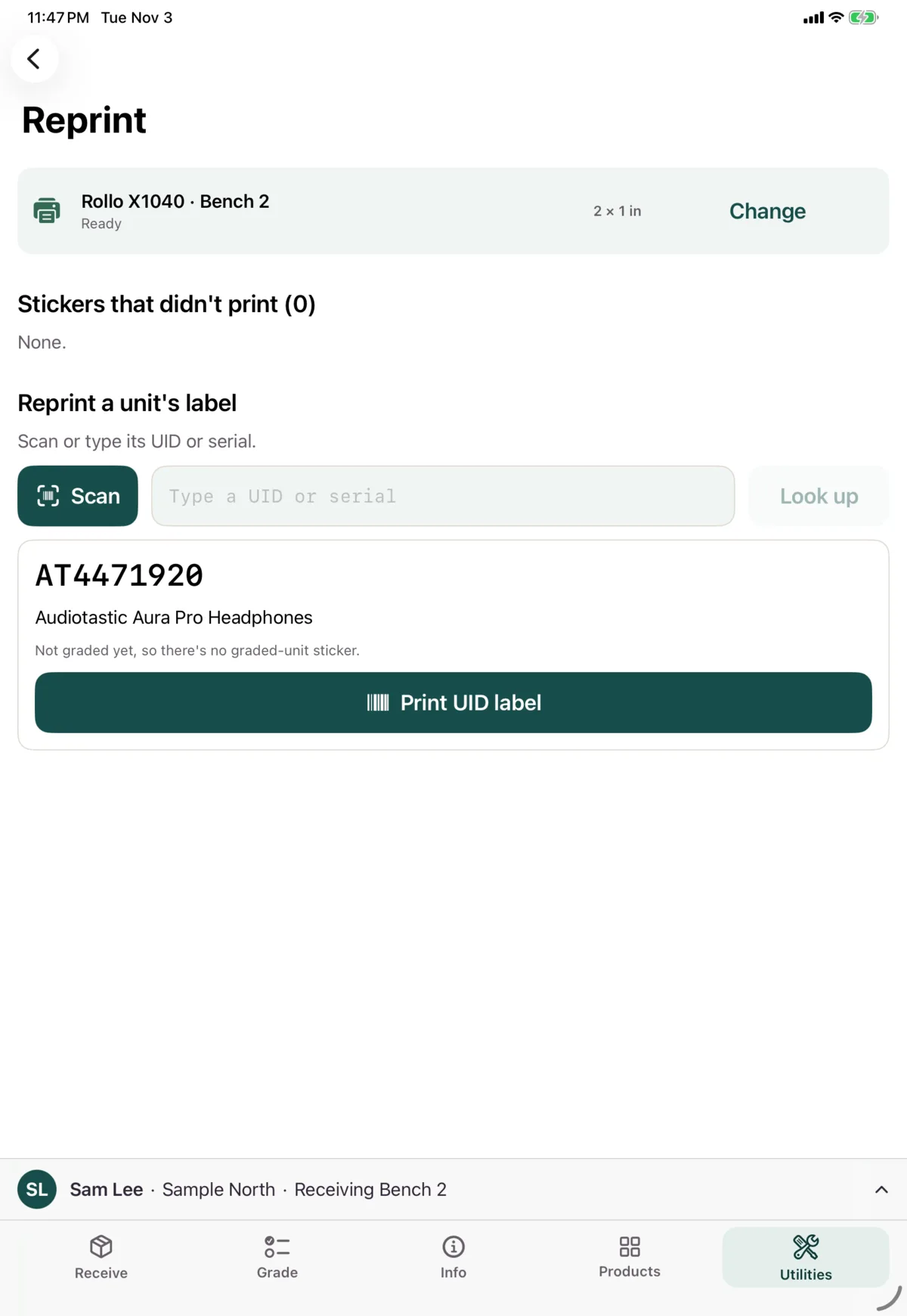
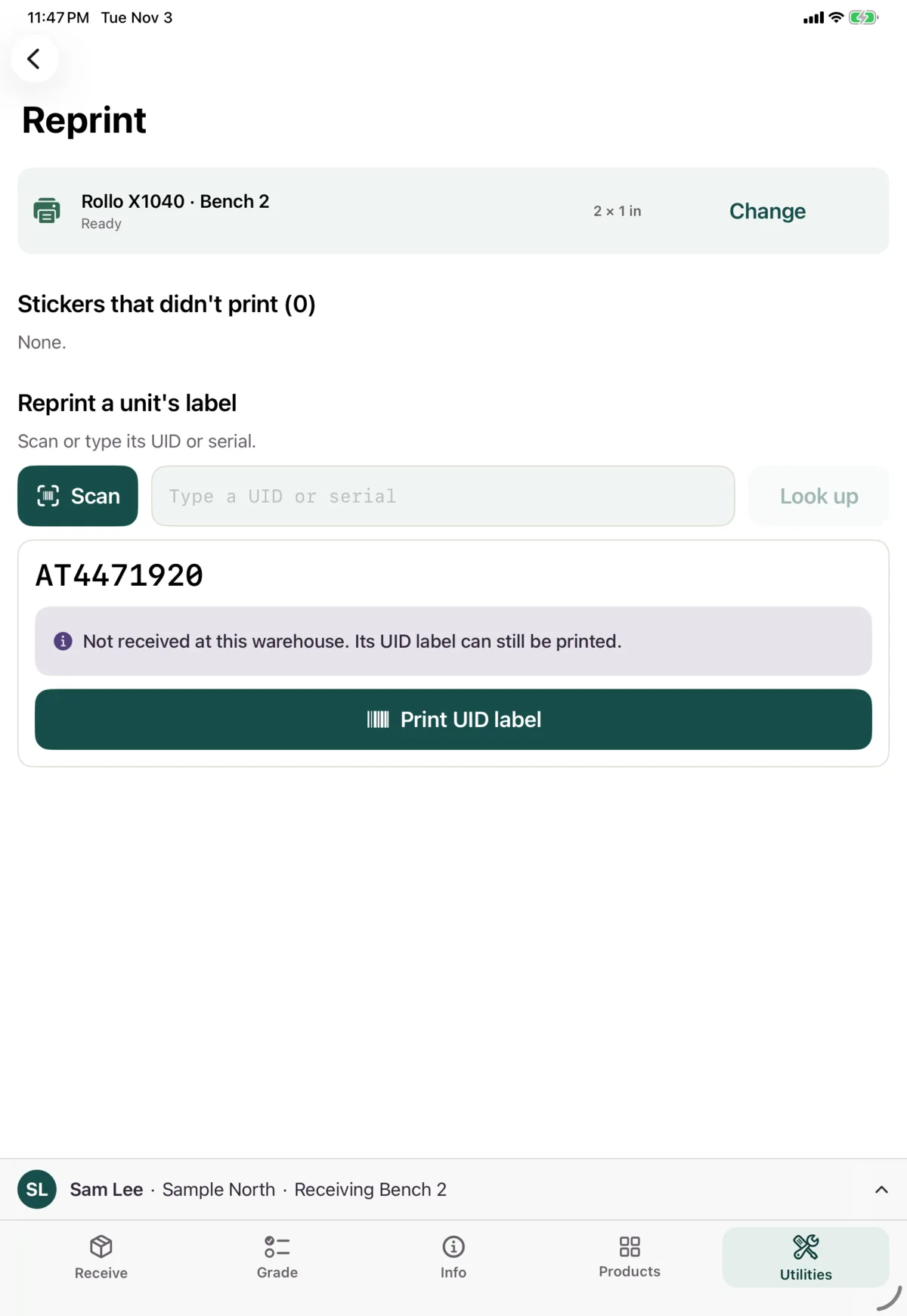
If it says the unit wasn’t received at this warehouse, you can still print its UID label. The same goes when you’re offline: Nok Snap says it can’t check the unit, and the UID label still prints.
Location labels
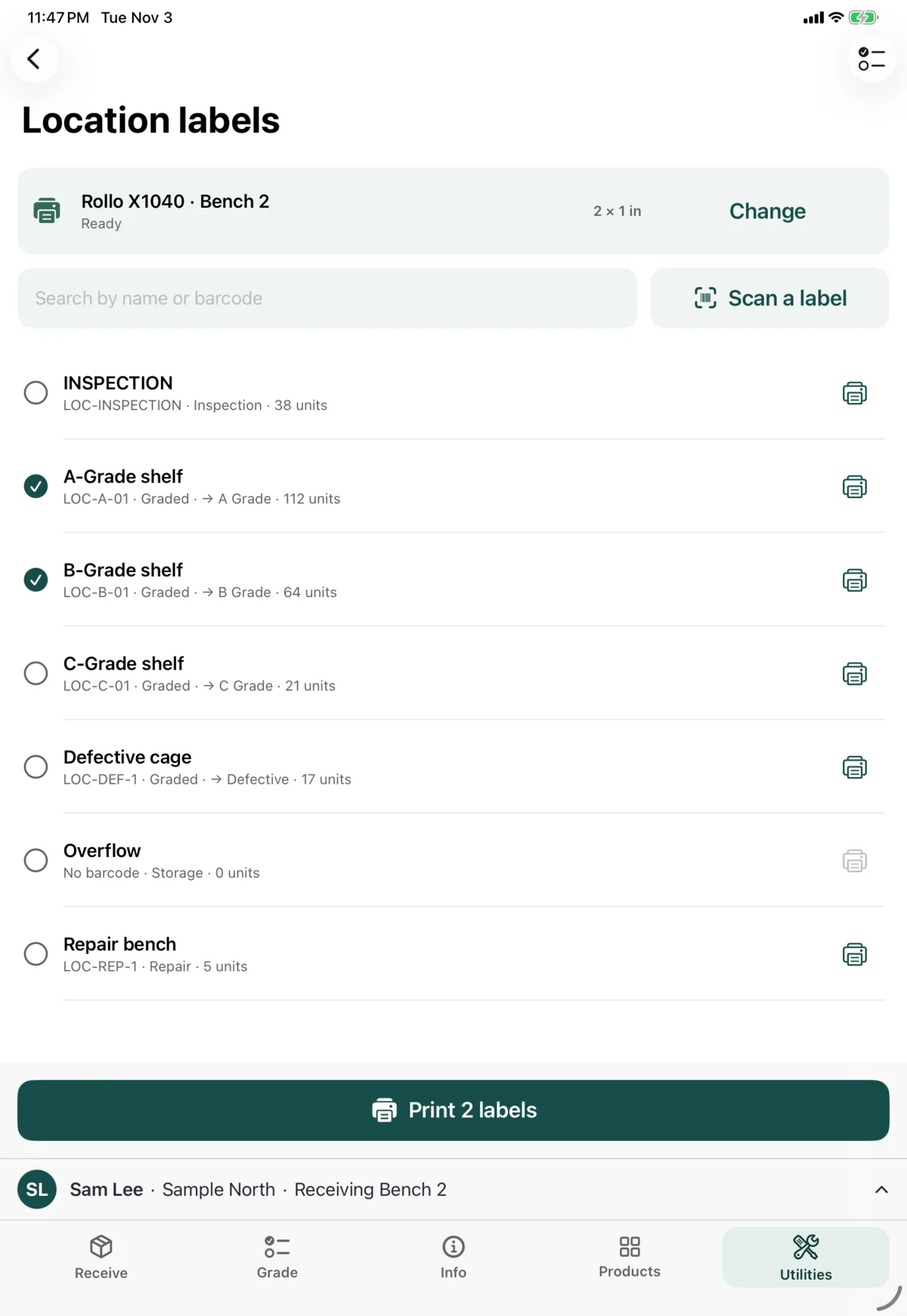
Print barcode labels for your warehouse’s locations.
- Search by name or barcode, or tap Scan a label to find one by its barcode.
- Tap locations to select them. Select at the top can select everything shown, or clear your selection.
- Tap Print N labels. Or tap the printer icon on one location to print just that one.
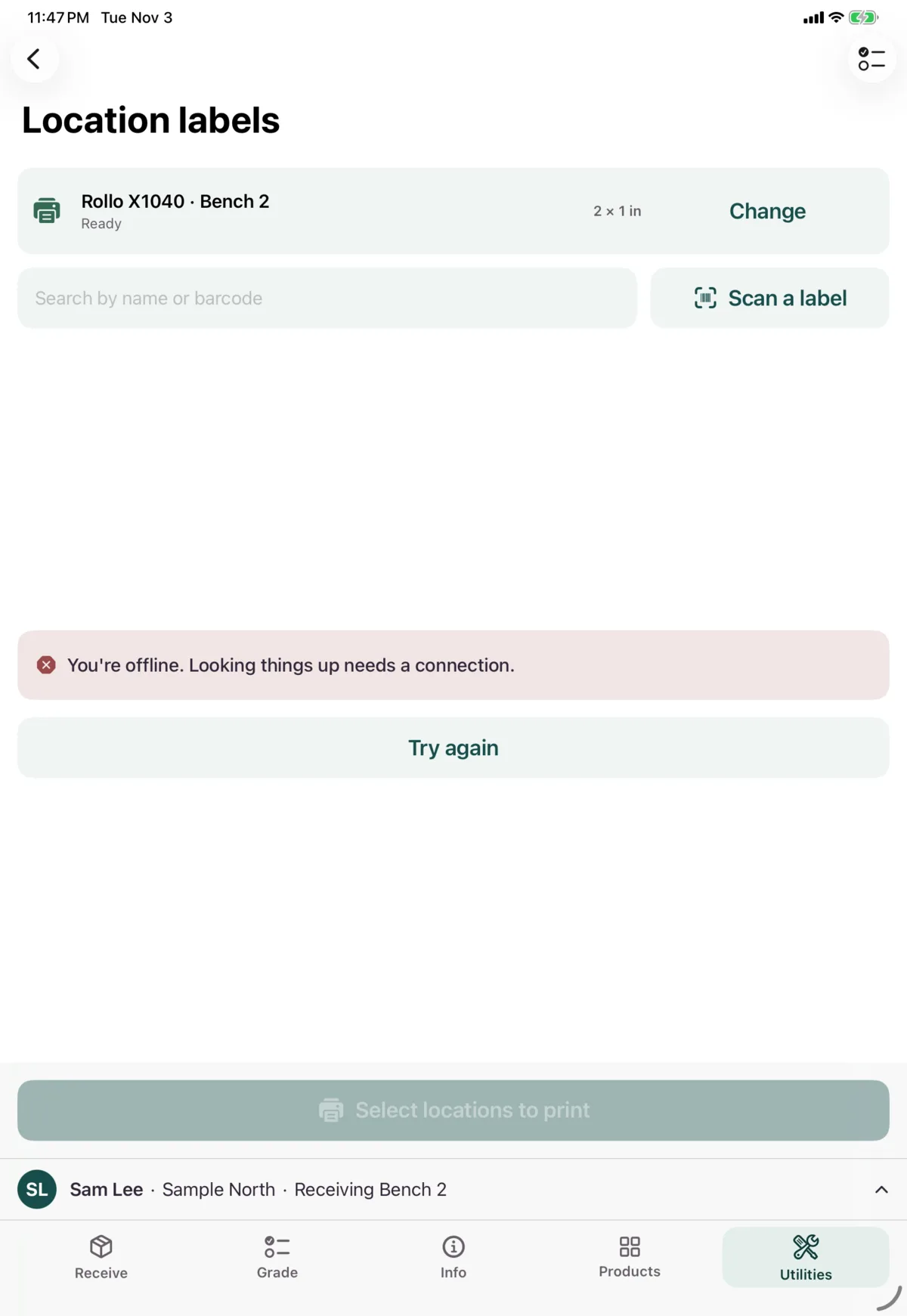
Locations with no barcode are skipped. Pull down to refresh the list, which needs a connection.
Next: Manage sessions