
Stickers and refused grades
Stickers
Each graded unit gets a sticker, which prints from the device as soon as you submit. It doesn’t wait for the grade to reach Nok. The sticker’s code is the SKU plus the grade. A product with no SKU gets a QR code of the unit’s identity.
The top of the Grade tab shows the printer’s status: Printer ready, Printer not responding, No printer or Checking printer….
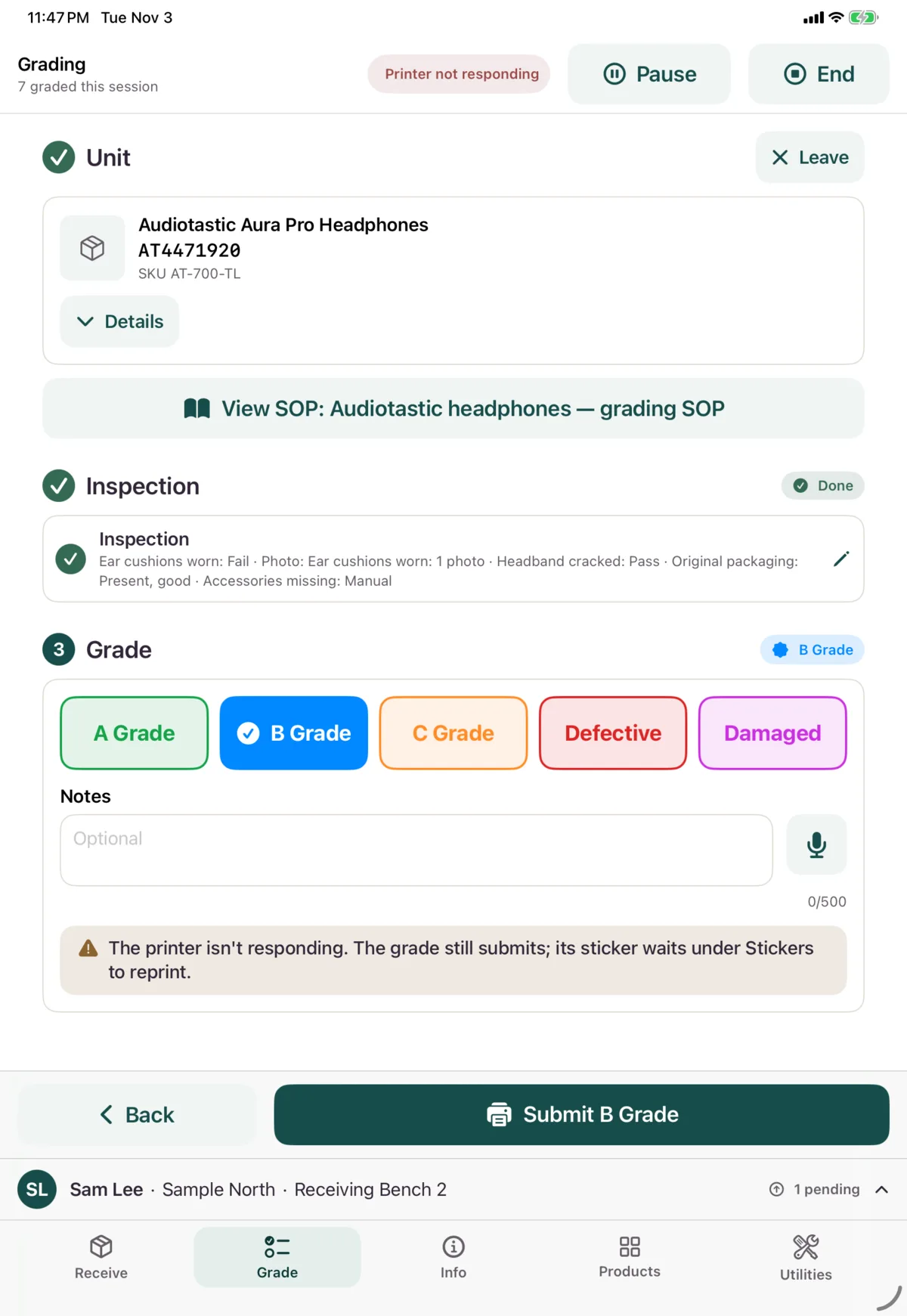
If the printer isn’t responding, you can still submit. The grade isn’t affected, and the sticker waits to be reprinted.
If a sticker doesn’t print
You’ll see a red banner saying why. Fix the printer, then tap Retry print, or Choose printer to use another.
Tap Dismiss (keep it in the reprint list) to deal with it later.
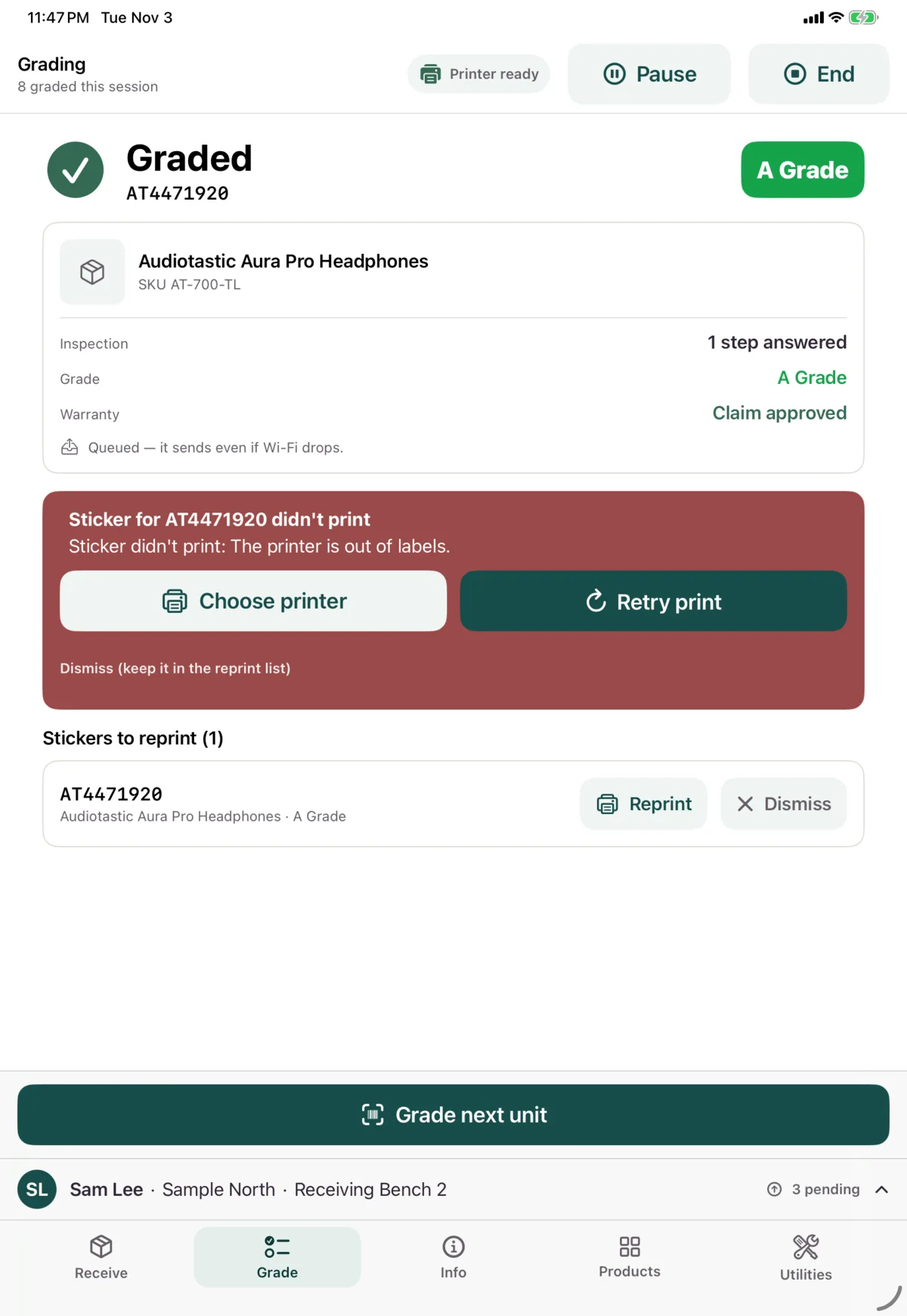
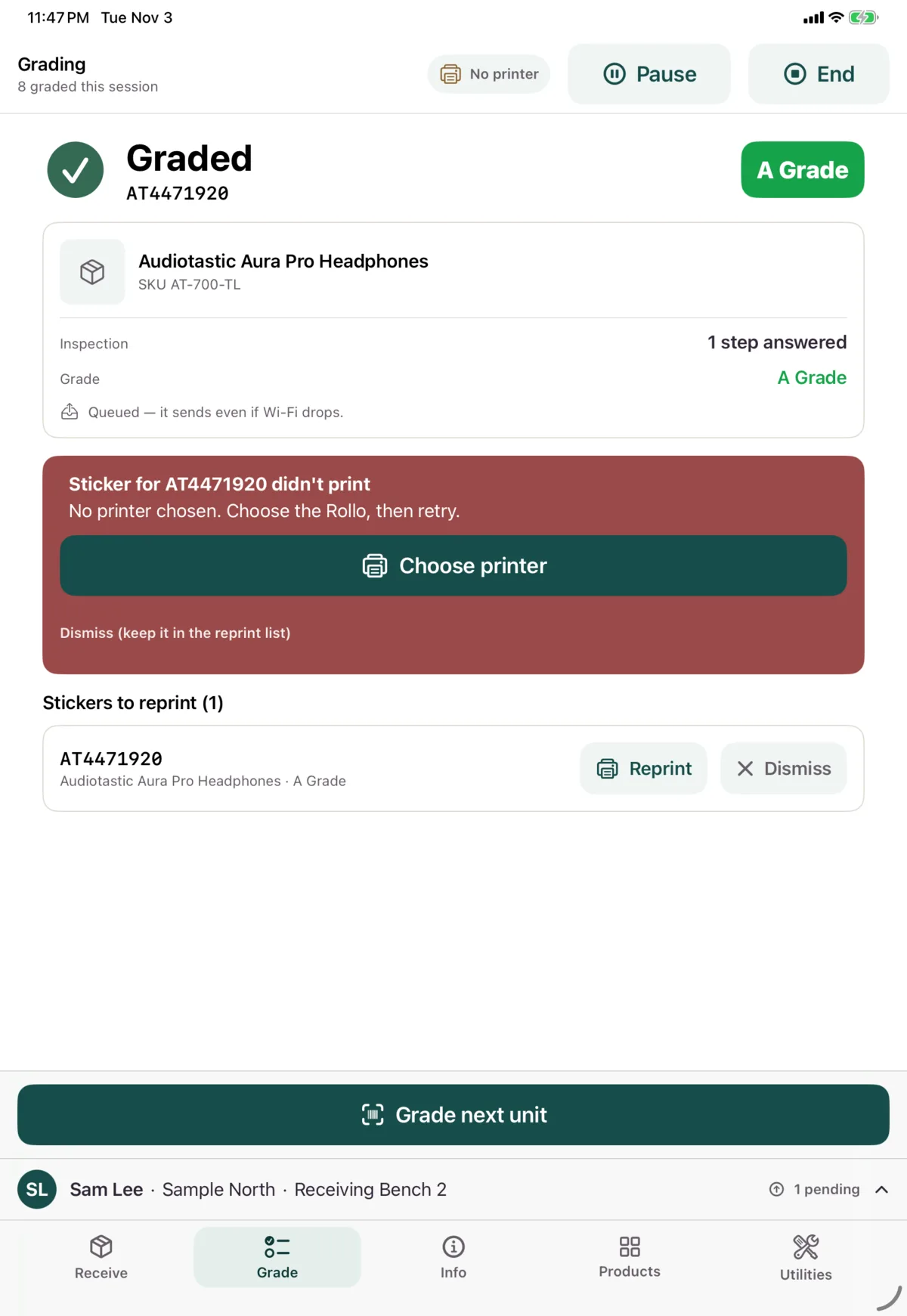
Stickers that didn’t print are listed under Stickers to reprint, on the Grade tab and in Utilities → Reprint. The list keeps the last 10.
| Reason | What to do |
|---|---|
| The printer isn’t responding. Check it’s on and on this Wi-Fi | Turn it on, then retry |
| The printer didn’t confirm the job (it may still print: check before reprinting) | Look at the printer first, so you don’t print it twice |
| Another job is printing | Wait, then retry |
| No printer chosen | Tap Choose printer |
When Nok refuses a grade
A queued grade or warranty decision can be refused when it reaches Nok. It then appears as a Needs fixing card on the Grade tab, with the reason and a button to fix it.
| Button | What it does |
|---|---|
| Reopen and fix | Opens the unit with what you sent, so you can correct it and submit again |
| Start again | Looks the unit up again as a new attempt |
| Send again | Sends it again as it was |
| Photo needed | Takes the photo Nok asked for, then sends the decision again |
| Change the decision | Lets you change a warranty decision and send it again |
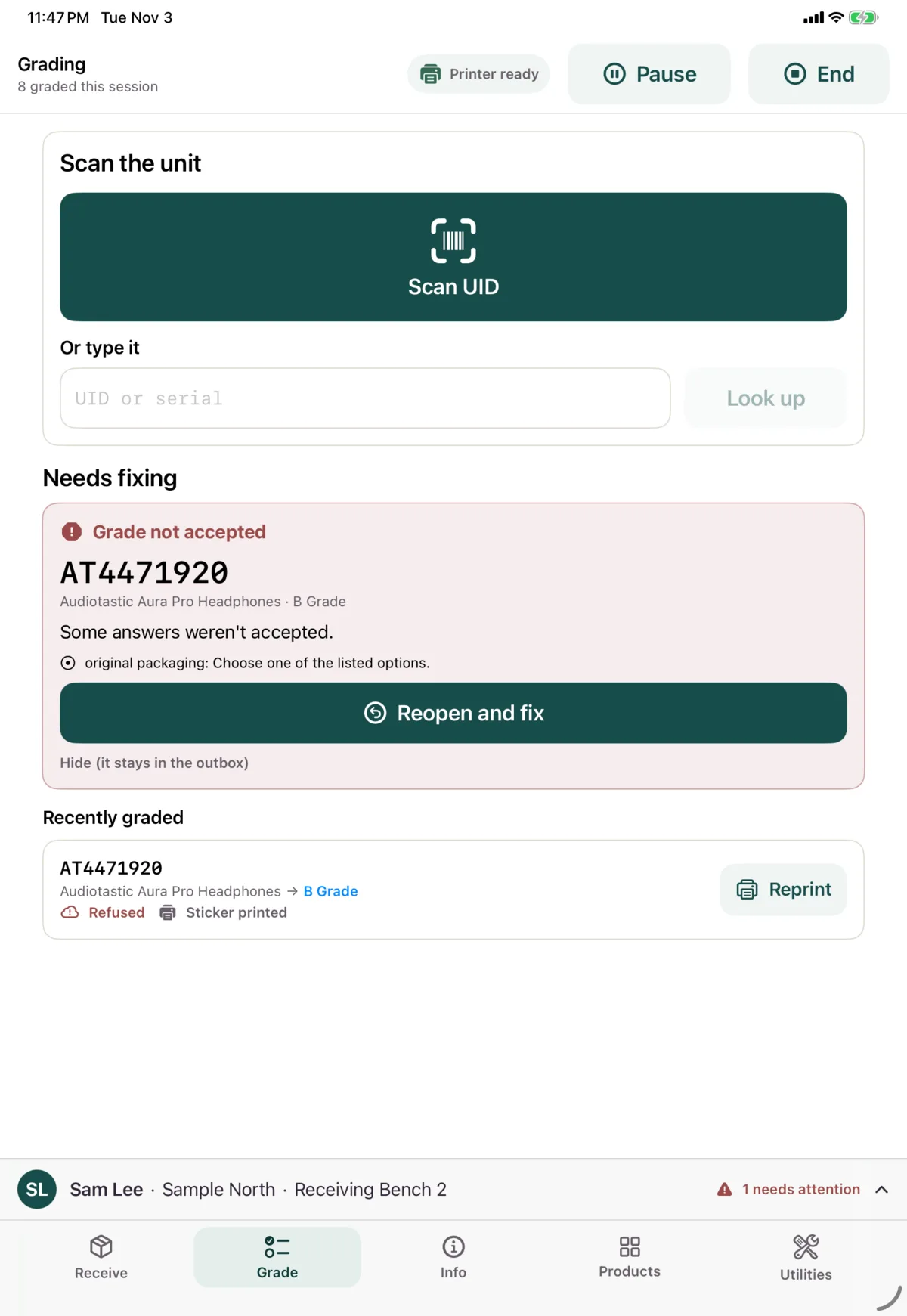
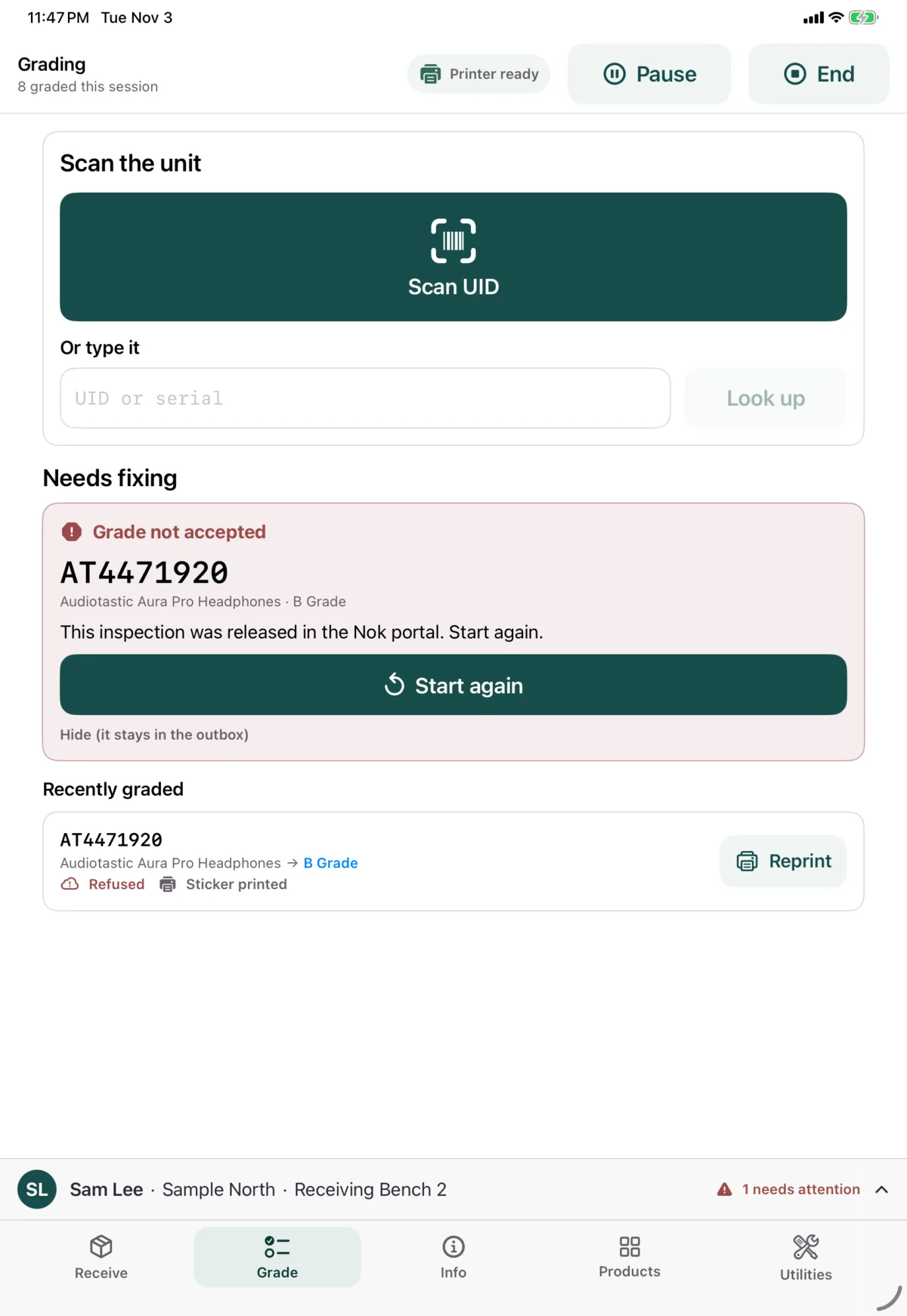
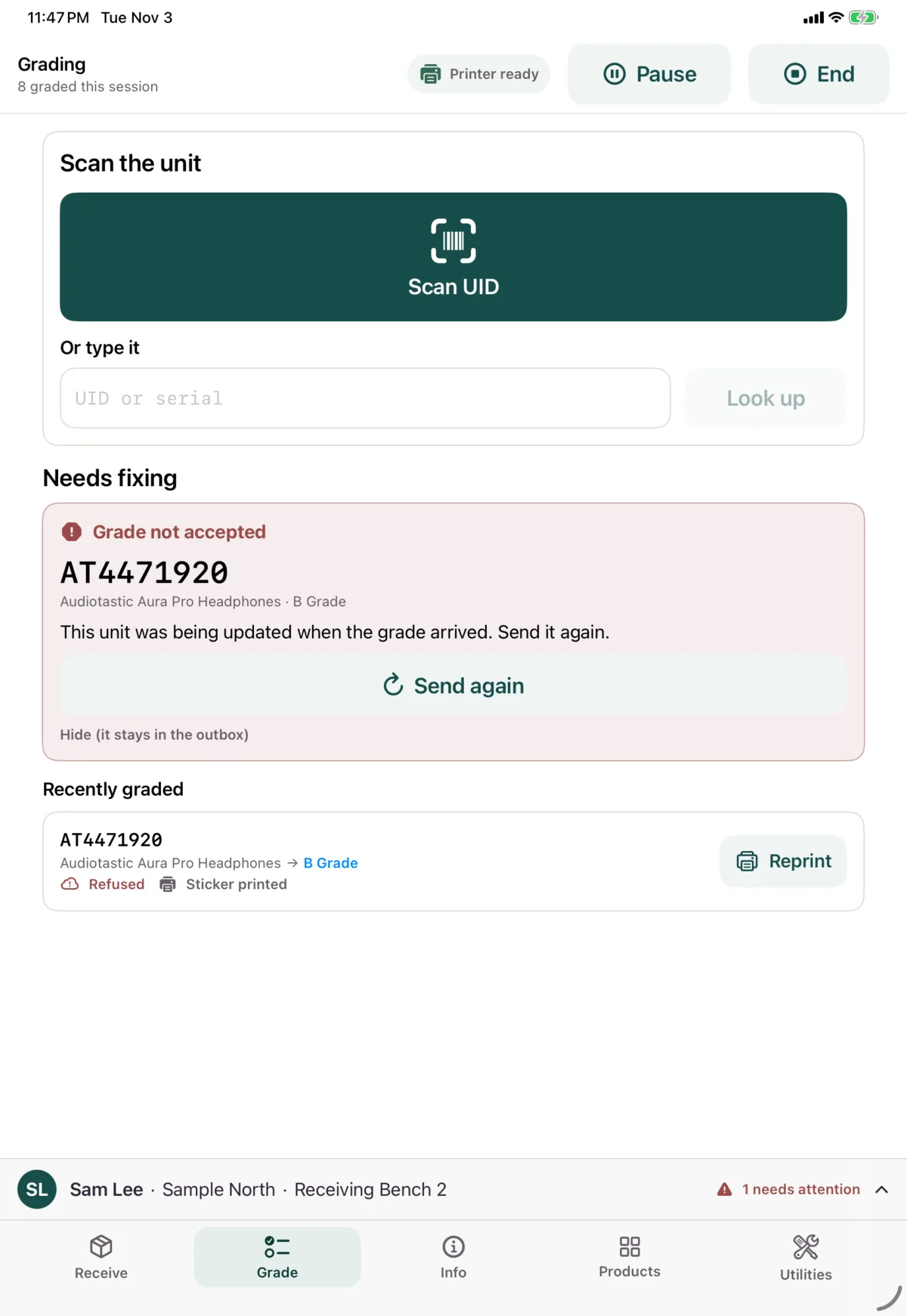
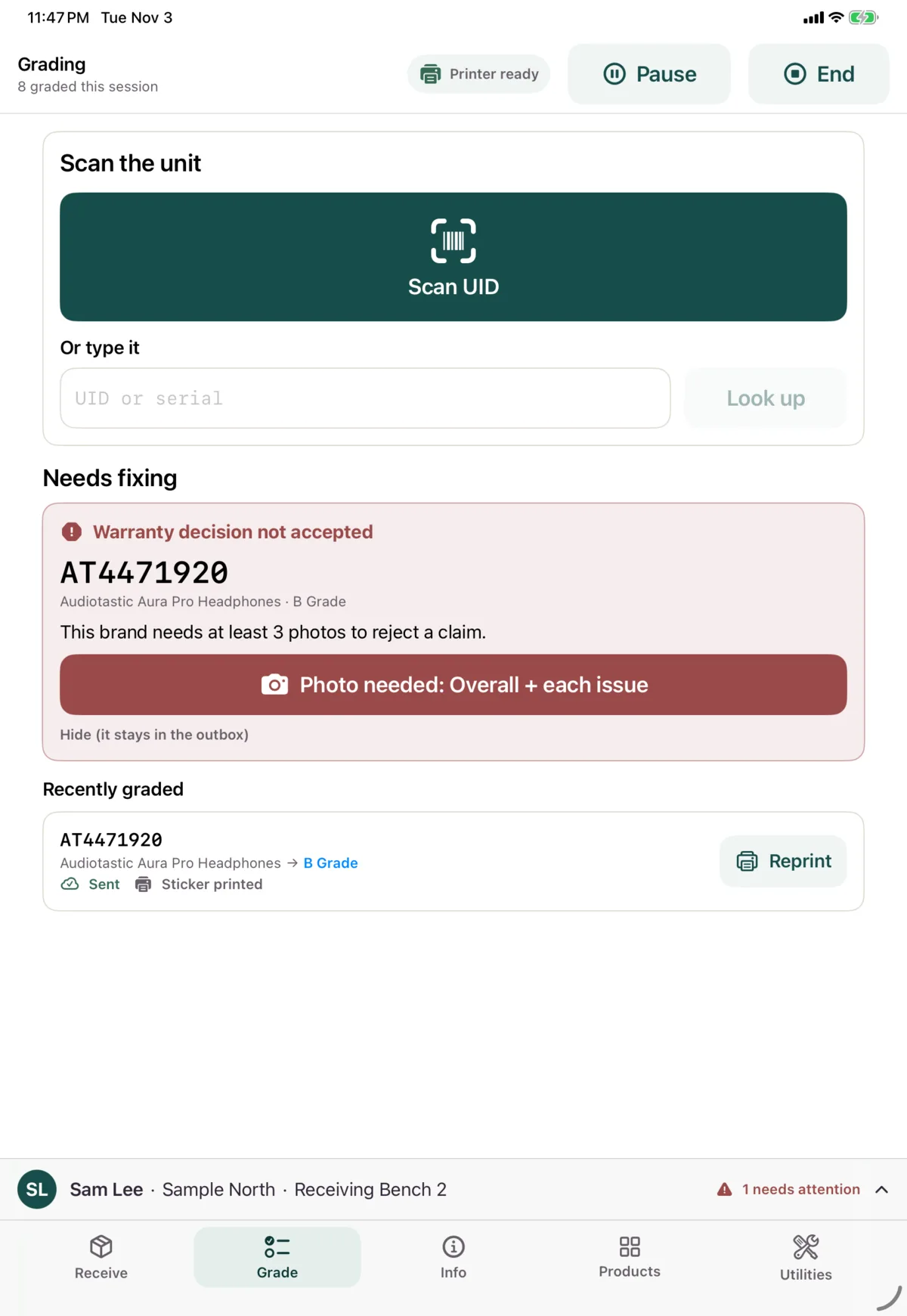
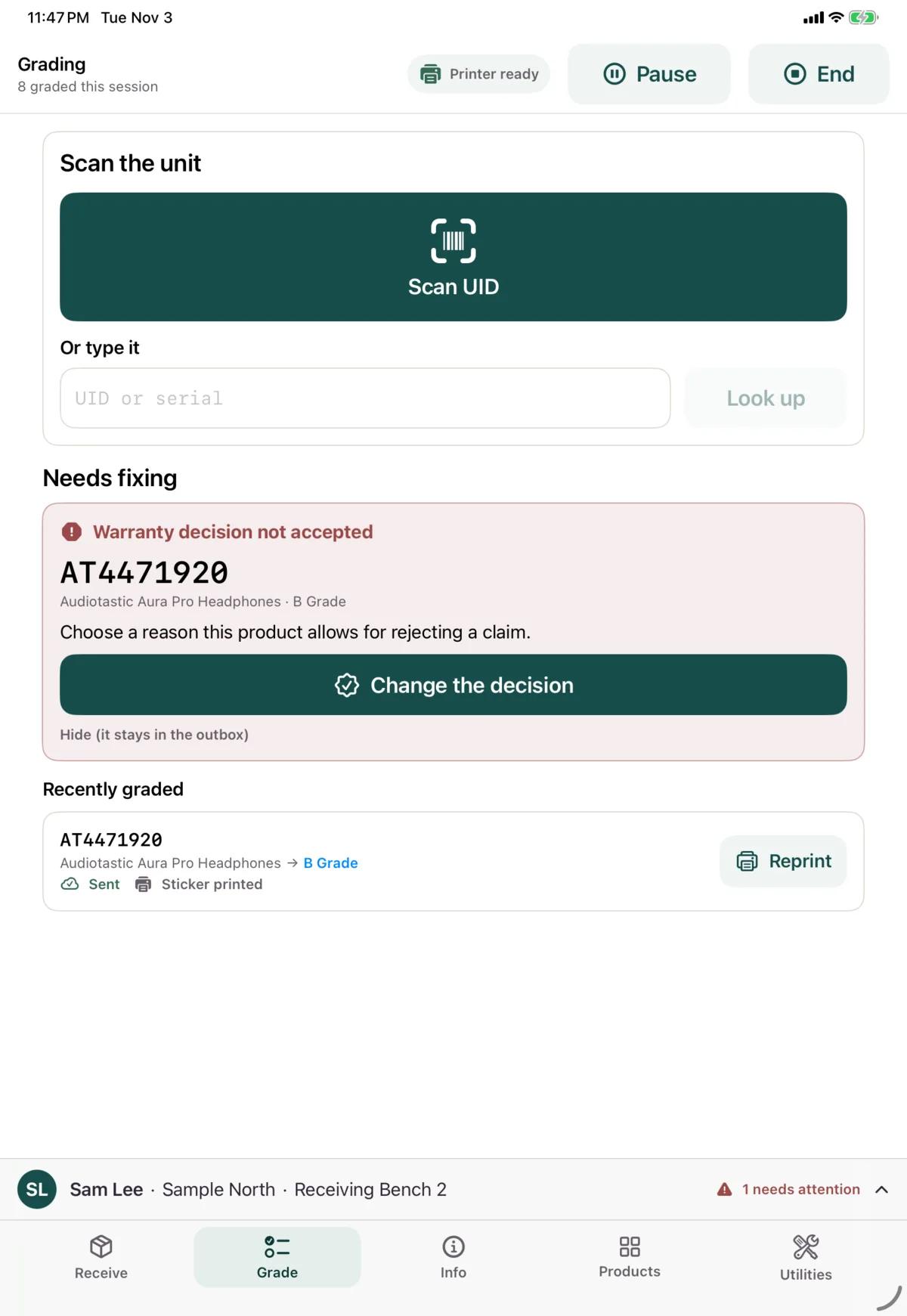
Hide (it stays in the outbox) takes the card off your screen, but doesn’t fix it, and the card doesn’t come back. To find it again, go to Diagnostics.
Next: Check a unit