
Find a product
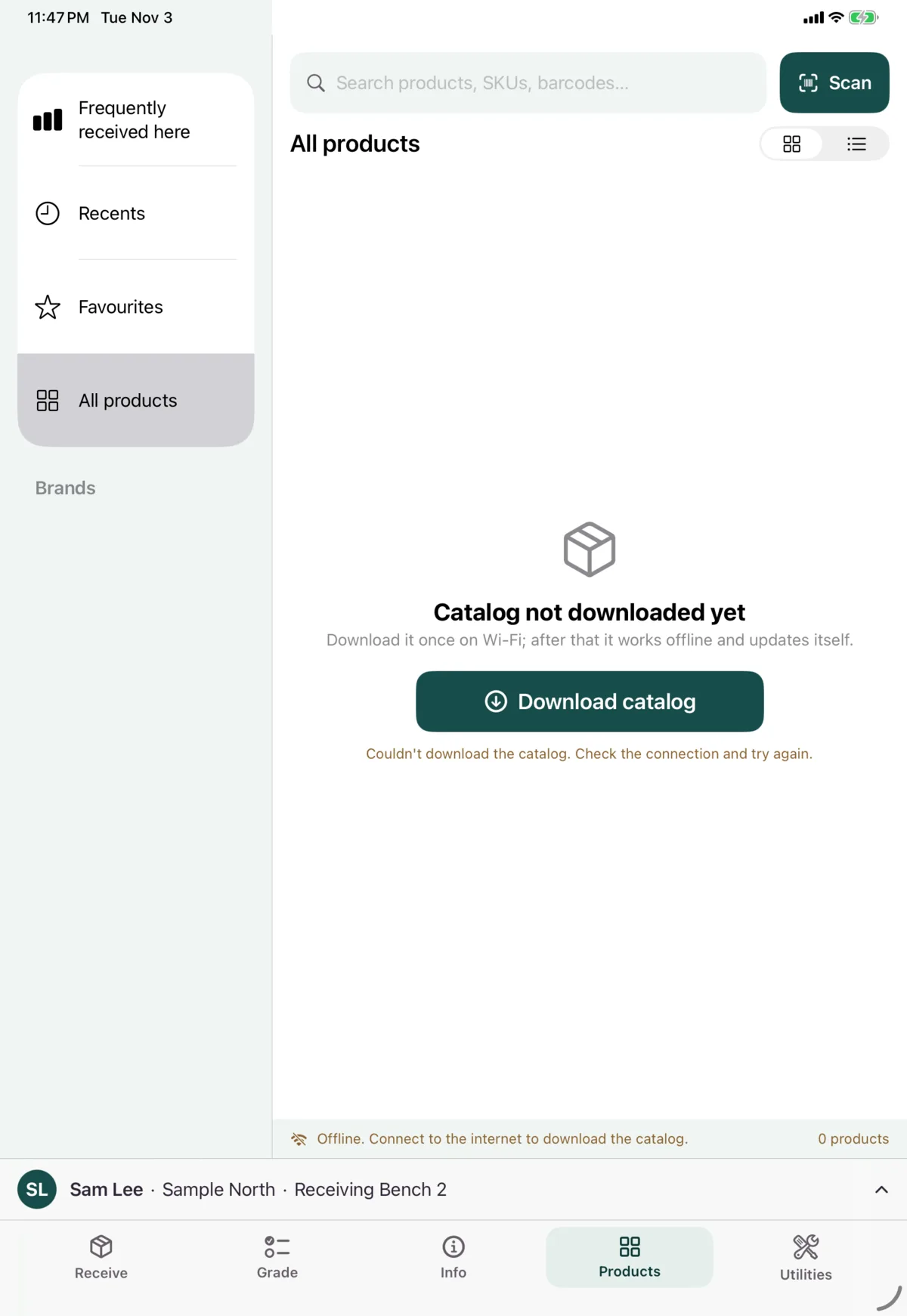
The Products tab is the whole catalog. You can find a product by its picture, without knowing its SKU. It works offline, because the catalog is stored on the device.
Browse
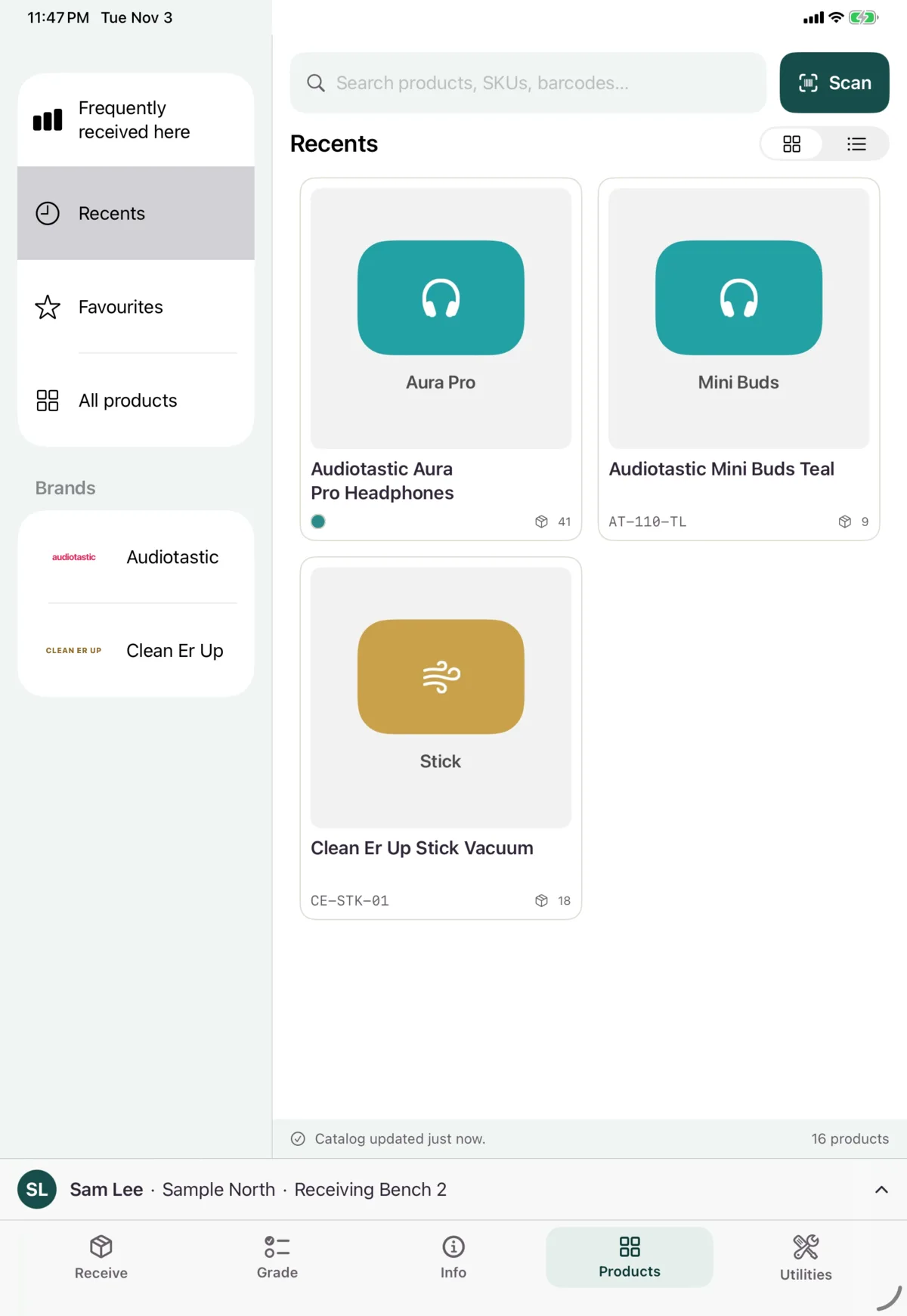
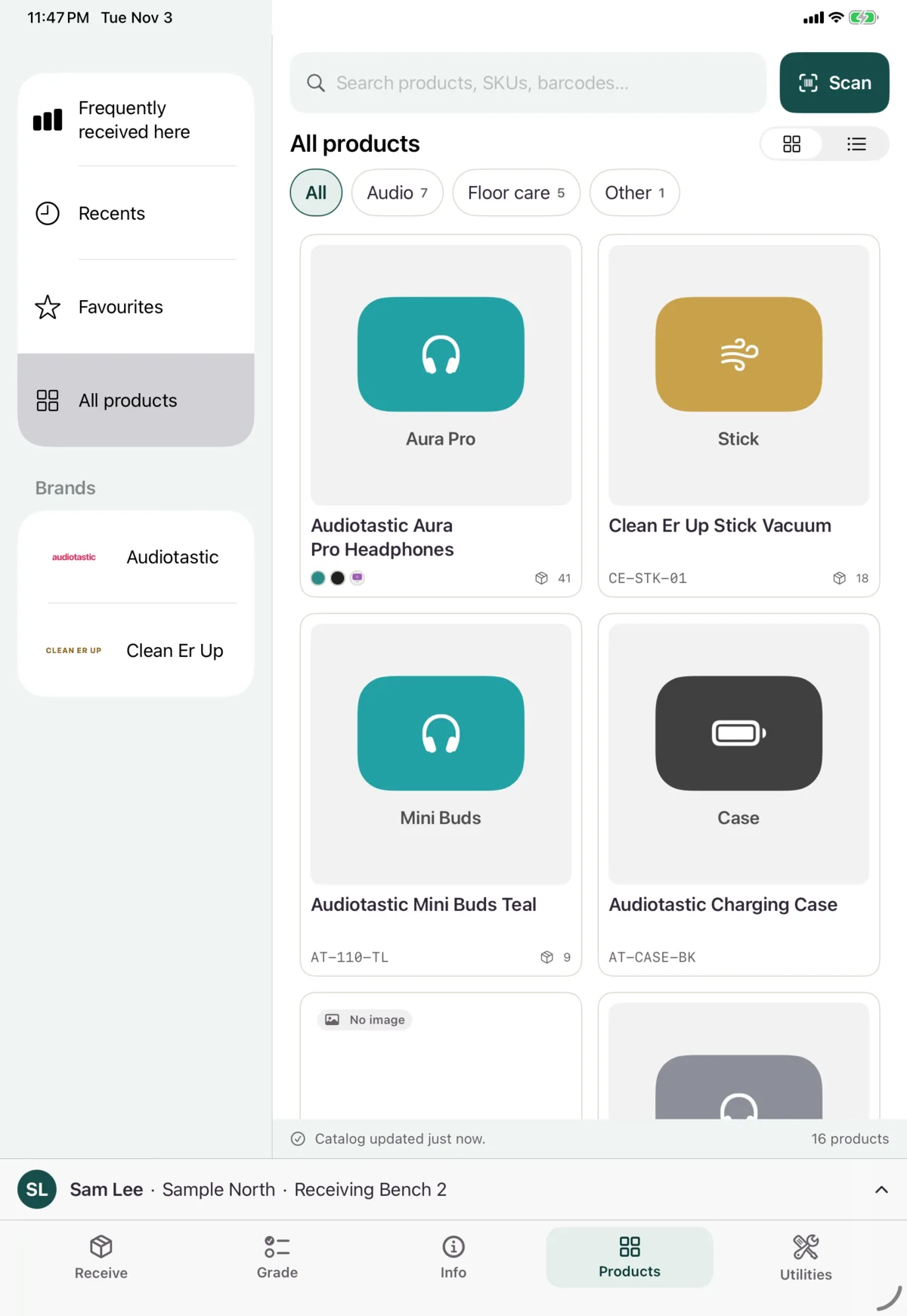
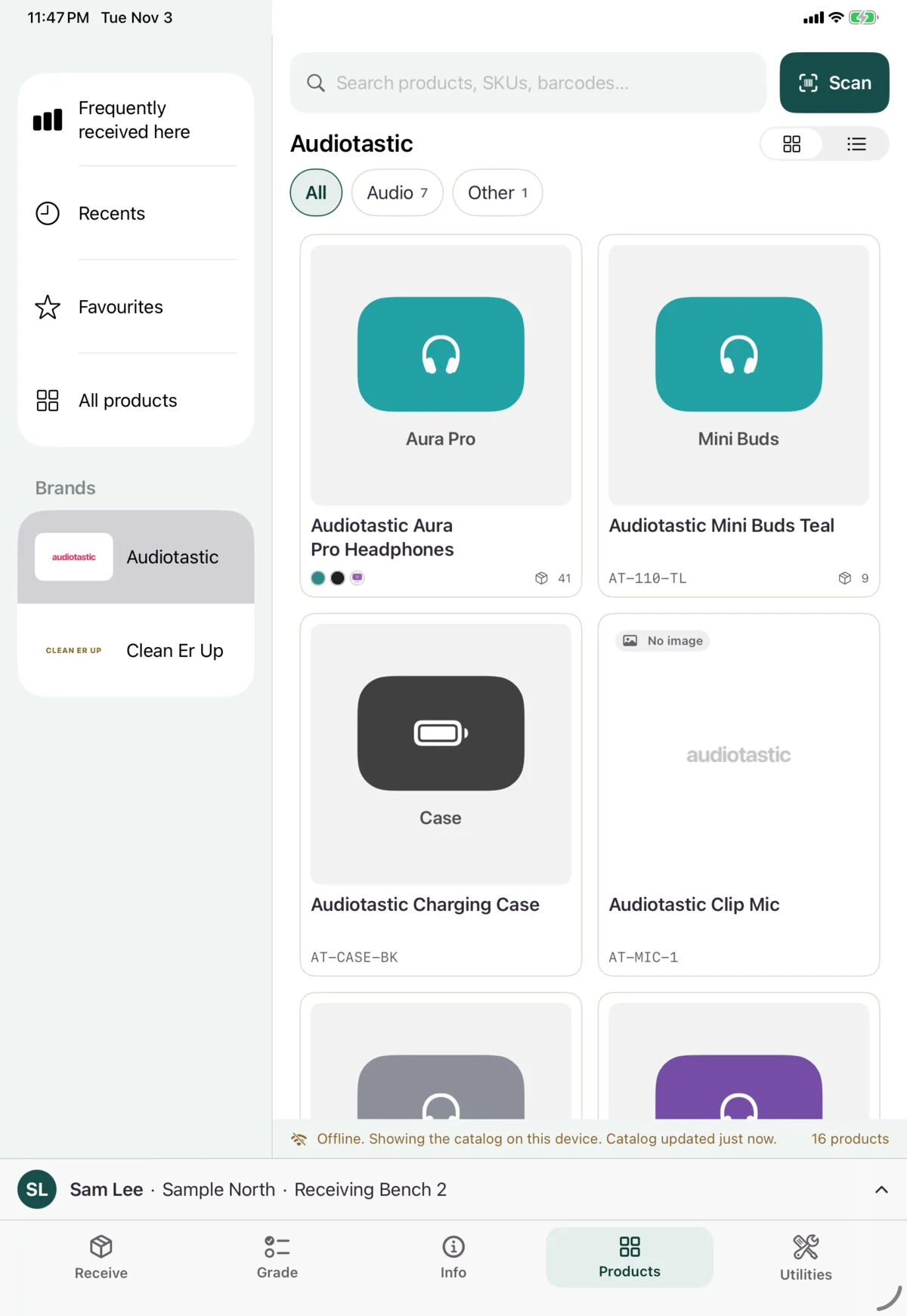
Choose a brand on the left, then tap a product. The buttons at the top right switch between pictures and a list.
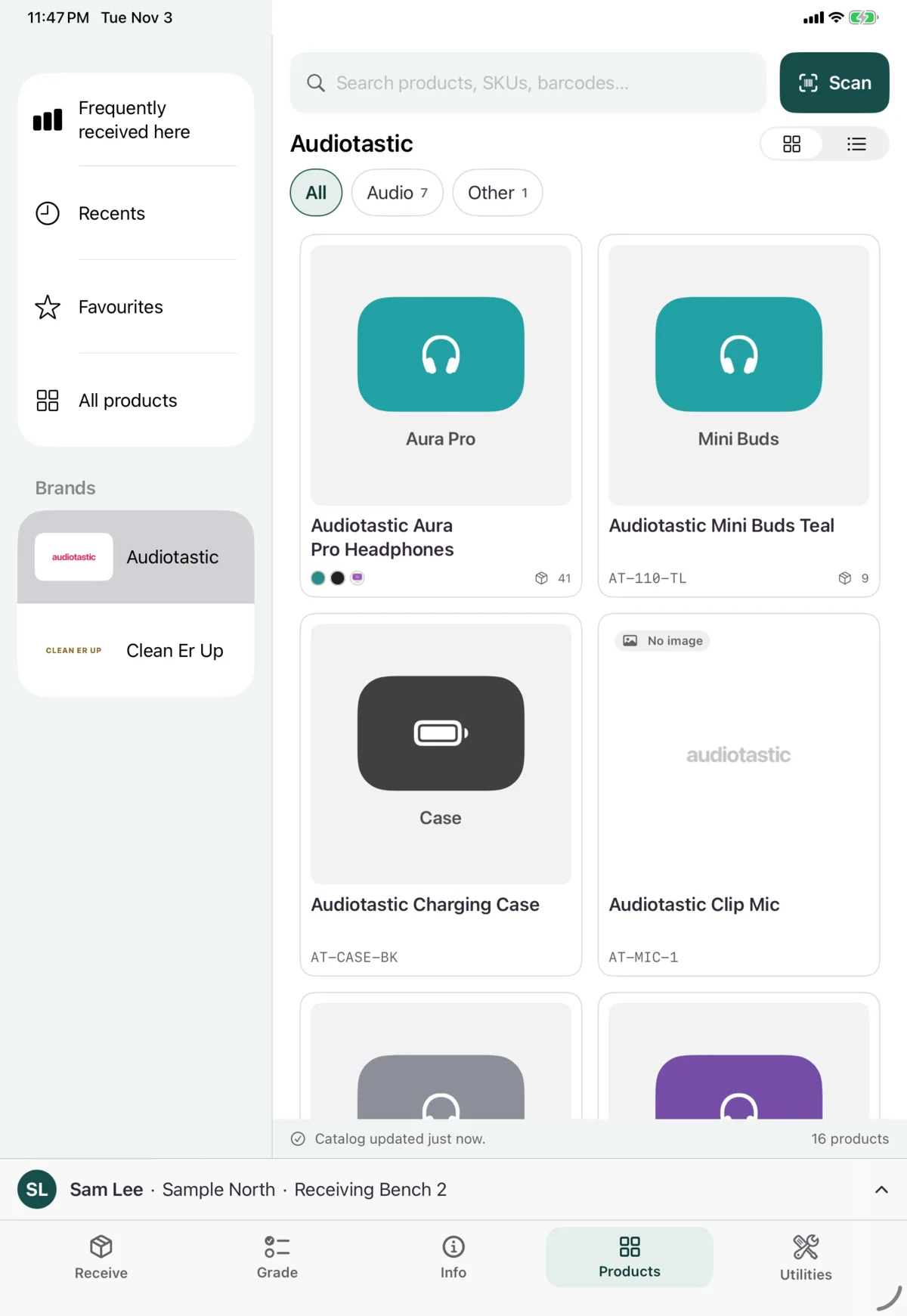
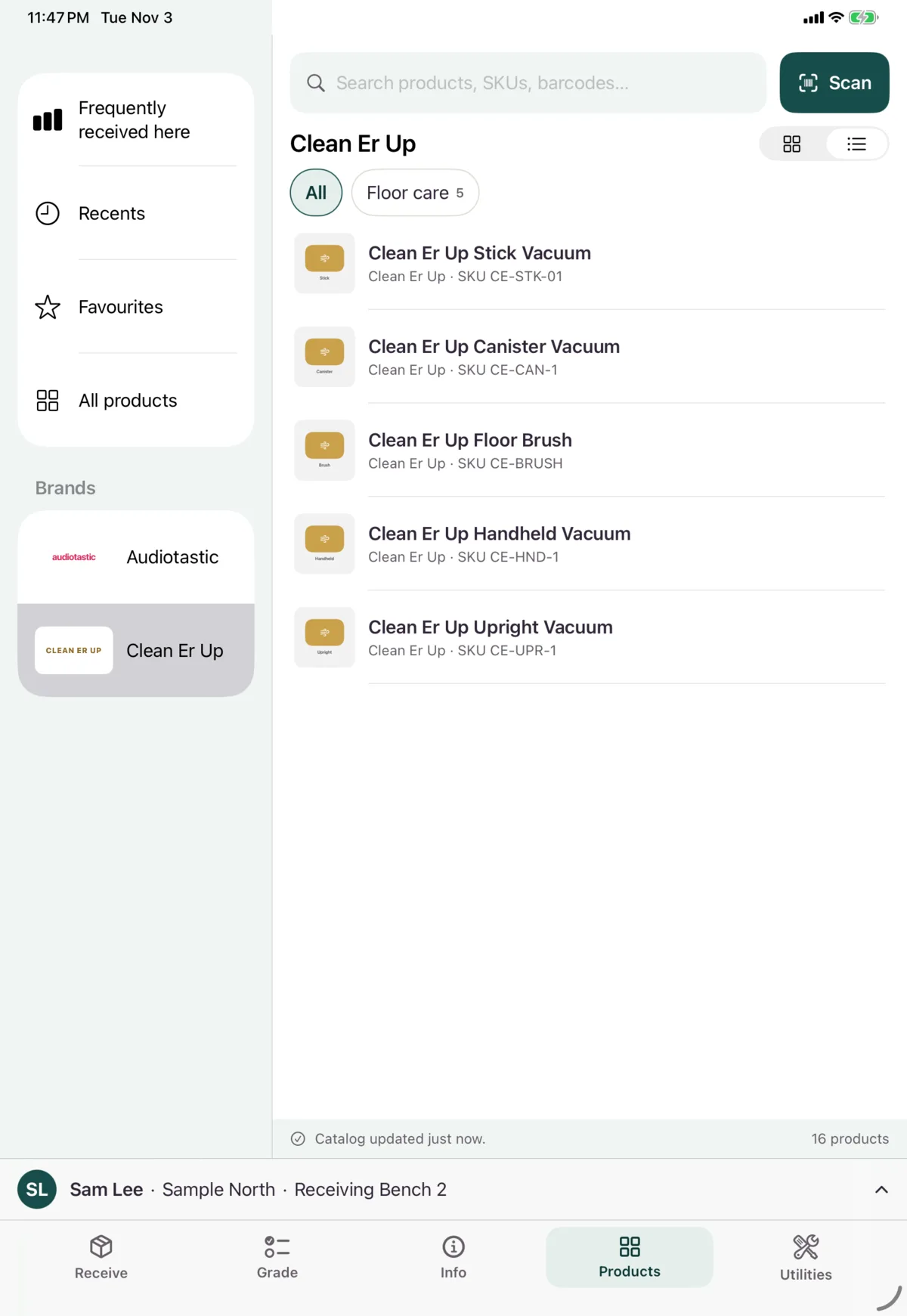
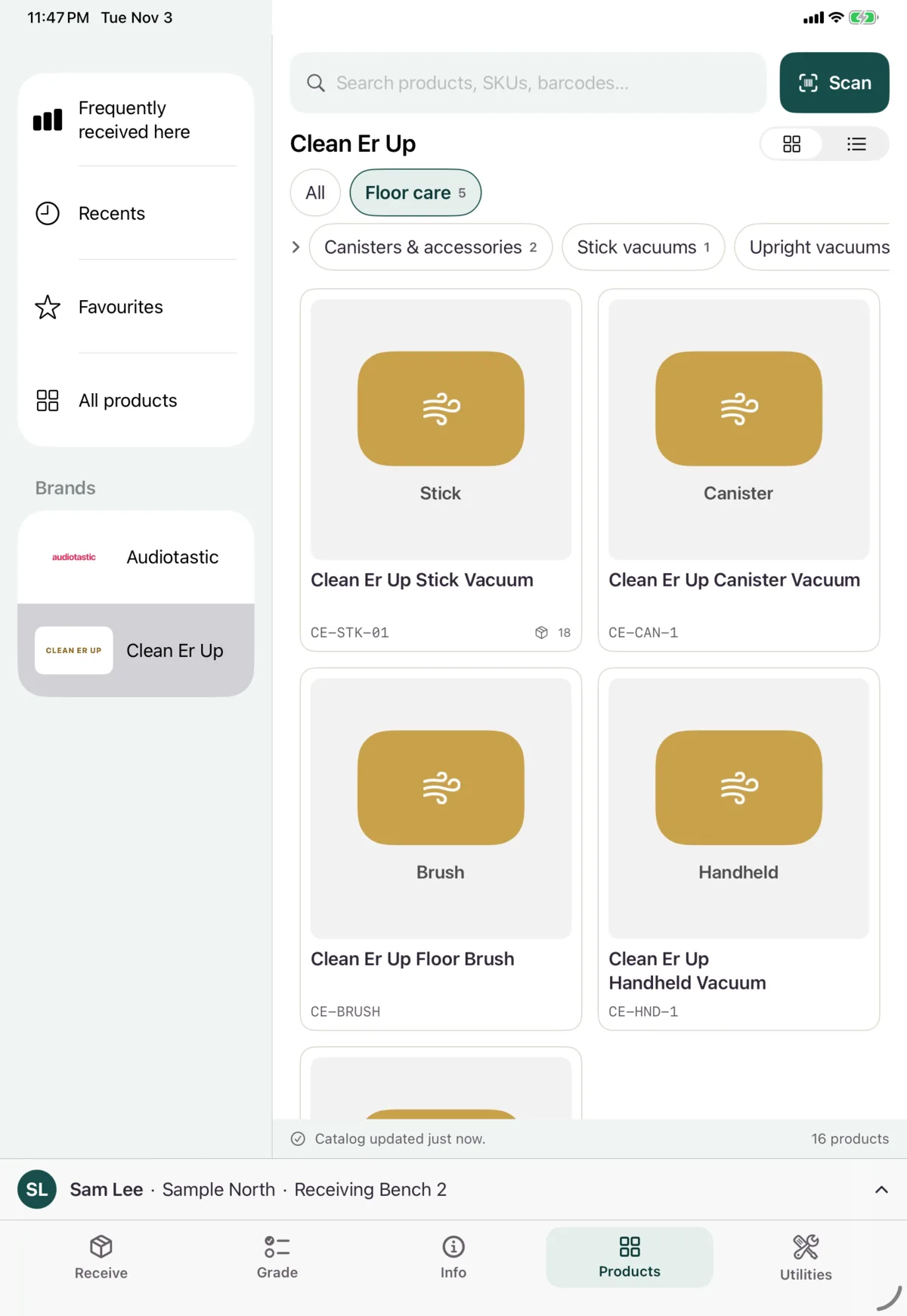
Tap a category above the products to narrow them down. Some categories open a second row.
A tile can show Recall, Unverified (the catalog team hasn’t confirmed it yet) or No image. Colour dots show a product’s variants.
Your lists
| List | What’s in it |
|---|---|
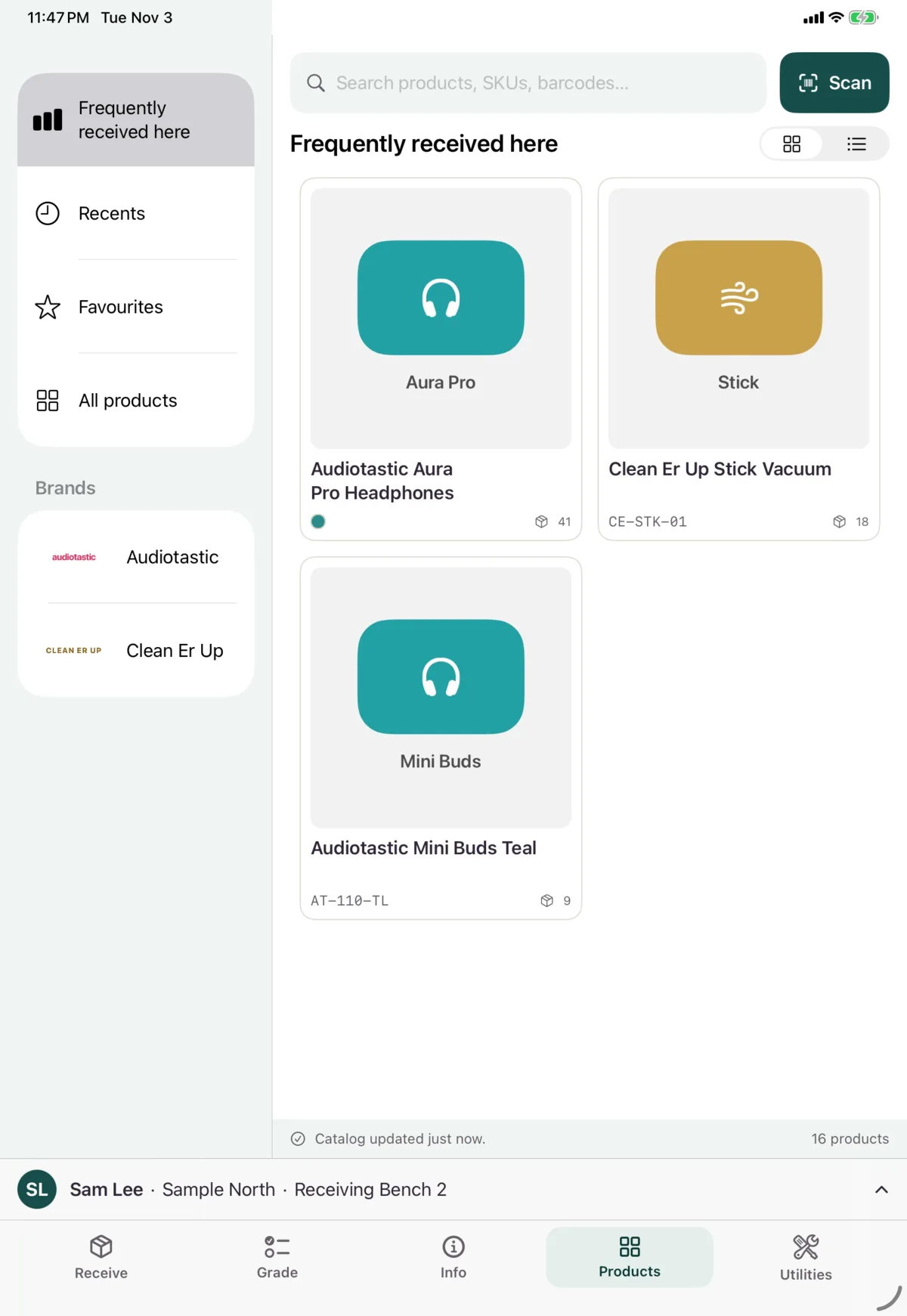
| Frequently received here | What this warehouse received in the last 30 days, with counts |
| Recents | Products you’ve opened |
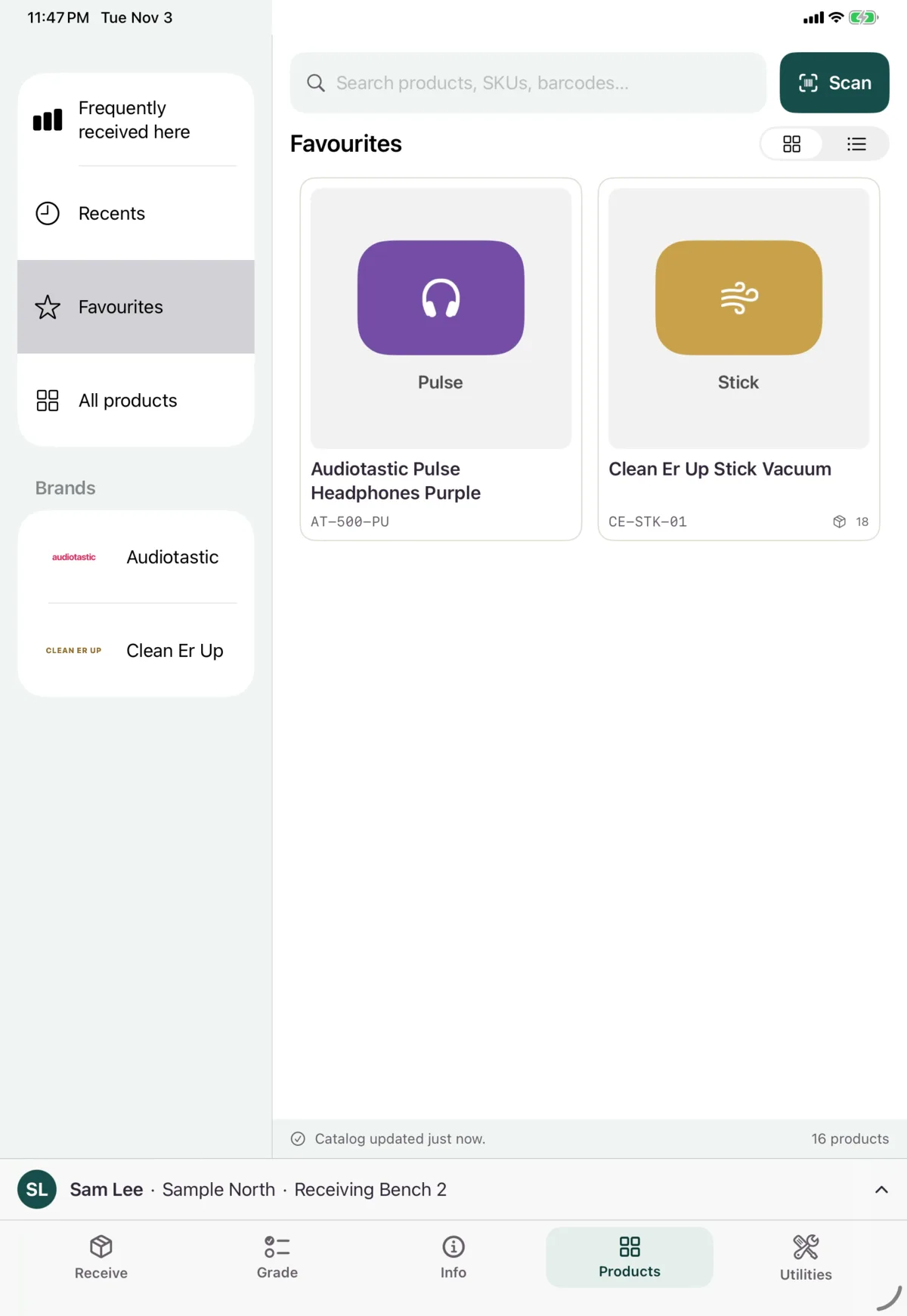
| Favourites | Products you’ve starred |
| All products | Everything |
Search
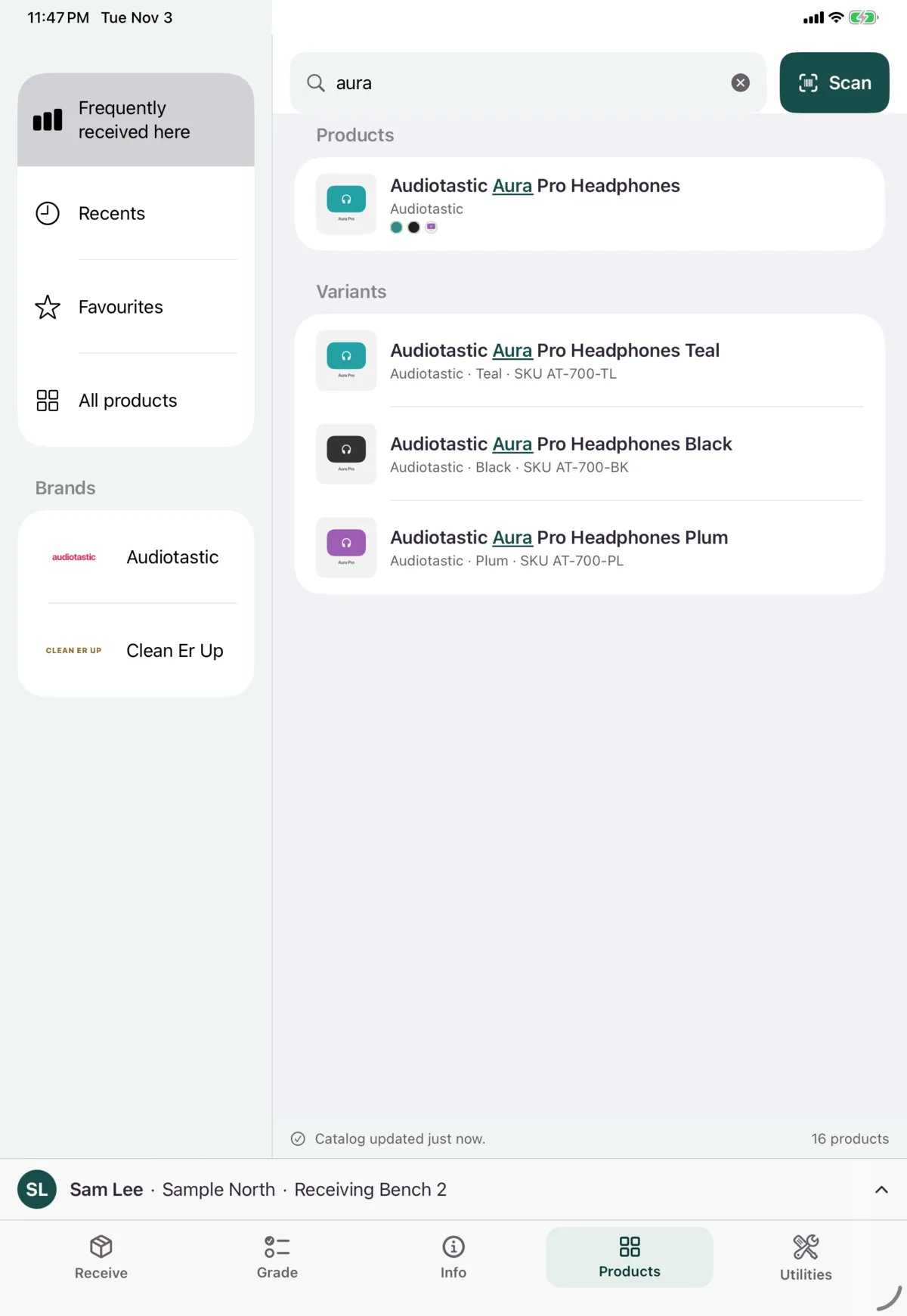
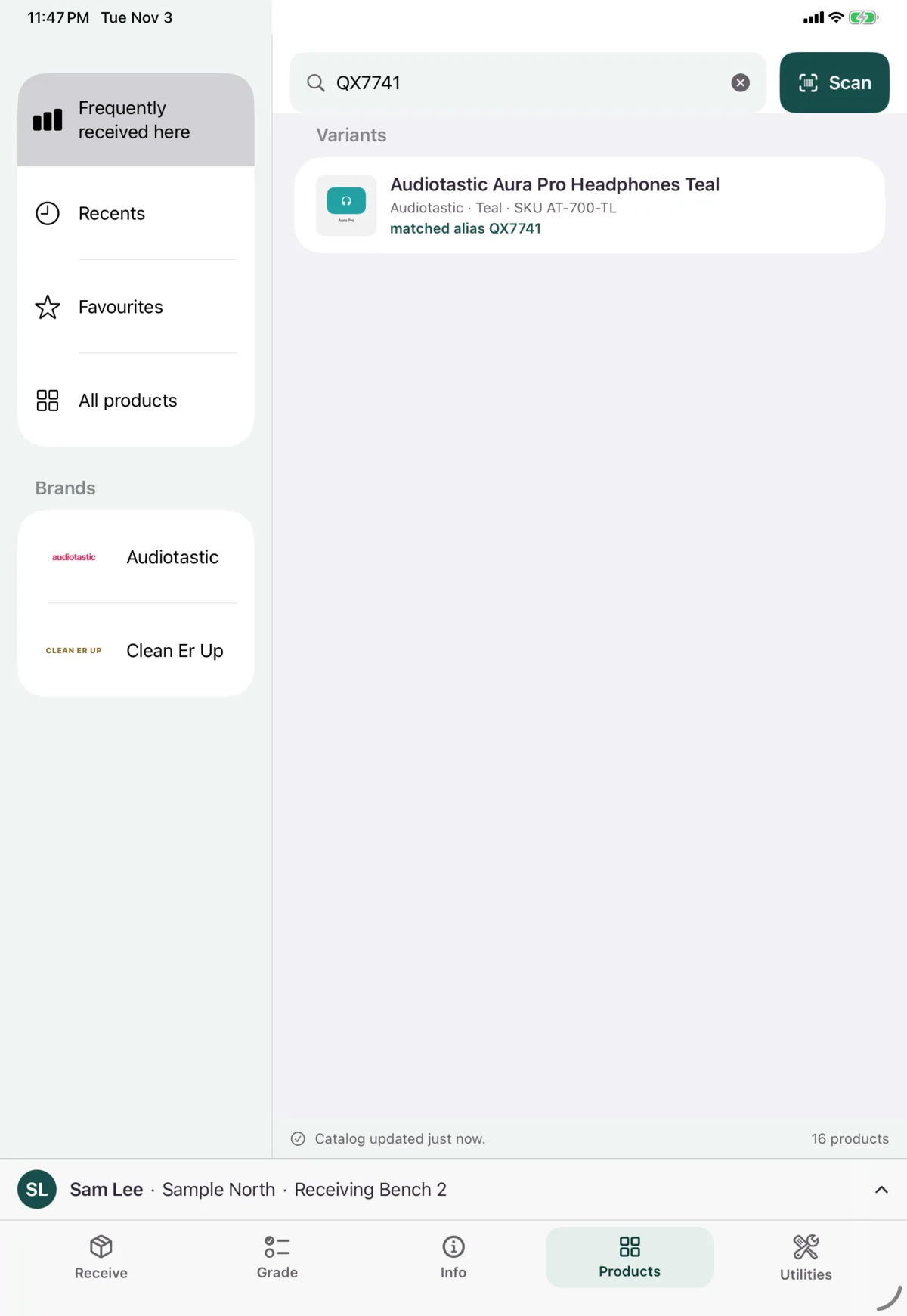
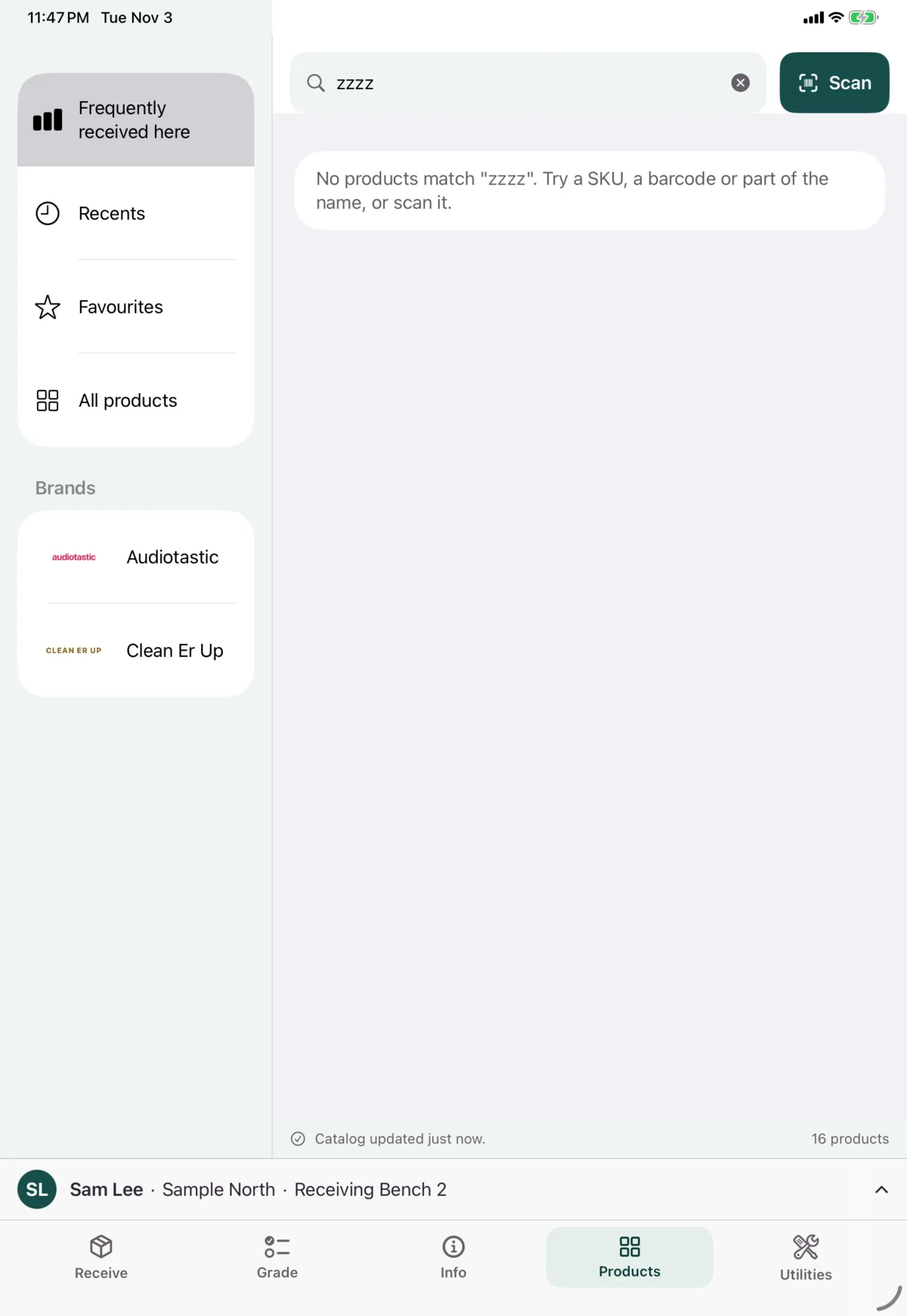
Type part of a name, SKU or barcode. Results appear as you type, and it says what matched if it wasn’t the name.
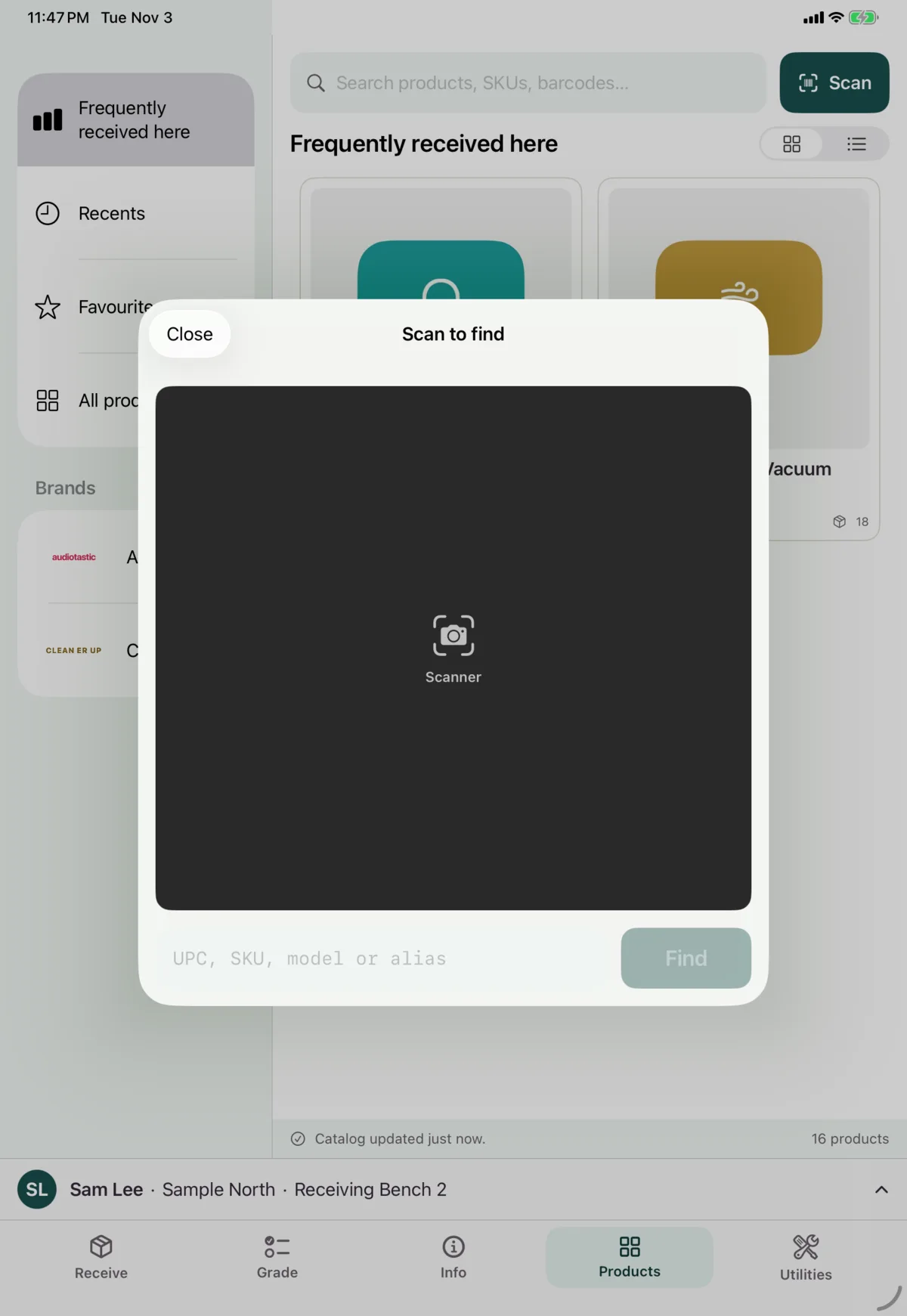
Scan to find
Tap Scan, then scan the barcode or type a UPC, SKU, model or alias and tap Find. A barcode scanner works anywhere on this tab.
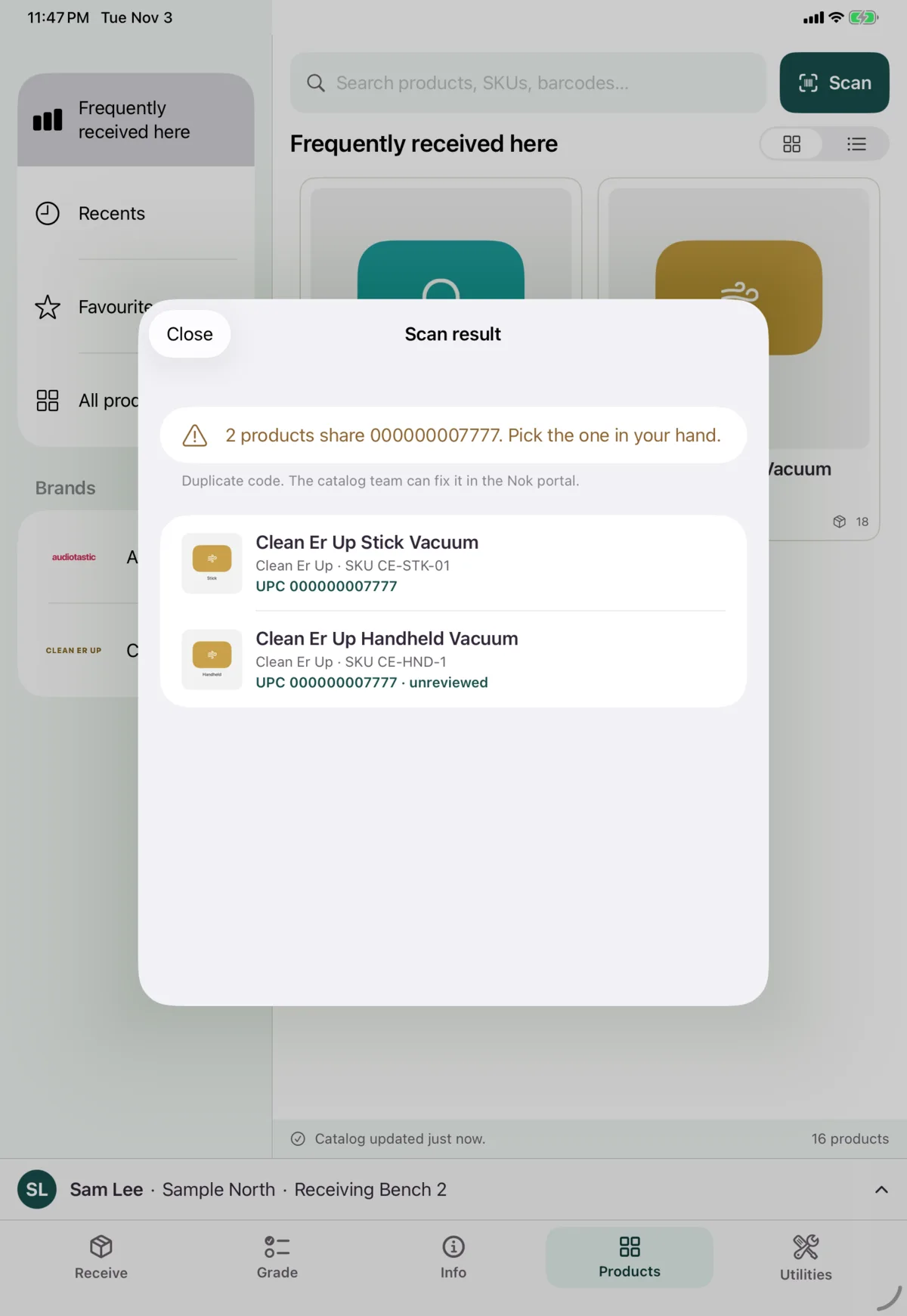
If several products share the code, choose the one in your hand.
If nothing has that code, you can quick-create the product.
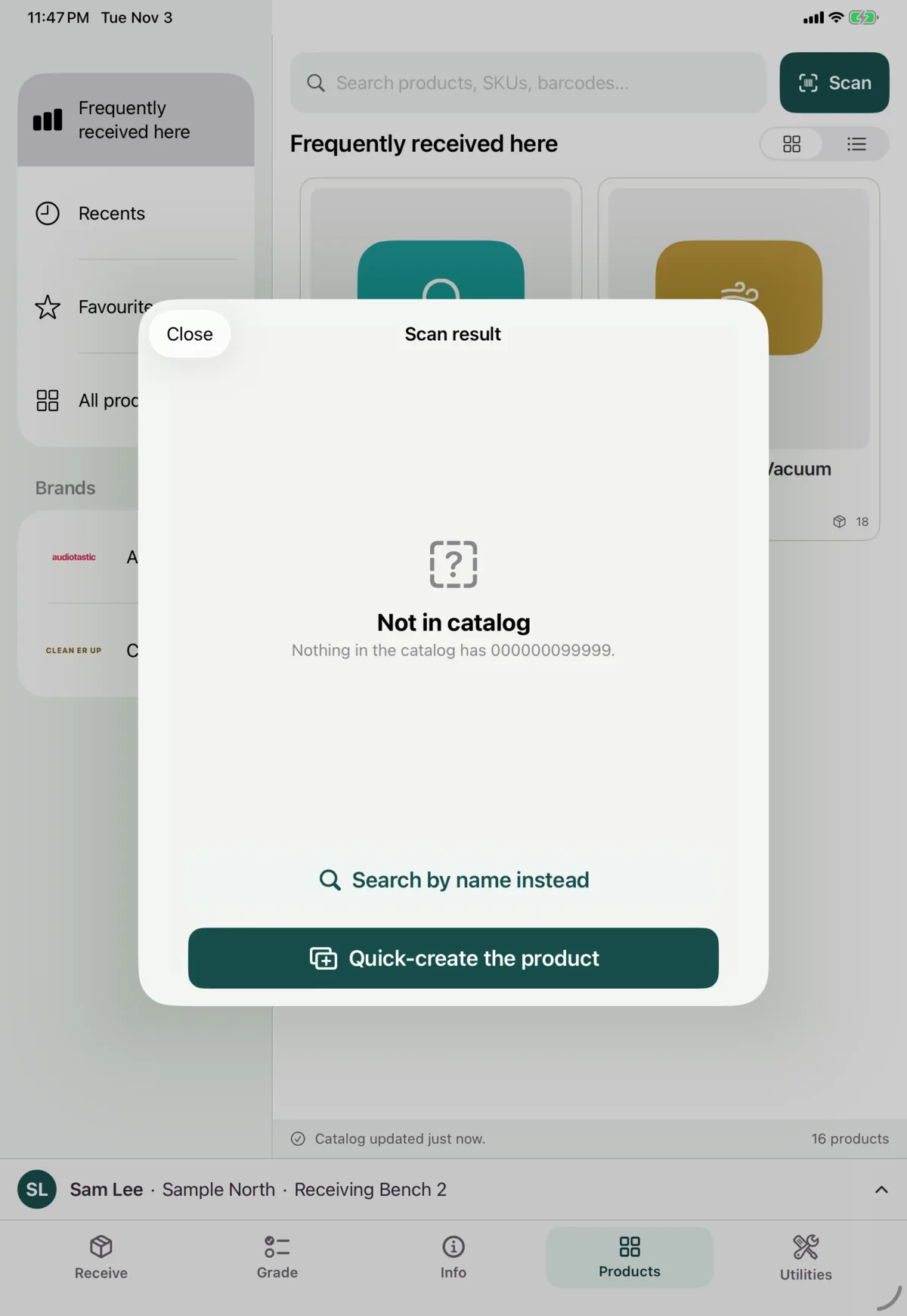
Or tap Search by name instead to go back and search.
Product details
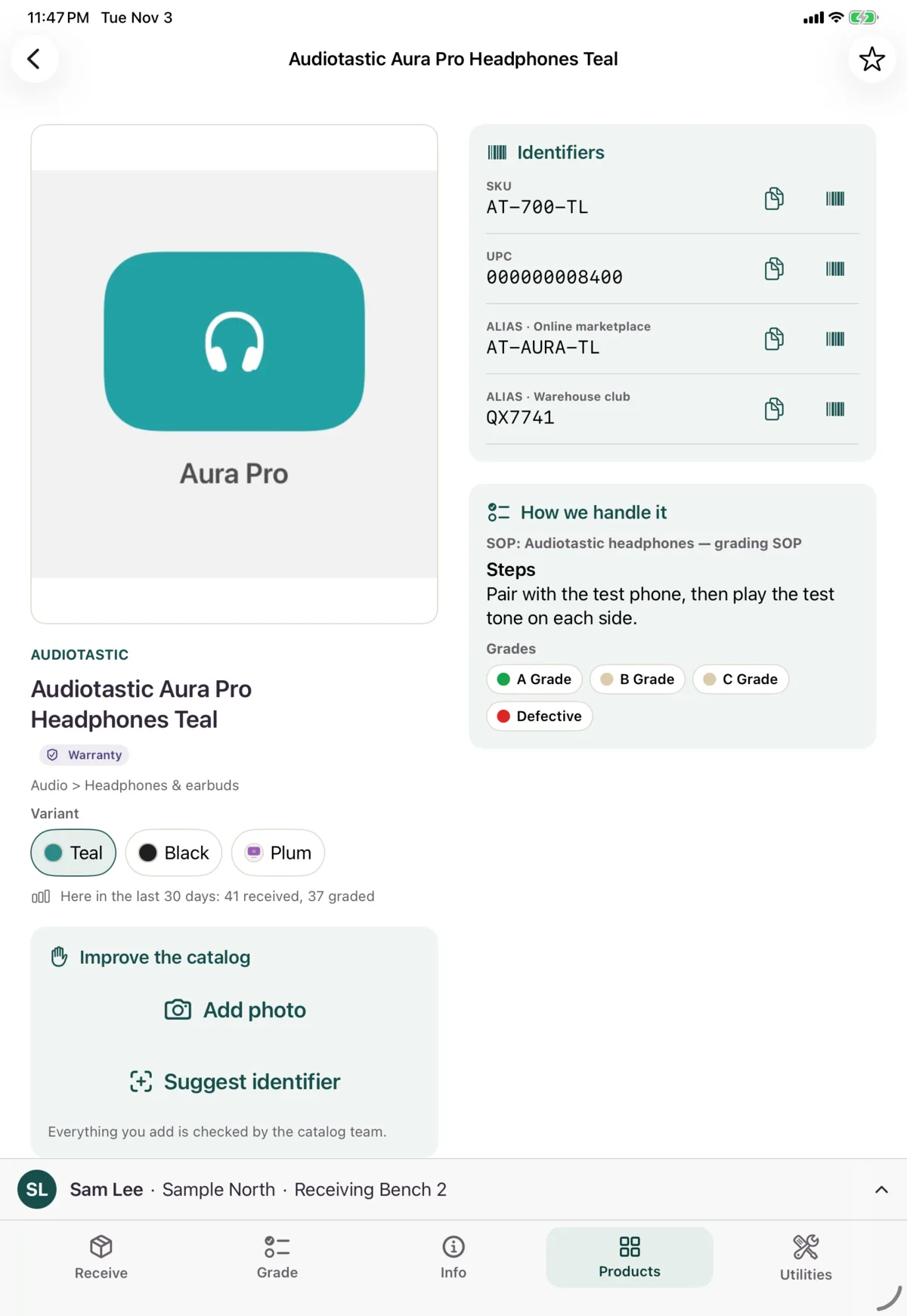
Tap a product to see:
- Its pictures. Tap one to zoom
- Its brand, category and badges, such as Warranty
- Its Variants
- How many were received and graded here in the last 30 days
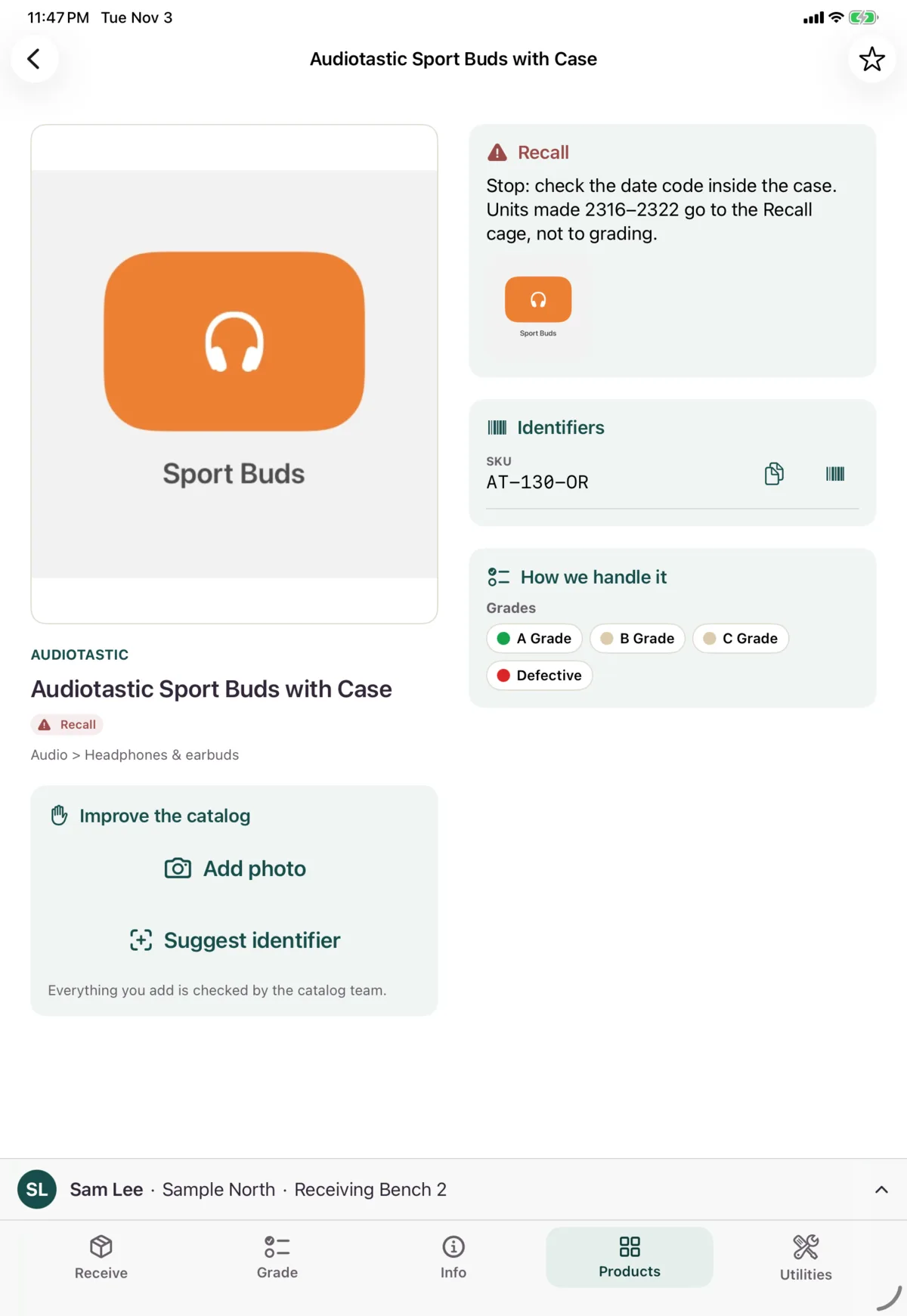
- Any Recall, in red
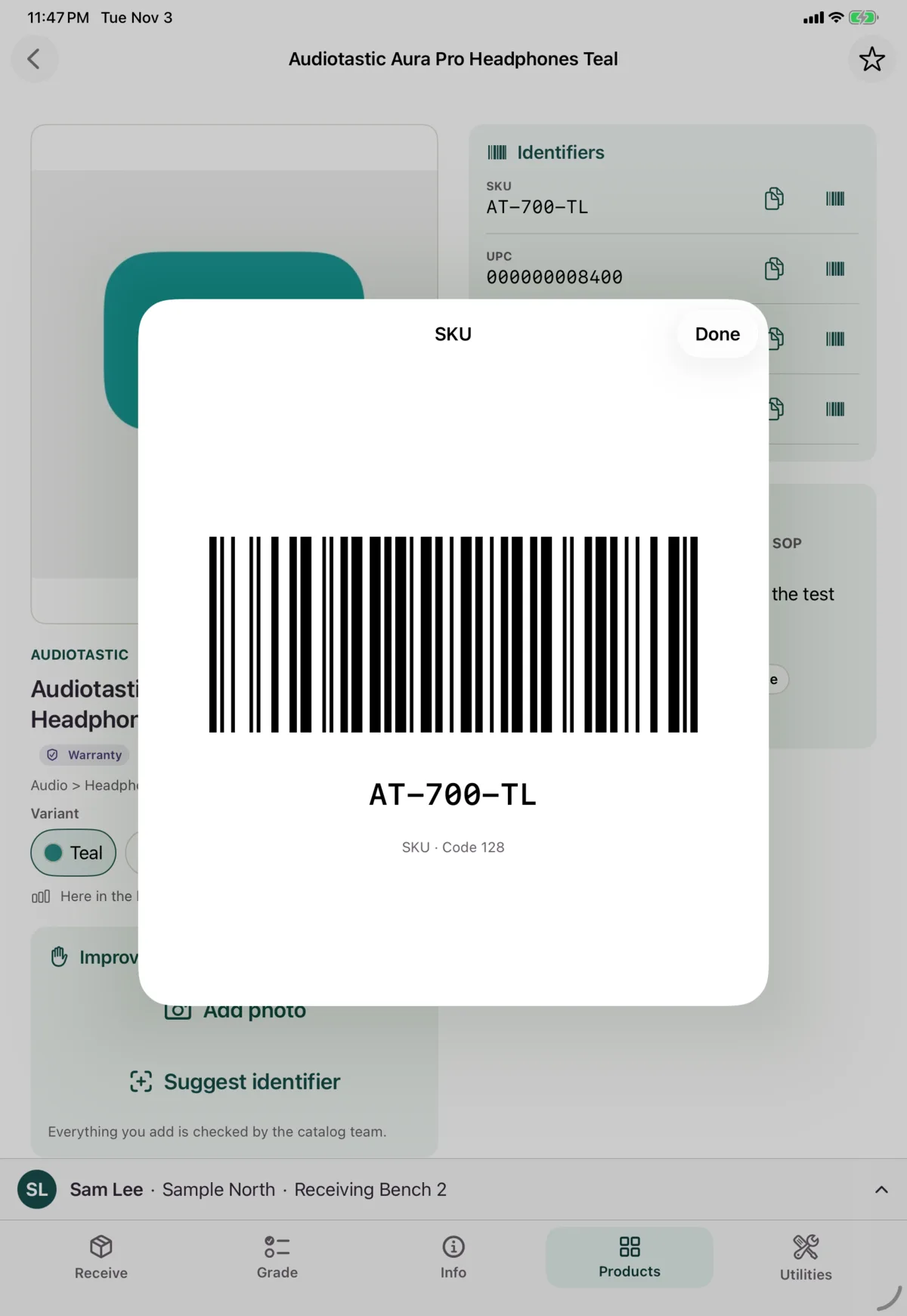
- Its Identifiers, such as SKU and UPC. Tap to copy one, or show it as a barcode to scan with another device
- How we handle it: the SOP and the grades it can receive
Tap the star at the top to add it to your favourites.
Keeping the catalog current
The catalog updates by itself. Pull down to update it now. The line at the bottom says when it last updated, or that you’re offline and seeing the copy on this device.
The first time, tap Download catalog, on Wi-Fi if you can.
Next: Add to the catalog