
Regrade, resume or leave
Grade a unit again
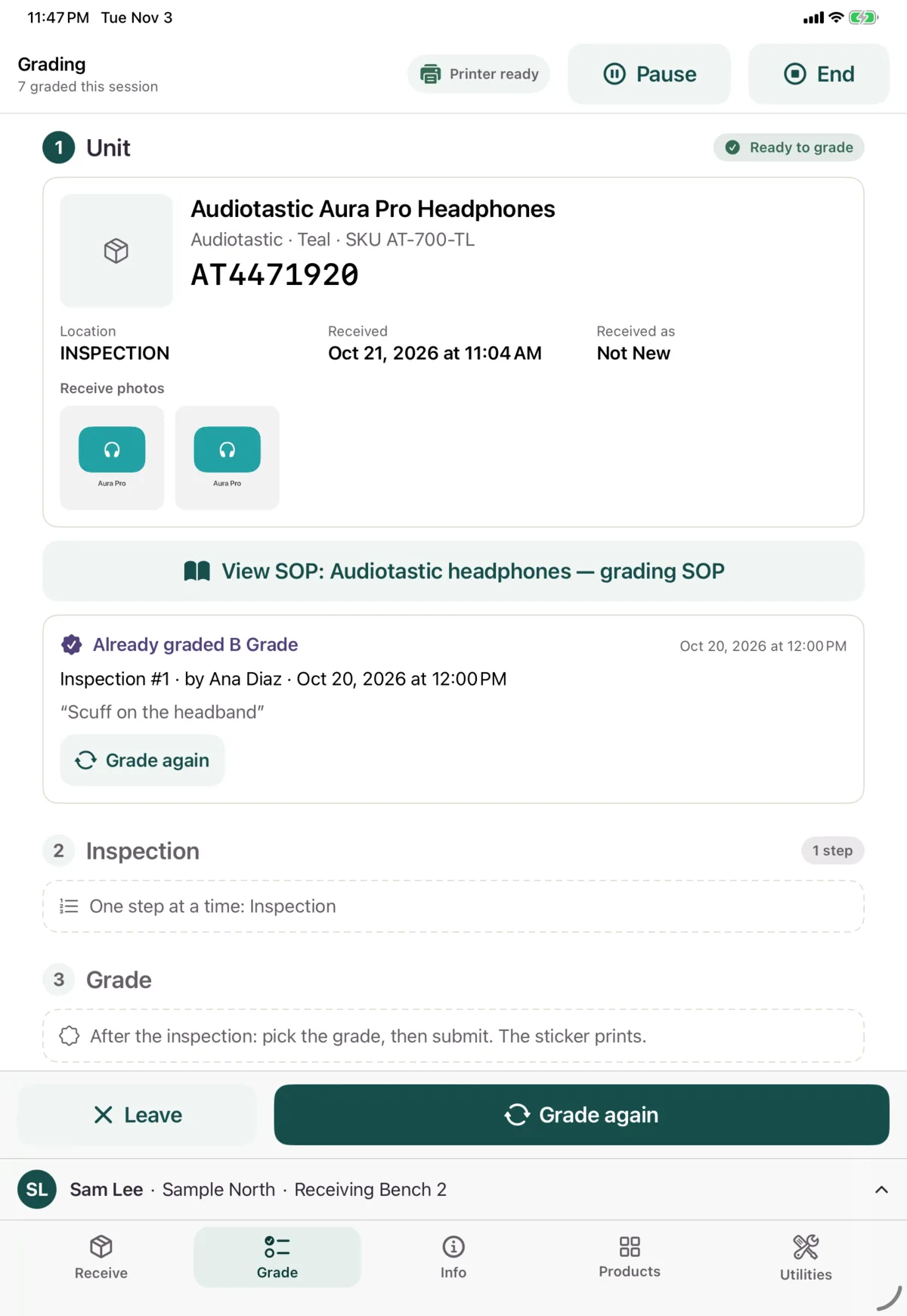
If a unit already has a grade, its screen shows the grade and who gave it. Tap Grade again to correct it.
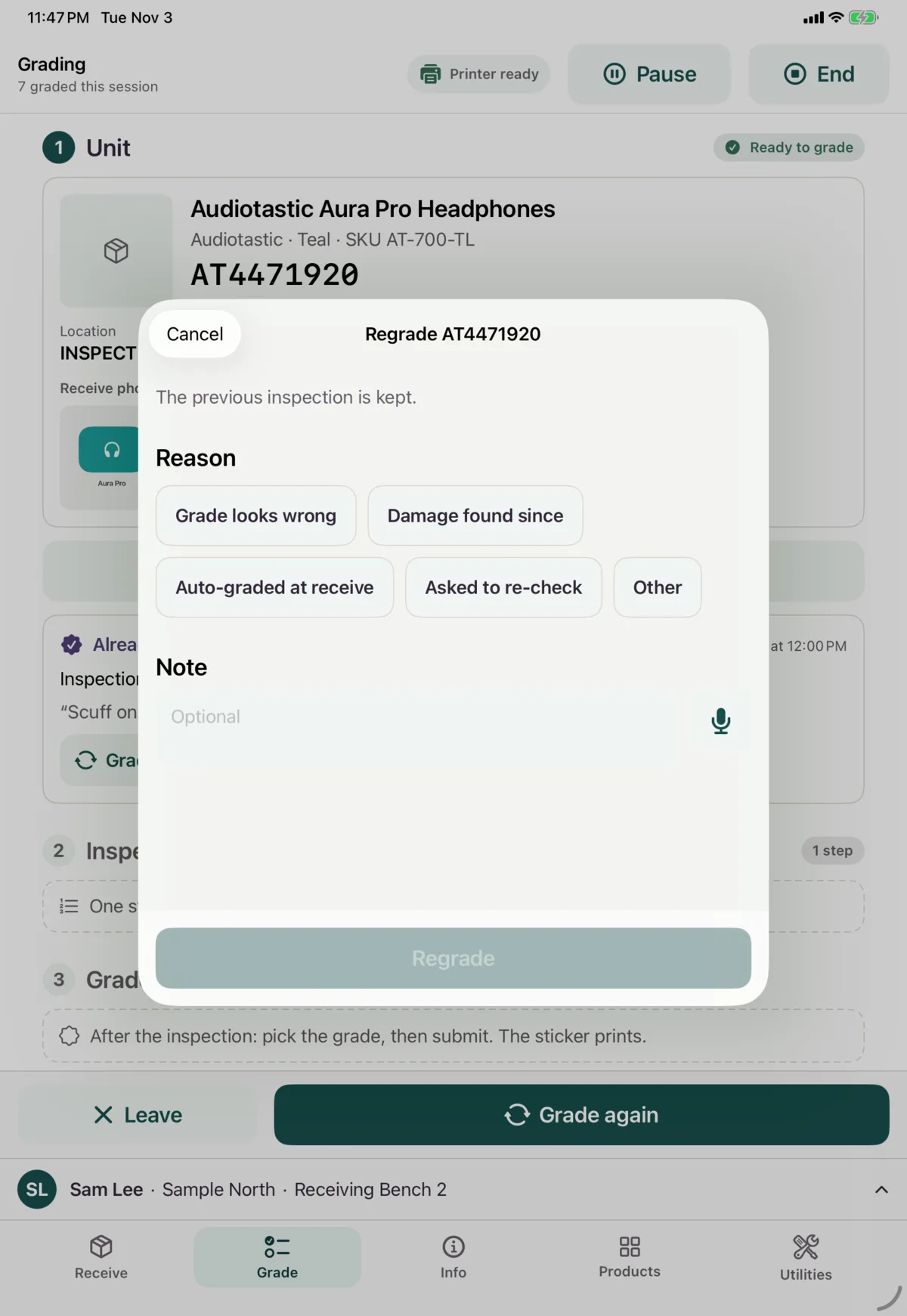
Choose a reason: Grade looks wrong, Damage found since, Auto-graded at receive, Asked to re-check, Retest or Other. If you choose Other, you must add a note. Tap Regrade. The earlier inspection is kept.
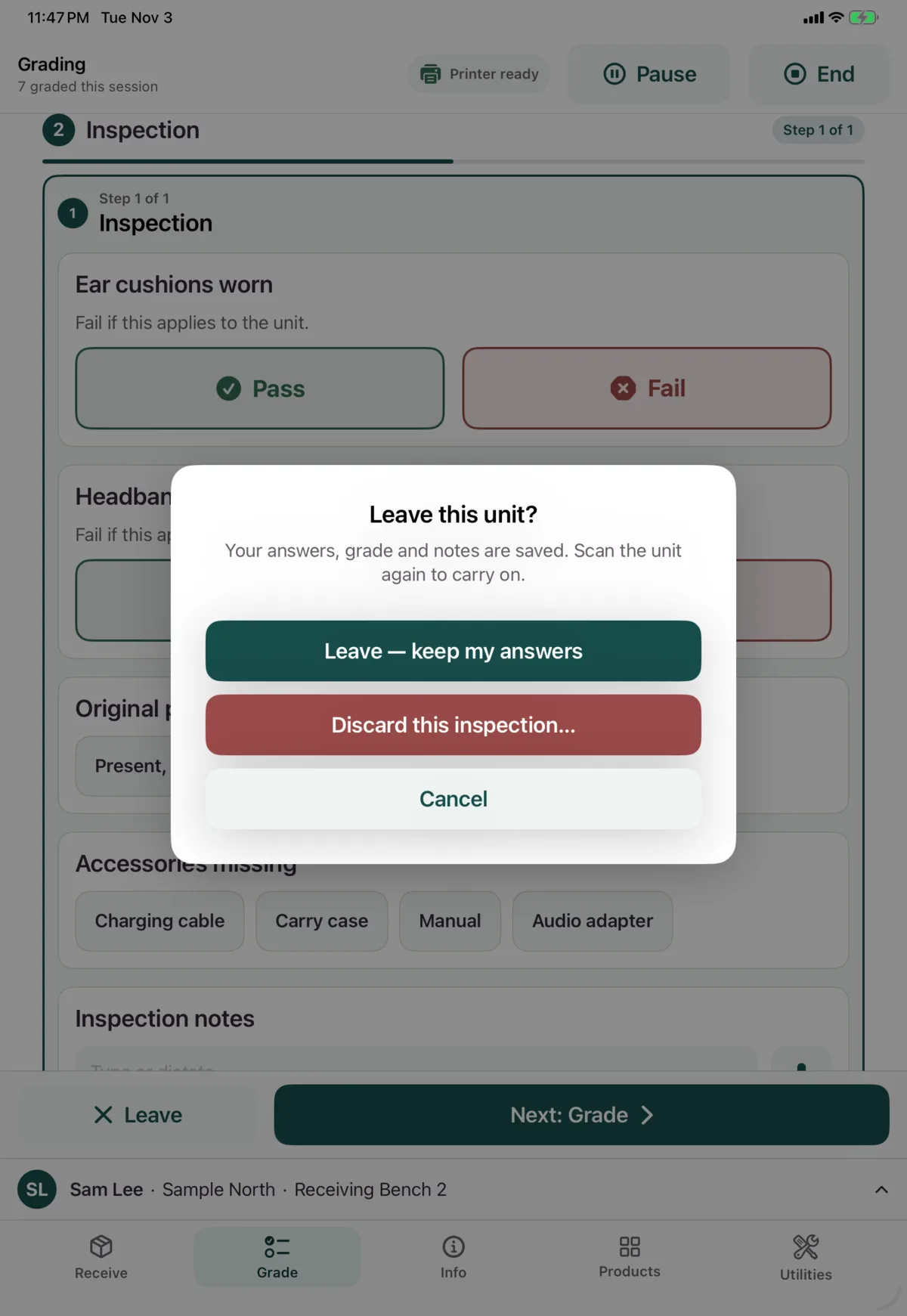
Leave a unit
Tap Leave to go back to scanning.
- Once you’ve started grading, you can choose Leave — keep my answers. Scan the unit again to carry on.
- Your inspection answers, chosen grade, notes and warranty decision are kept, and you carry on where you left off.
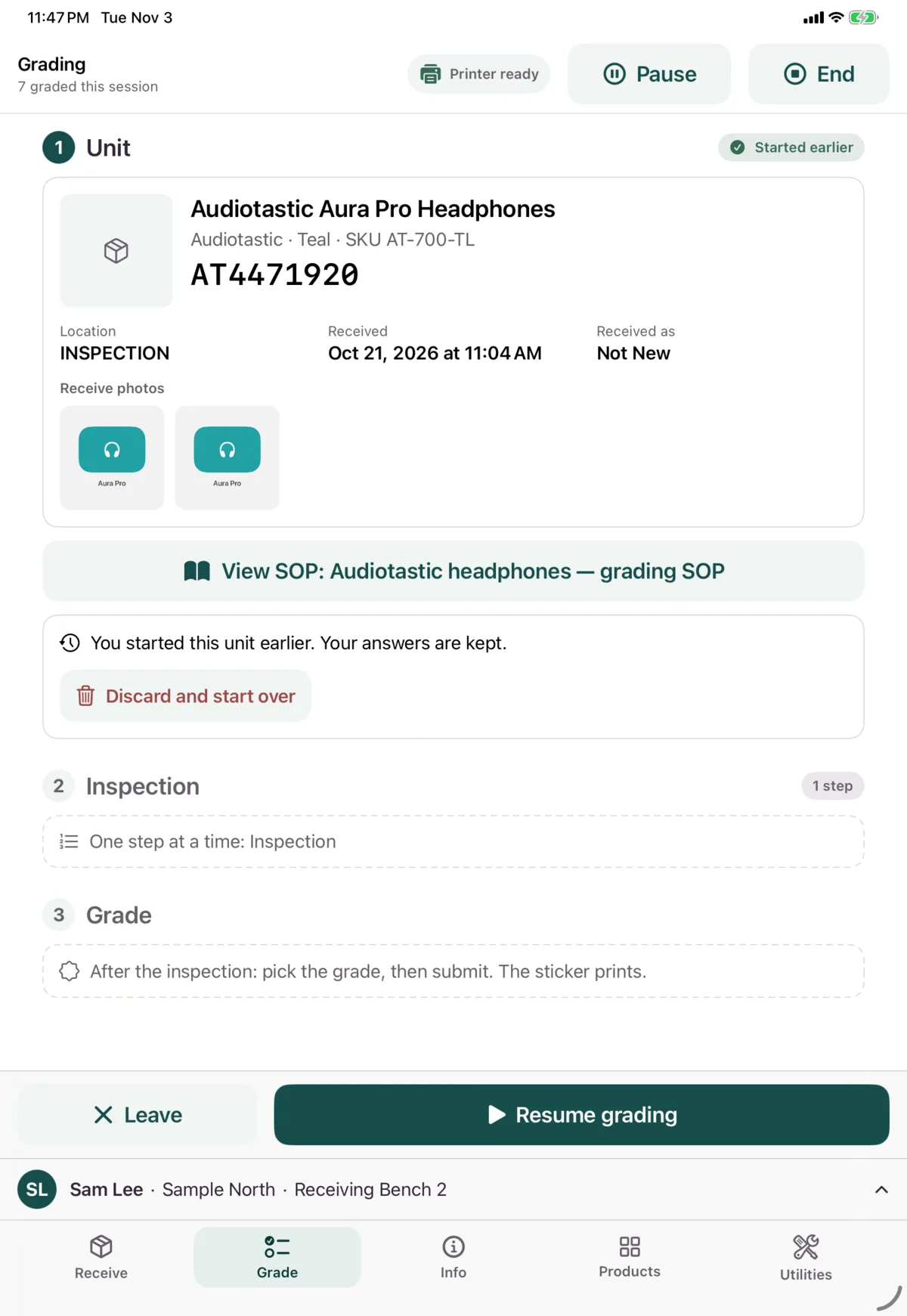
Resume a unit
Scan a unit you’ve started, and it shows Started earlier, with your answers kept. Tap Resume grading. Any photos that aren’t on this device need retaking.
Discard an inspection
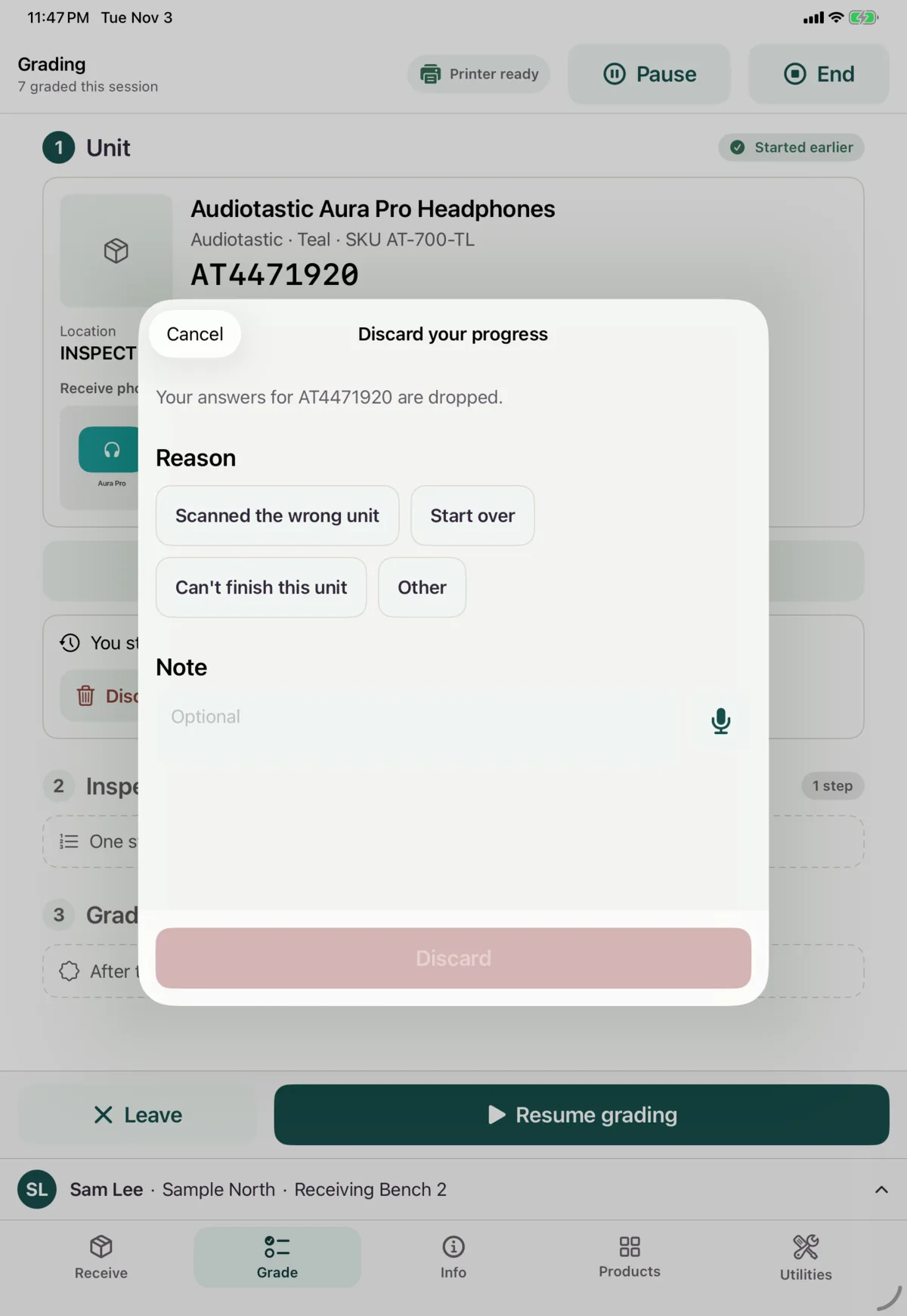
If you scanned the wrong unit or can’t finish it, choose Discard this inspection… when leaving, or Discard and start over on the unit’s screen. Choose a reason and tap Discard. It needs a connection. Anyone can then grade the unit. The record of the attempt is kept.
Someone else has it
If another worker has a unit in progress, you’ll see Blocked and can’t start. An admin can release it in the Nok portal.
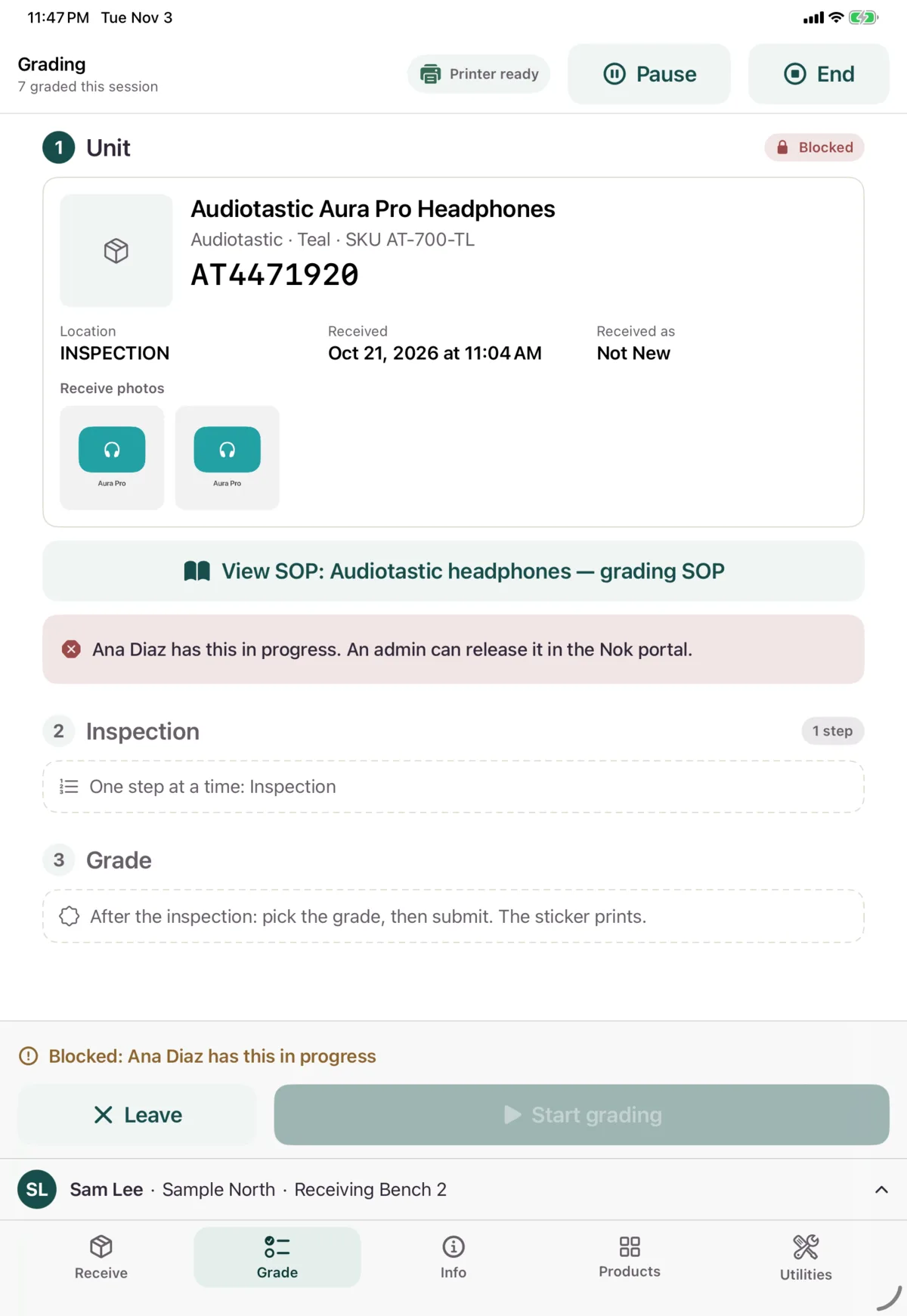
If an admin releases a unit you were grading, you’ll see “This inspection was released in the Nok portal. Start again.”