
Settings and Diagnostics
Settings
Utilities → Settings applies to this device, whoever’s signed in.
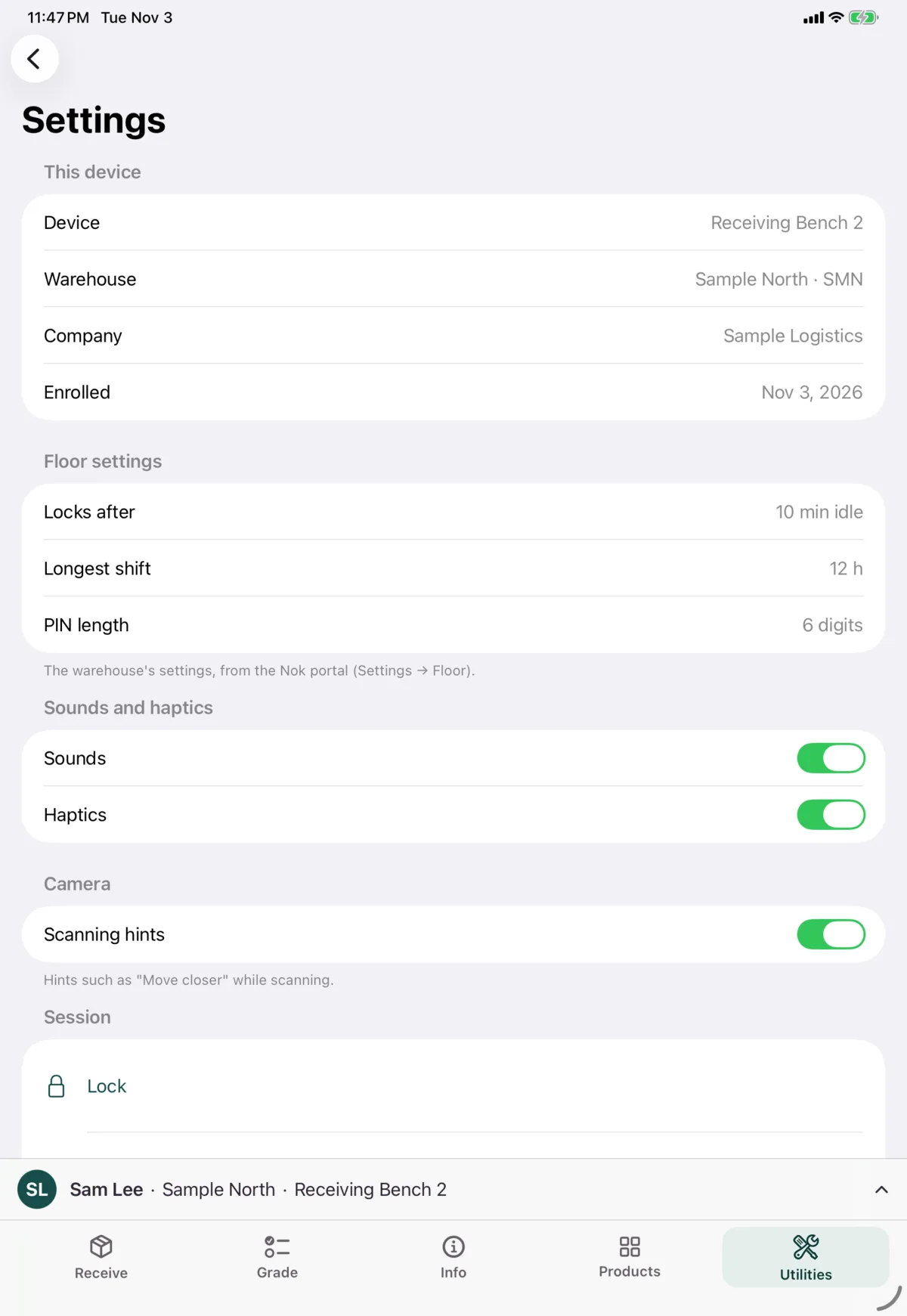
| Section | What’s there |
|---|---|
| This device | The device, warehouse, company and when it was set up. These come from setup and can’t be changed here |
| Floor settings | How quickly it locks, the longest shift and the PIN length. Your warehouse sets these in the Nok portal |
| Sounds and haptics | Sounds and Haptics, for scan, wrong-PIN and print feedback |
| Camera | Scanning hints, such as “Move closer”. Flash for photos, off unless you need it, because the flash glares on glossy labels. It only appears on a device with a flash |
| Session | Lock and Sign out |
Diagnostics
Utilities → Diagnostics helps when something isn’t sending or connecting. You may be asked to check it by whoever supports you.
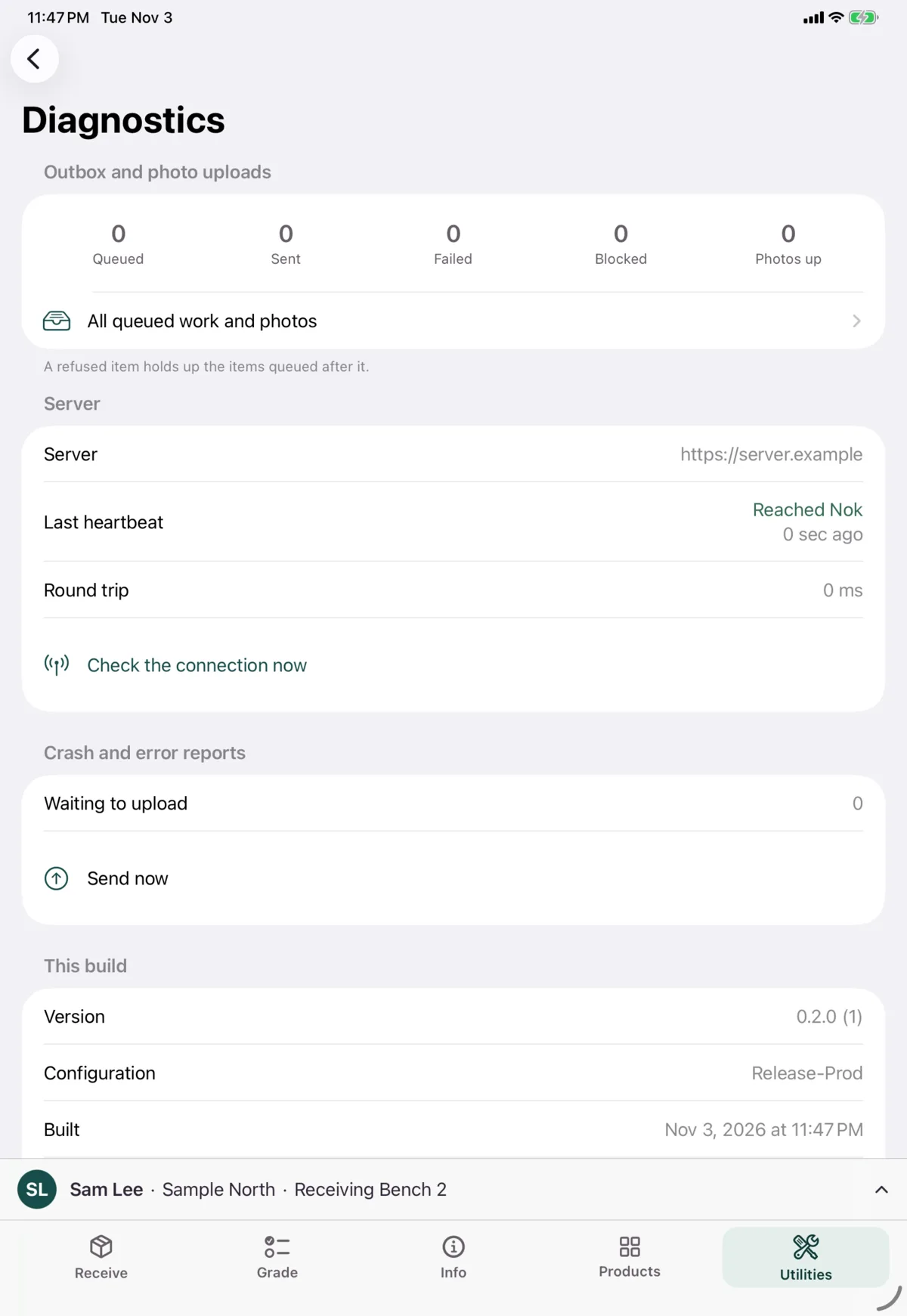
Outbox and photo uploads
Counts of what’s queued, sent, failed and blocked, and photos uploaded. If something needs attention, it’s listed here with Retry. Retry everything that needs attention retries them all.
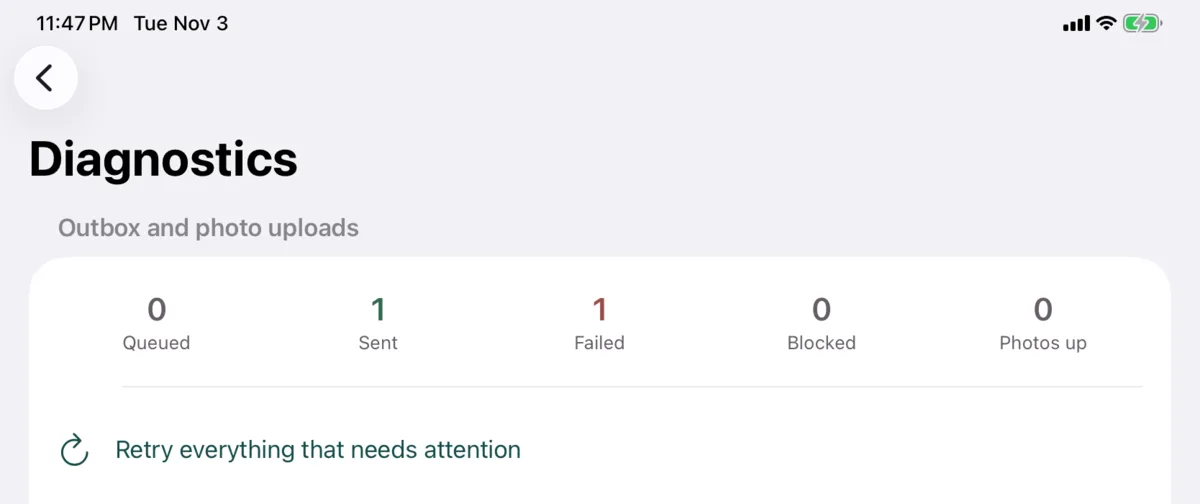
A refused item holds up the items queued after it.
All queued work and photos shows the full list, including anything hidden on the Grade tab. It’s technical, and mostly useful for support.
Server
When the device last reached Nok, how long it took, and whether the device’s clock matches Nok’s. Tap Check the connection now to test it.
A wrong clock can stop things working. If the device’s clock is more than a minute out, Nok refuses its requests. Fix the date and time in iOS Settings.
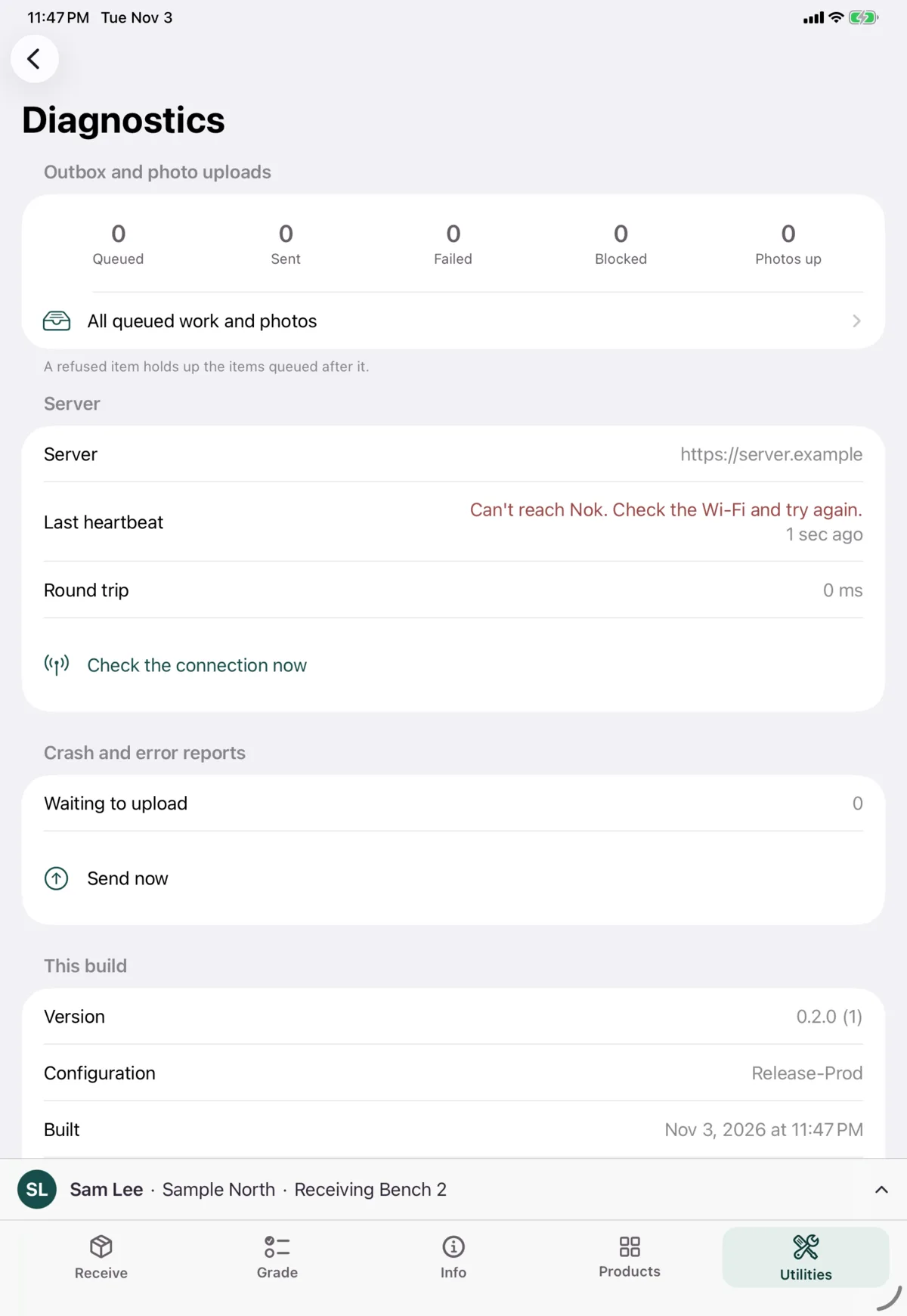
Crash and error reports
How many reports are waiting to upload. Send now sends them.
This build and Enrollment
The app’s version, when it was built and when it expires, and the device’s details.
Logs
Export logs (last 24 h) creates a file to share with support. It covers the time since the app last launched, and includes details about the device and warehouse, so only share it with people who should see those.
Next: Scanning and photos